
How to Claim Your Google Knowledge Panel
Last updated: July 2026
Quick Answer
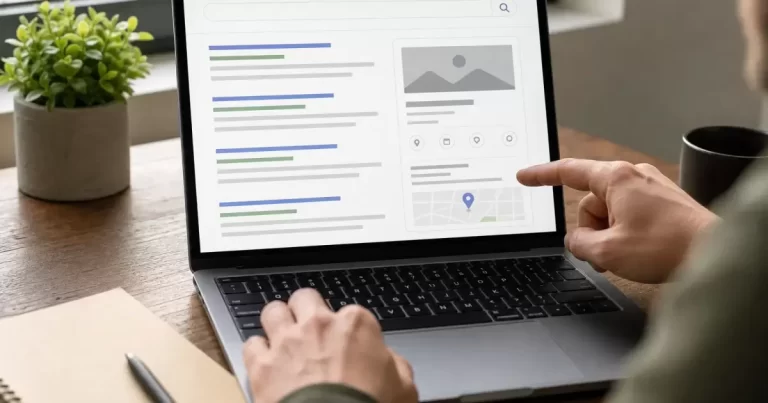
You can claim your Google Knowledge Panel directly from the search results page. Search your name or business, find the panel on the right side of desktop results (or below the local pack on mobile), scroll to the bottom, and click “Claim this knowledge panel.” From there Google walks you through identity verification. At Canada Create™, we treat this as one of the highest-leverage 30 minute tasks a small business owner can do, because it puts a verified badge next to facts Google already trusts about you.
A knowledge panel is not something you build from scratch. Google generates it automatically from sources like Wikipedia, Wikidata, your Google Business Profile, and structured data on your own website. Claiming it does not create a new panel out of thin air, it gives you a verified way to suggest edits and flag inaccuracies once one already exists. If your site does not yet publish consistent business schema, that is usually the first gap worth closing, since Google pulls heavily from whatever structured data it can find on your own domain.
Prerequisites
- A Google account that represents you personally or your business (not a generic shared inbox)
- An existing knowledge panel that already appears when you search your name or brand
- Access to official identity documents or a way to complete a live video verification
- Consistent business information across your website, Google Business Profile, and any Wikipedia or Wikidata entries
- If you run a WordPress site, basic Organization schema already in place helps Google source panel data more reliably, something we walk through in our guide to securing a WordPress website
Step 1: Confirm a Knowledge Panel Already Exists
Search your business name or your personal name in Google. If a panel appears on the right of the results (desktop) or integrated into the results feed (mobile), you have something to claim. If nothing appears, claiming will not work yet: you need enough authoritative signals (press mentions, a Wikipedia page, a well-structured Google Business Profile, or a Wikidata entry) before Google generates one at all.
1.1 Check both desktop and mobile
Panels sometimes render differently by device. Check both before assuming nothing exists.
1.2 Search variations of your name
Try your full legal business name, common abbreviations, and any “doing business as” name. Panels are tied to a specific Knowledge Graph entity, so the wrong variant might show a different (or no) panel. Toronto businesses in particular often run into this when their Google Business Profile lists a neighbourhood name that does not match the legal entity on file, so double check both before you search.
Step 2: Sign In With the Right Google Account
Use the Google account that most directly represents the entity in the panel. For a personal brand, that is your own account. For a business, use an account clearly associated with an admin or officer of the company, ideally one already linked to your Google Business Profile.
2.1 Avoid shared or generic accounts
Google’s verification team looks for a credible connection between the account and the entity. A generic “info@” style login without a real person’s name attached slows the review down. Canada Create™ clients who run their own WordPress hosting often reuse a single shared inbox for everything, which is convenient day to day but works against you here.
Step 3: Locate the Claim Option
With the panel visible, scroll to the very bottom. On desktop you will see a small feedback link; on mobile it is tucked under a “More” or overflow menu. Look for the phrase “Claim this knowledge panel.”
3.1 Desktop path
Scroll the right-hand panel fully to the bottom, past the “People also search for” carousel, to find the claim link.
3.2 Mobile path
Tap the menu icon (three dots) near the top of the panel card and select “Claim this knowledge panel” from the dropdown.
Step 4: Verify Your Identity
Google will ask you to prove you are authorized to represent the entity. Depending on the panel type, this usually involves one or both of:
- A government-issued ID or business registration document
- A short live video verification where you confirm your identity on camera
Have these ready before you start so the flow does not time out partway through.
4.1 Gather supporting materials first
Business registration numbers, a matching domain email address, and links to your official social profiles all help establish legitimacy quickly. Canada Create™ readers often ask whether a numbered corporation without a public-facing brand name can still claim a panel, and the answer is yes, provided your supporting documents clearly connect the numbered entity to the trading name Google displays.
4.2 Complete the verification flow in one sitting
Google’s verification session can expire if left idle. Set aside 15 to 20 uninterrupted minutes.
Step 5: Review and Submit Edit Suggestions
Once verified, you get access to a feedback panel where you can flag incorrect facts, suggest a better description, or update links to your official website and social profiles. You cannot rewrite the panel freely. Google still moderates every suggested change against its own sources.
5.1 Prioritize factual errors
Incorrect addresses, outdated logos, or a wrong founding date are the changes Google approves fastest.
5.2 Keep supporting pages up to date
Google frequently re-pulls facts from your own website and Google Business Profile, so as we cover at Canada Create™, keeping your WordPress site’s schema markup and “About” page current pays off well beyond the initial claim. This matters even more if you compete locally, for example a firm offering web design in downtown Toronto where several similarly named studios might otherwise confuse Google’s entity matching.
Step 6: Wait for Review
Approval timelines vary. Simple factual corrections can process in days; identity verification for a brand-new claim can take a few weeks. You will get an email notification once Google finishes reviewing. In the meantime, avoid making frequent conflicting edits, since resubmitting too often can slow the queue further.
Why This Matters for Small Business SEO
A claimed and accurate knowledge panel builds trust signals that ripple into other parts of search visibility. When a searcher sees a verified panel with the correct hours, logo, and links, they are more likely to click through and less likely to bounce to a competitor’s listing. Canada Create™ has seen this play out repeatedly with Toronto small businesses that pair a claimed panel with a tightened-up Google Business Profile and consistent WordPress CMS content strategy.
It is worth pairing this work with a broader look at your site’s technical foundation. If your pages load slowly or your hosting struggles under traffic spikes, that undermines the credibility a knowledge panel is meant to reinforce. Our breakdown of what slows down WordPress on shared hosting is a useful next stop if you have not audited that side of things recently.
Common Mistakes to Avoid
Business owners often rush this process and submit a claim before they have gathered the right materials. That single misstep accounts for a large share of the rejected claims we hear about from Canada Create™ clients. A few patterns worth avoiding:
- Claiming with the wrong Google account. If your business has multiple admins, agree in advance on which single account will hold the claim, so future edits do not get split across two disconnected logins.
- Ignoring mismatched NAP data. Name, address, and phone number inconsistencies between your website footer, your Google Business Profile, and any directory listings are one of the most common reasons Google flags a claim for extra review.
- Submitting too many edits at once. Google’s reviewers tend to move faster through a handful of clearly justified corrections than a long list of subjective preferences.
- Forgetting to update the source pages. If your knowledge panel pulls a fact from your own website, editing that fact only in the panel feedback form without also updating your site creates a mismatch that resurfaces on the next crawl.
How Toronto Businesses Can Use This for Local SEO
For a local business, a claimed and accurate knowledge panel works alongside your Google Business Profile rather than replacing it. Searchers researching a service provider in a specific neighbourhood, for example someone comparing firms that specialize in SEO in King West, will often glance at both the local pack and any panel that appears before deciding who to contact. Getting the panel right removes a point of friction at exactly the moment a prospective client is deciding whether to trust you.
Canada Create™ typically recommends bundling this task with a broader technical audit: confirm your NAP data matches everywhere, confirm your Organization schema is valid, and confirm your Google Business Profile categories are accurate. Each of those signals feeds into how confidently Google surfaces and maintains your panel over time.
Troubleshooting
| Problem | Likely Cause | Fix |
|---|---|---|
| No “Claim this knowledge panel” link appears | No panel exists yet for the entity | Build authority signals first: Google Business Profile, press coverage, structured data on your site |
| Verification request was denied | Mismatched name or insufficient documentation | Resubmit with clearer proof the account represents the exact entity in the panel |
| Panel shows outdated information after claiming | Google has not recrawled your source pages | Update your website and Google Business Profile, then allow time for a recrawl |
| Claim button is missing on mobile | UI location varies by device and app version | Check the overflow menu, or try the request from a desktop browser instead |
Canada Create™ builds and optimizes WordPress sites for Toronto businesses. Tell us your goals and we will recommend the right setup.
Frequently Asked Questions
How long does it take to claim a Google Knowledge Panel?
Most verifications resolve within a few days to a few weeks. Straightforward factual corrections on an already-verified panel tend to move faster than a first-time identity verification.
Do I need a Wikipedia page to get a knowledge panel?
No. Google can generate panels from Wikidata, a well-optimized Google Business Profile, structured data, and consistent press mentions, though a Wikipedia entry certainly helps for prominent brands.
Can I edit every field in my knowledge panel?
No. Claiming gives you a channel to suggest corrections and flag errors. Google still controls what actually publishes, based on the sources it trusts.
Is there a cost to claim a knowledge panel?
No, claiming and verifying a knowledge panel through Google is free. Be wary of any third party charging a fee specifically to “get you a knowledge panel,” since the underlying process is a free Google feature.
What if two businesses share a similar name and the wrong panel shows my competitor?
Use the feedback option on the incorrect panel to report the mismatch, and make sure your own structured data and Google Business Profile are distinct and consistent so Google can tell the entities apart.
Related Resources
- How to Secure Your WordPress Website
- 14 Reasons to Use WordPress as Your CMS
- 7 Tips to Fix WordPress Form Issues
{
“@context”: “https://schema.org”,
“@type”: “Article”,
“headline”: “How to Claim Your Google Knowledge Panel”,
“description”: “Want that box to appear in search results? Here is how to claim your Google Knowledge Panel step by step for your WordPress site, explained step by step.”,
“datePublished”: “2026-07-21T09:00:00-04:00”,
“dateModified”: “2026-07-21T09:00:00-04:00”,
“author”: {
“@type”: “Person”,
“name”: “Canada Create™ Editorial Team”
},
“publisher”: {
“@type”: “Organization”,
“name”: “Canada Create™”,
“logo”: {
“@type”: “ImageObject”,
“url”: “https://canadacreate.com/wp-content/uploads/2024/03/canada-create-logo.png”
}
},
“mainEntityOfPage”: {
“@type”: “WebPage”,
“@id”: “https://canadacreate.com/claim-google-knowledge-panel/”
}
}
{
“@context”: “https://schema.org”,
“@type”: “BreadcrumbList”,
“itemListElement”: [
{
“@type”: “ListItem”,
“position”: 1,
“name”: “Home”,
“item”: “https://canadacreate.com/”
},
{
“@type”: “ListItem”,
“position”: 2,
“name”: “Tutorials”,
“item”: “https://canadacreate.com/category/tutorials/”
},
{
“@type”: “ListItem”,
“position”: 3,
“name”: “How to Claim Your Google Knowledge Panel”,
“item”: “https://canadacreate.com/claim-google-knowledge-panel/”
}
]
}
{
“@context”: “https://schema.org”,
“@type”: “FAQPage”,
“mainEntity”: [
{
“@type”: “Question”,
“name”: “How long does it take to claim a Google Knowledge Panel?”,
“acceptedAnswer”: {
“@type”: “Answer”,
“text”: “Most verifications resolve within a few days to a few weeks. Straightforward factual corrections on an already-verified panel tend to move faster than a first-time identity verification.”
}
},
{
“@type”: “Question”,
“name”: “Do I need a Wikipedia page to get a knowledge panel?”,
“acceptedAnswer”: {
“@type”: “Answer”,
“text”: “No. Google can generate panels from Wikidata, a well-optimized Google Business Profile, structured data, and consistent press mentions, though a Wikipedia entry certainly helps for prominent brands.”
}
},
{
“@type”: “Question”,
“name”: “Can I edit every field in my knowledge panel?”,
“acceptedAnswer”: {
“@type”: “Answer”,
“text”: “No. Claiming gives you a channel to suggest corrections and flag errors. Google still controls what actually publishes, based on the sources it trusts.”
}
},
{
“@type”: “Question”,
“name”: “Is there a cost to claim a knowledge panel?”,
“acceptedAnswer”: {
“@type”: “Answer”,
“text”: “No, claiming and verifying a knowledge panel through Google is free. Be wary of any third party charging a fee specifically to get you a knowledge panel, since the underlying process is a free Google feature.”
}
},
{
“@type”: “Question”,
“name”: “What if two businesses share a similar name and the wrong panel shows my competitor?”,
“acceptedAnswer”: {
“@type”: “Answer”,
“text”: “Use the feedback option on the incorrect panel to report the mismatch, and make sure your own structured data and Google Business Profile are distinct and consistent so Google can tell the entities apart.”
}
}
]
}
{
“@context”: “https://schema.org”,
“@type”: “HowTo”,
“name”: “How to Claim Your Google Knowledge Panel”,
“step”: [
{
“@type”: “HowToStep”,
“name”: “Confirm a Knowledge Panel Already Exists”,
“text”: “Search your business or personal name in Google and check whether a panel already appears on desktop and mobile.”,
“url”: “https://canadacreate.com/claim-google-knowledge-panel/#step-1-confirm-a-knowledge-panel-already-exists”
},
{
“@type”: “HowToStep”,
“name”: “Sign In With the Right Google Account”,
“text”: “Use the Google account most clearly tied to the entity in the panel, ideally one linked to your Google Business Profile.”,
“url”: “https://canadacreate.com/claim-google-knowledge-panel/#step-2-sign-in-with-the-right-google-account”
},
{
“@type”: “HowToStep”,
“name”: “Locate the Claim Option”,
“text”: “Scroll to the bottom of the panel and click Claim this knowledge panel on desktop, or use the overflow menu on mobile.”,
“url”: “https://canadacreate.com/claim-google-knowledge-panel/#step-3-locate-the-claim-option”
},
{
“@type”: “HowToStep”,
“name”: “Verify Your Identity”,
“text”: “Complete Google’s identity verification using official documents or a live video check.”,
“url”: “https://canadacreate.com/claim-google-knowledge-panel/#step-4-verify-your-identity”
},
{
“@type”: “HowToStep”,
“name”: “Review and Submit Edit Suggestions”,
“text”: “Use your verified access to flag incorrect facts and suggest updates to the panel.”,
“url”: “https://canadacreate.com/claim-google-knowledge-panel/#step-5-review-and-submit-edit-suggestions”
},
{
“@type”: “HowToStep”,
“name”: “Wait for Review”,
“text”: “Google reviews your claim and suggested edits, notifying you by email once complete.”,
“url”: “https://canadacreate.com/claim-google-knowledge-panel/#step-6-wait-for-review”
}
]
}







