
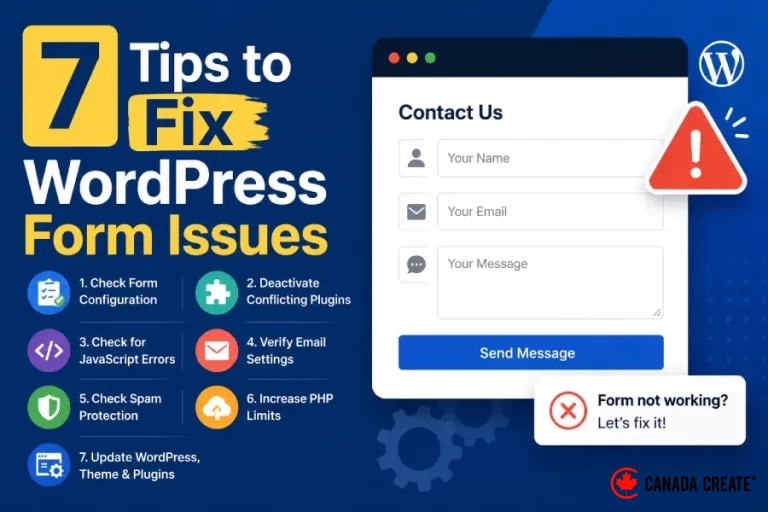
A broken contact form is one of the most costly problems a WordPress site can have, and it is also one of the easiest to miss. Visitors fill it out, hit submit, and nothing happens on your end. You lose the lead and never even know it happened. Since forms sit at the centre of lead generation for most business websites, a silent failure here directly affects conversions, not just user experience.
Below are 7 practical tips for tracking down and fixing the most common WordPress form issues, from the most likely causes to the less obvious ones worth checking once the easy fixes have been ruled out.
Confirm the Form Is Actually Submitting
Before assuming there is a deeper technical issue, confirm the form itself is behaving the way you expect when a visitor clicks submit.
Fill out the form yourself using a real email address and watch what happens after you click submit. A working form should either reload the page with a confirmation message, redirect to a thank you page, or show an inline success message without a page reload, depending on how it was built.
If nothing visible happens at all, that is usually a sign of a JavaScript error preventing the submission from firing. Open your browser console while submitting the form and look for any red error messages. A common cause here is a plugin or theme script conflict, where two scripts on the page are both trying to control form validation and interfering with each other.
If the form does show a success message but you never receive the submission, the problem is not with the form itself, it is with what happens after submission, which the rest of these tips cover.
Check Your Email Delivery Setup
This is by far the most common cause of missing form submissions, and it has nothing to do with the form plugin itself.
Most WordPress hosting environments use PHP’s built in mail function to send form notification emails, and a large number of hosts either block this function outright or handle it so poorly that emails rarely arrive. The form works perfectly, the submission is received on your server, but the notification email never reaches your inbox because it is being flagged as spam, silently dropped, or blocked by your hosting provider.
The fix is to stop relying on PHP mail entirely and set up SMTP instead. An SMTP plugin routes your outgoing emails through a proper email service, such as your business email provider or a dedicated transactional email service, which authenticates the message properly so it actually reaches the inbox instead of getting filtered out.
Once SMTP is configured, send yourself a test submission and check both your inbox and your spam folder. If it lands in spam even with SMTP set up correctly, your domain may be missing SPF, DKIM, or DMARC records, which are DNS entries that tell receiving email servers your messages are legitimate.
Check Your Spam Folder and Email Filters
Before troubleshooting anything technical, rule out the simplest explanation. Form notification emails frequently get caught by spam filters, even when everything on the server side is working correctly, because the sending address or subject line pattern can trigger automated spam scoring.
Check the spam and junk folders of whatever email address is set to receive form notifications. If you find them there, mark them as not spam and add the sending address to your contacts or safe sender list, which helps train the filter for future submissions.
If you are using a business email service like Google Workspace or Microsoft 365, check the admin level spam and quarantine settings as well, not just your personal inbox filters, since organization wide rules can silently block messages before they ever reach an individual inbox.
Look for Plugin or Theme Conflicts
Form plugins rely on JavaScript to handle validation, submission, and any dynamic behaviour like conditional fields or multi step forms. When another plugin or the theme loads conflicting scripts, the form can stop submitting, display incorrectly, or lose its styling entirely.
To check for this, temporarily deactivate all other plugins except the form plugin itself and test the form again. If it starts working, reactivate the other plugins one at a time, testing after each one, until you find the specific plugin causing the conflict.
Caching and performance plugins are frequent culprits here as well, particularly ones that minify or combine JavaScript files, since bundling scripts together can break the specific script your form plugin depends on to function. If you find the conflict traces back to a caching plugin, look for an option to exclude specific scripts or specific pages from minification rather than disabling the entire plugin.
Test Across Different Browsers and Devices
A form that works fine on your desktop browser may behave completely differently on a visitor’s phone, especially if the form uses custom styling or JavaScript that was never properly tested on mobile.
Test the form on at least one mobile device and one browser other than the one you use daily. Pay close attention to dropdown fields, date pickers, and file upload fields, since these are the form elements most likely to behave inconsistently across different browsers and screen sizes.
If the form breaks specifically on mobile, check whether your theme or form plugin has a mobile specific display setting, and check for any custom CSS that may be hiding or misaligning form fields at smaller screen widths.
Check Your Form’s Notification and Confirmation Settings
Most modern form plugins separate the visual form builder from the notification settings that control where submissions actually get sent. It is common for a form to be rebuilt or duplicated at some point, with the new version missing the correct notification email address, or still pointing to an old email address that is no longer monitored.
Open the form’s settings directly, not just the form builder, and confirm the notification email field is set to the correct current address. If your form plugin supports multiple notification recipients, check that none of the listed addresses are outdated or misspelled.
While you are in there, also review the confirmation message settings, since a form that appears to work correctly from a technical standpoint can still show a confusing or broken confirmation message to visitors if this was never fully configured after the form was created.
Review Recent Changes to the Site
If a form that used to work suddenly stops, think through what changed recently on the site. A plugin update, a theme update, a hosting migration, or a manual code change can all introduce a form issue that has nothing to do with the form’s original configuration.
Check your site’s activity log if you have one installed, or check with whoever last made changes to the site, to narrow down the timeframe of when the issue started. Matching that timeframe against your plugin and theme update history often points directly to the cause.
If a recent update is the suspected cause, temporarily rolling back the specific plugin to its previous version can confirm whether that update introduced the problem, giving you a clear starting point for either waiting on a fix from the developer or finding an alternative solution.
Final Thoughts
Most WordPress form issues trace back to one of a small number of causes, whether that is email delivery, a plugin conflict, or a setting that quietly changed after an update. Working through these 7 checks in order will resolve the vast majority of form problems without needing to touch any code.
If your WordPress forms are still causing trouble after working through these steps, our team at Canada Create™ can take a look and get them working reliably again. Visit Canada Create™ to get in touch with our WordPress support team.
Quick Answer
If you need to fix WordPress form not working issues, start by deactivating other plugins one at a time to rule out a conflict, then clear your caching plugin and CDN cache, and finally check whether your notification emails are actually being sent rather than silently dropped. Most “broken form” reports are really an email delivery problem, not a broken form field. At Canada Create™, this is one of the most common support requests we get from small business site owners, and it is almost always fixable without touching a line of code.
Step 1: Rule Out a Plugin Conflict
Deactivate every plugin except your form plugin and your theme, then test the form. If it works, reactivate plugins one at a time until it breaks again. That last plugin is your culprit. This is tedious but it is the single fastest way to isolate the real cause rather than guessing. If you are running WooCommerce alongside a checkout or lead form, conflicts are especially common because so many plugins hook into the same cart and session logic.
Step 2: Clear Every Layer of Cache
Caching plugins and CDNs sometimes serve a stale version of a page that references an outdated form script. Clear your WordPress caching plugin, your host-level cache if your provider offers one, and your CDN cache, then reload the page in a private browser window to confirm the fix actually took effect. Aggressive caching is more likely on budget shared hosting, so if this keeps recurring, our guide on what slows down WordPress on shared hosting is worth a read.
Step 3: Check Your Email Delivery Setup
Most “the form isn’t working” complaints are actually “I never received the notification email” complaints. WordPress relies on your server’s default mail function by default, which many hosts throttle or block outright as a spam-prevention measure. Configuring a proper SMTP connection through your email provider, or a transactional email service, fixes this far more reliably than the default setup ever will. As we cover at Canada Create™, this single fix resolves the majority of “silent form failure” tickets we see from clients.
3.1 Check the spam folder first
Before assuming anything is broken, check spam and promotions folders. Notification emails frequently land there, especially on a fresh domain with limited sending history.
3.2 Set up SMTP authentication
Most form plugins support connecting to an SMTP provider through a dedicated plugin. This authenticates outgoing mail properly and dramatically improves deliverability compared to the server’s default mail function. Reliable delivery also depends on decent underlying hosting, something we break down in our WordPress hosting cost benchmark for Canadian SMBs.
Step 4: Look for JavaScript Errors
Open your browser’s developer console on the page with the form and watch for red error messages when you try to submit. A JavaScript conflict, often from a second plugin loading a duplicate library, can silently block form submission even though nothing looks visually wrong. This is a common side effect of running too many front-end plugins on a WordPress and WooCommerce storefront, where multiple scripts compete for the same page resources.
Step 5: Check for Mixed Content or SSL Warnings
If your form submits over HTTP while the rest of your page loads over HTTPS, browsers may silently block the request, a behaviour documented in Mozilla’s mixed content guidance. Confirm your entire site, including any embedded form endpoints, consistently uses HTTPS. A quick way to check is viewing the page source and searching for any hardcoded “http://” references left over from a past migration.
Step 6: Verify Your Server Isn’t Rate Limiting Submissions
Some hosts apply aggressive rate limiting or bot protection that can catch legitimate form submissions, particularly right after a burst of spam attempts. Check your hosting dashboard or firewall logs for blocked requests around the time a user reported an issue. If you are on budget shared hosting, this is worth ruling out early, since tighter resource limits often mean more aggressive automatic blocking. The WordPress.org support forums are also a reliable place to check whether other site owners on the same host are reporting the same issue.
Step 7: Update Everything and Test Again
Outdated plugins, themes, and WordPress core are the root cause behind a surprising number of “form suddenly stopped working” reports, usually after a related update elsewhere on the site introduced an incompatibility. Update your form plugin, your theme, and WordPress core, then submit a real test entry yourself, from a real device, not just from the WordPress admin preview. For general upkeep, our overview of securing a WordPress website covers the update cadence we recommend to Canada Create™ clients.
When a Broken Form Costs You Local Leads
A silently failing contact form is especially costly for a service business that depends on local leads. If a Toronto homeowner fills out a quote request on a site offering web design in Etobicoke and never hears back because the notification email vanished into a spam filter, that lead is simply gone, and there is rarely a second chance to recover it. Canada Create™ recommends testing every form on your site at least monthly, from a real device on a different network than your office Wi-Fi, to catch these failures before a prospective client does.
Cross-referencing your submissions against your CRM or inbox on a regular schedule is a simple habit that catches silent failures long before they become a pattern of lost business.
Frequently Asked Questions
Why is my WordPress contact form not sending emails?
The most common cause is your host blocking or throttling the default PHP mail function. Setting up SMTP authentication through your email provider almost always resolves this.
Can a caching plugin really break a contact form?
Yes. If a cached page serves an outdated JavaScript file or a stale form token, submissions can silently fail. Clearing all cache layers, including any CDN, is a standard first troubleshooting step.
How do I know if it’s a plugin conflict?
Deactivate all other plugins except your form plugin and theme, then test. If the form works, reactivate plugins one at a time until the issue reappears.
Related Resources
- How to Claim Your Google Knowledge Panel
- How to Secure Your WordPress Website
- What Slows Down WordPress on Shared Hosting
{“@context”:”https://schema.org”,”@type”:”Article”,”headline”:”7 Tips to Fix WordPress Form Issues”,”description”:”Contact form not submitting? Here are 7 essential troubleshooting tips to fix your WordPress form issues for good, with clear step by step instructions.”,”datePublished”:”2026-07-21T09:00:00-04:00″,”dateModified”:”2026-07-21T09:00:00-04:00″,”author”:{“@type”:”Person”,”name”:”Canada Create™ Editorial Team”},”publisher”:{“@type”:”Organization”,”name”:”Canada Create™”,”logo”:{“@type”:”ImageObject”,”url”:”https://canadacreate.com/wp-content/uploads/2024/03/canada-create-logo.png”}},”mainEntityOfPage”:{“@type”:”WebPage”,”@id”:”https://canadacreate.com/fix-wordpress-form-issues/”}}
{“@context”:”https://schema.org”,”@type”:”BreadcrumbList”,”itemListElement”:[{“@type”:”ListItem”,”position”:1,”name”:”Home”,”item”:”https://canadacreate.com/”},{“@type”:”ListItem”,”position”:2,”name”:”Tutorials”,”item”:”https://canadacreate.com/category/tutorials/”},{“@type”:”ListItem”,”position”:3,”name”:”7 Tips to Fix WordPress Form Issues”,”item”:”https://canadacreate.com/fix-wordpress-form-issues/”}]}
{“@context”:”https://schema.org”,”@type”:”FAQPage”,”mainEntity”:[{“@type”:”Question”,”name”:”Why is my WordPress contact form not sending emails?”,”acceptedAnswer”:{“@type”:”Answer”,”text”:”The most common cause is your host blocking or throttling the default PHP mail function. Setting up SMTP authentication through your email provider almost always resolves this.”}},{“@type”:”Question”,”name”:”Can a caching plugin really break a contact form?”,”acceptedAnswer”:{“@type”:”Answer”,”text”:”Yes. If a cached page serves an outdated JavaScript file or a stale form token, submissions can silently fail. Clearing all cache layers, including any CDN, is a standard first troubleshooting step.”}},{“@type”:”Question”,”name”:”How do I know if it’s a plugin conflict?”,”acceptedAnswer”:{“@type”:”Answer”,”text”:”Deactivate all other plugins except your form plugin and theme, then test. If the form works, reactivate plugins one at a time until the issue reappears.”}}]}
{“@context”:”https://schema.org”,”@type”:”HowTo”,”name”:”7 Tips to Fix WordPress Form Issues”,”step”:[{“@type”:”HowToStep”,”name”:”Rule Out a Plugin Conflict”,”text”:”Deactivate all other plugins, test the form, then reactivate plugins one at a time to isolate the conflict.”,”url”:”https://canadacreate.com/fix-wordpress-form-issues/#step-1-rule-out-a-plugin-conflict”},{“@type”:”HowToStep”,”name”:”Clear Every Layer of Cache”,”text”:”Clear your WordPress caching plugin, host-level cache, and CDN cache, then test in a private browser window.”,”url”:”https://canadacreate.com/fix-wordpress-form-issues/#step-2-clear-every-layer-of-cache”},{“@type”:”HowToStep”,”name”:”Check Your Email Delivery Setup”,”text”:”Check spam folders and configure SMTP authentication to fix silent notification email failures.”,”url”:”https://canadacreate.com/fix-wordpress-form-issues/#step-3-check-your-email-delivery-setup”},{“@type”:”HowToStep”,”name”:”Look for JavaScript Errors”,”text”:”Open the browser console while submitting the form to check for conflicting scripts blocking submission.”,”url”:”https://canadacreate.com/fix-wordpress-form-issues/#step-4-look-for-javascript-errors”},{“@type”:”HowToStep”,”name”:”Check for Mixed Content or SSL Warnings”,”text”:”Confirm the entire site and form endpoint use HTTPS consistently to avoid browsers silently blocking submissions.”,”url”:”https://canadacreate.com/fix-wordpress-form-issues/#step-5-check-for-mixed-content-or-ssl-warnings”},{“@type”:”HowToStep”,”name”:”Verify Your Server Isn’t Rate Limiting Submissions”,”text”:”Check hosting firewall logs for blocked requests that may be catching legitimate form submissions.”,”url”:”https://canadacreate.com/fix-wordpress-form-issues/#step-6-verify-your-server-isnt-rate-limiting-submissions”},{“@type”:”HowToStep”,”name”:”Update Everything and Test Again”,”text”:”Update the form plugin, theme, and WordPress core, then submit a real test entry from a real device.”,”url”:”https://canadacreate.com/fix-wordpress-form-issues/#step-7-update-everything-and-test-again”}]}







