
How to Fix the “Not Secure” Warning on Your Website (and Get Back Into WordPress When You Are Locked Out)
Updated October 2026 · 14 min read
Your browser shows “Not secure” when a page loads over plain HTTP instead of HTTPS, when the SSL/TLS certificate is missing, expired or issued for a different domain, or when an HTTPS page still loads images, scripts or forms over HTTP. The fix is to install a valid certificate, force every visitor to HTTPS, and clean up the leftover HTTP links. This guide walks through each cause, then covers the second problem that often follows a messy fix: being locked out of your own WordPress admin.
Why the “Not secure” warning matters
Chrome, Safari, Edge and Firefox all flag pages that are not served securely, and the warning becomes more prominent on pages with forms. The warning can discourage visitors from calling, booking or buying. HTTPS is also a signal Google uses, and an insecure contact form can expose the personal information your customers send you, which matters under Canadian privacy law.
Find the cause in two minutes
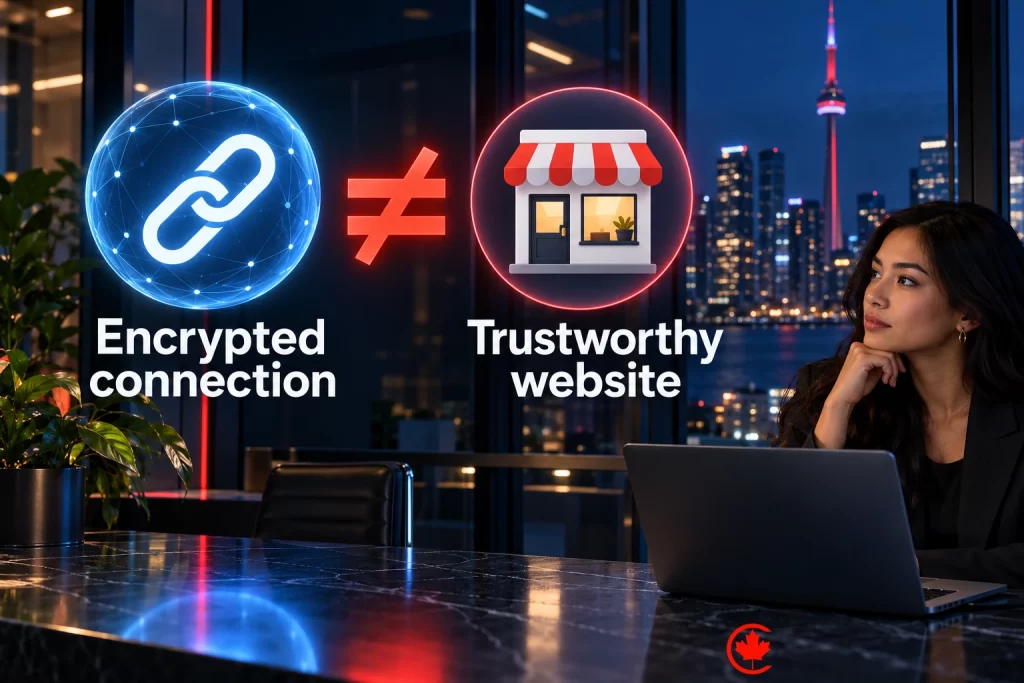
- Open your site and click the icon to the left of the address. If it says the connection is not secure, check whether the address starts with http:// or https://.
- Type https:// in front of your domain manually. If HTTPS loads without a certificate warning but HTTP remains accessible, check the redirect. Modern Chrome uses a site-controls icon rather than a padlock. If HTTPS fails, inspect the certificate details and browser error; do not bypass the warning.
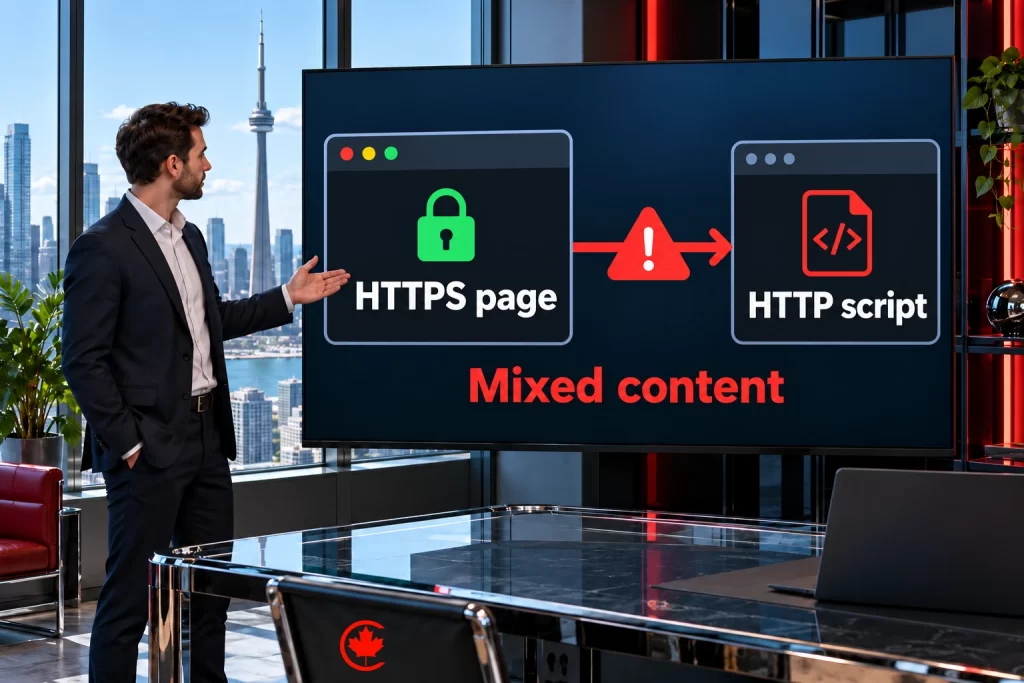
- If only some HTTPS pages show connection warnings or blocked resources, open the browser’s developer tools (F12), go to the Console and look for “mixed content” messages. They list the exact files still loading over HTTP.
| What you see | Likely cause | Fix |
|---|---|---|
| “Not secure” on every page, https:// fails | Missing or invalid certificate, or a server/TLS configuration problem | Install a certificate from your host (Let’s Encrypt is free on most hosts) |
| Certificate error or “Your connection is not private” | Expired certificate, wrong domain, or www and non-www mismatch | Renew or reissue the certificate to cover both versions of the domain |
| https:// works but http:// does not redirect | Missing HTTPS redirect | Force HTTPS at the server or in WordPress settings |
| Connection warning or blocked resources on some HTTPS pages | Mixed content: images, scripts or forms on HTTP | Update the old URLs to HTTPS in the database and theme |
| Warning only on the checkout or form page | Form posts to an HTTP address or an embedded third-party widget | Update the form action or replace the widget |
We plan and deliver website maintenance and security for businesses in Toronto and across Canada, scoped in writing after a free review.
Fix 1: Install or renew the SSL certificate
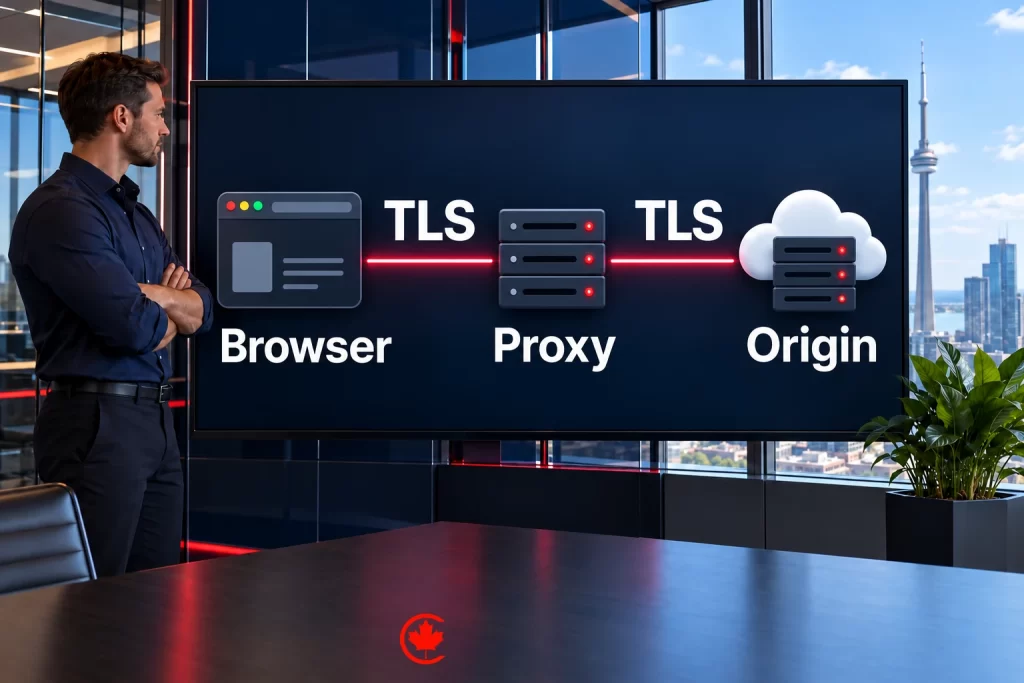
Most Canadian and international hosts offer free certificates through Let’s Encrypt or AutoSSL in cPanel, Plesk or the host’s own dashboard. Turn it on for the domain and make sure it covers both example.ca and www.example.ca. Let’s Encrypt certificates are short-lived; a correctly configured ACME client renews them automatically, so an “expired” warning usually means automatic renewal failed, often because the domain’s DNS now points somewhere else or a firewall blocks the validation request. If you use Cloudflare or another proxy, set its SSL mode to Full (strict) and install a certificate on the server as well; a “Flexible” setting leaves the connection between the proxy and your server unencrypted and can cause redirect loops.
Fix 2: Force every visitor to HTTPS
After backing up and confirming that HTTPS works, go to Settings > General and update the protocol in the WordPress Address and Site Address. Preserve any existing subdirectory difference between those addresses. Then add a server-level redirect so every HTTP request is sent to HTTPS with a 301. On Apache and LiteSpeed servers, that is a short rule in the .htaccess file; on Nginx it is a server block. Many hosts also offer a one-click “Force HTTPS” switch. Once HTTPS and renewal work reliably, discuss HSTS with your host. Start cautiously: includeSubDomains or preload can make other subdomains inaccessible if they do not support HTTPS.
Test the result by visiting the http://, https://, www and non-www versions of your domain. Each non-canonical version should lead directly to the chosen HTTPS address; the canonical address should load without a redirect. Test path and query-string preservation too.
Fix 3: Clean up mixed content
Older sites have hundreds of internal links and image addresses saved as http://. Update them at the source rather than hiding the problem:
- Run a search and replace on the database from
http://yourdomaintohttps://yourdomainusing a tool that handles serialized data safely, such as WP-CLI’swp search-replace. Take a full backup first, test a dry run and preserve WordPress GUID values when carrying out a URL migration. - Check the theme and child theme files, widgets and page builder settings for hard-coded http:// links.
- Replace third-party embeds (old video players, maps, booking widgets) that only load over HTTP.
- Re-check the browser console until no mixed content messages remain, then clear your caching plugin and any CDN cache.
Plugins that rewrite URLs on the fly can hide mixed content, but they add work to every page load. Fixing the stored URLs is cleaner and faster.
Locked out of WordPress? Start with the gentlest fix
Changing site URLs, security plugins and redirects is the most common way owners lock themselves out of their own admin. Work through these in order and stop when you are back in. Every step below is for a site you own or manage; always take a backup before changing files or the database.
1. Reset your password by email
Use the “Lost your password?” link on the login page. If the email never arrives, check spam, then check whether your site can send email at all. Many hosts block PHP mail, and an SMTP plugin connected to a proper email service fixes delivery for password resets and contact forms alike.
2. Clear a security plugin lockout
Security plugins block an IP address after several failed logins. Wait for the lockout period or use the plugin’s documented owner-recovery process. If needed, an authorized administrator can temporarily disable the plugin by renaming its folder in /wp-content/plugins/ through your host’s file manager or SFTP. Keep alternative access protection in place, restore the plugin promptly and review its settings and logs.
3. Fix a redirect loop after an HTTPS change
If the login page keeps redirecting, the WordPress Address may not match how the site is served. Correct the siteurl and home values in the wp_options table through phpMyAdmin, or define WP_HOME and WP_SITEURL in wp-config.php temporarily. Behind a proxy or CDN, also make sure WordPress knows the original request was HTTPS.
4. Use the recovery mode email
If a plugin or theme error broke the admin, WordPress sends a recovery mode link to the site’s admin email. The link lets you log in and deactivate the plugin causing the error. If the email does not arrive, rename the plugins folder to disable all plugins, log in, rename it back and reactivate plugins one at a time.
5. Reset the password in the database or with WP-CLI
With hosting access, you can update your user’s password from the command line with wp user update [username] --prompt=user_pass, or in phpMyAdmin by editing the user_pass field of your user in wp_users with the MD5 function selected. WordPress upgrades the stored hash after successful authentication. Prefer the normal reset or WP-CLI route; MD5 is a legacy recovery fallback, not a password-storage recommendation. Confirm the actual table prefix and user ID first.
6. Create a new administrator safely
If your account was deleted or downgraded, WP-CLI can create a new administrator with wp user create. If you did not remove the old account yourself, treat it as a possible compromise: change every password, check the user list for unknown administrators and scan the site.
7. Get past two-factor authentication
Use your saved backup codes first. Without them, use the plugin’s documented recovery process or ask your host to verify ownership. Temporarily disabling the plugin is a last resort for an authorized administrator: restrict access during recovery, restore two-factor promptly and save new backup codes in a password manager.
If you suspect the site was hacked
Sudden lockouts, unknown admin users, redirects to spam sites or a hosting suspension notice point to a compromise rather than a configuration mistake. Do not just reset passwords and move on. Preserve relevant logs and a copy for investigation, restrict harmful access, then restore from a verified clean backup or have the site cleaned, update WordPress, themes and plugins, remove anything abandoned, change hosting, database and email passwords, and check Google Search Console for security warnings. Our guide on how to secure a WordPress website covers hardening steps that reduce the risk of another compromise.
Prevent both problems from coming back
- Use hosting that renews certificates automatically and alerts you before they expire.
- Keep WordPress core, themes and plugins updated, and remove what you do not use.
- Use a password manager, unique admin passwords and two-factor authentication with saved backup codes.
- Keep off-site backups you have tested restoring.
- Monitor uptime and security so you hear about a problem before your customers do.
If you want help managing certificates, lockouts or updates, our website maintenance and security team can scope updates, backups, monitoring and fixes for Canadian businesses, and our managed hosting includes SSL and server-level security from the start. If you would rather hand the site to a team, our page on WordPress development in Toronto covers builds, hosting and care.
Frequently asked questions
How do I fix my website when browsers say it is not secure?
Install a valid SSL/TLS certificate, force every visitor to HTTPS with a 301 redirect, then clean up leftover HTTP links to images, scripts and forms. Most hosts offer free certificates through Let's Encrypt or AutoSSL, and the certificate should cover both the www and non-www versions of the domain. Take a full backup before changing settings or the database.
Why do Safari and Chrome keep saying my website is not secure?
Browsers flag a page when it loads over plain HTTP, when the certificate is missing, expired or issued for another domain, or when an HTTPS page still pulls in files over HTTP. Chrome, Safari, Edge and Firefox all do this, and the warning is more prominent on pages with forms. If only the checkout or contact page is flagged, the form probably posts to an HTTP address or uses an old embedded widget.
How do I fix a 'Your connection is not private' error on my own website?
That message usually means the certificate expired, covers the wrong domain, or misses the www or non-www version. Renew or reissue it to cover both. Let's Encrypt certificates renew automatically when set up correctly, so an expiry often points to DNS that now points elsewhere or a firewall blocking validation. Behind Cloudflare or a similar proxy, use Full (strict) mode with a certificate on the server too.
How do I force every visitor to HTTPS to clear the Chrome warning?
Once HTTPS works, update the WordPress Address and Site Address under Settings, General, then add a server-level 301 redirect from HTTP to HTTPS. That is a short .htaccess rule on Apache or LiteSpeed and a server block on Nginx, and many hosts offer a one-click switch. Test the http, https, www and non-www versions so each lands directly on the chosen address.
How do I get rid of an unsafe warning caused by mixed content?
Fix the stored URLs at the source. Run a database search and replace from http to https with a tool that handles serialized data safely, such as WP-CLI's search-replace, after a backup and a dry run. Then check theme files, widgets and page builder settings for hard-coded links, replace HTTP-only embeds, and clear the caching plugin and CDN until the browser console shows no mixed content messages.
Is it bad for a business if visitors see a not secure warning on its website?
Yes. The warning can stop people from calling, booking or buying, and HTTPS is also a signal Google uses. An insecure contact form can expose the personal information customers send you, which matters under Canadian privacy law.
How do I get back into WordPress after fixing the not secure warning locked me out?
Changing site URLs and redirects is a common cause of lockouts. If the login page keeps redirecting, correct the siteurl and home values in the wp_options table through phpMyAdmin, or set WP_HOME and WP_SITEURL in wp-config.php temporarily. Behind a proxy or CDN, make sure WordPress knows the original request was HTTPS.
How can I check whether my website is secure?
Click the icon to the left of the address bar and see whether the connection is reported as secure, then type https:// in front of your domain by hand. If HTTPS loads but HTTP stays reachable, the redirect is missing. If only some pages are flagged, open developer tools with F12 and read the Console for mixed content messages, which list the exact files still loading over HTTP.