
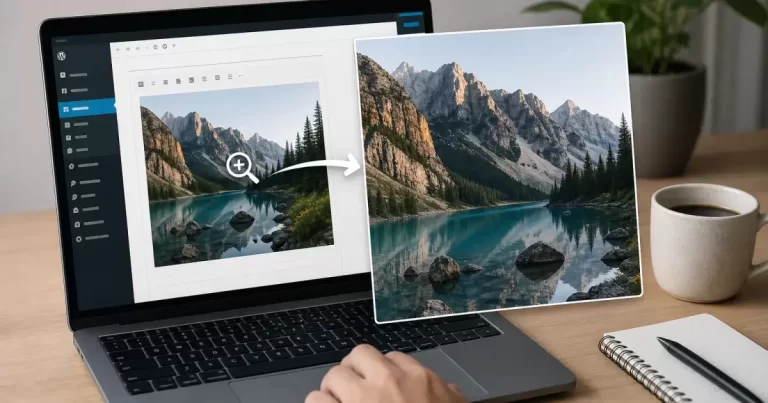
How to Add Image Zoom in WordPress
Last updated: July 2026
Quick Answer
The fastest route to wordpress image zoom on click is installing a free lightbox plugin, adding a shortcode or block, and testing on both desktop and mobile. If you want zero extra plugins, a short CSS snippet using transform: scale() on click can enlarge an image inside its container without a full lightbox popup. At Canada Create™, we usually recommend the plugin route for ecommerce and photography sites, and the CSS route for simple blog thumbnails where a full lightbox feels like overkill.
Prerequisites
- Admin access to your WordPress dashboard
- A recent backup of your site (always a good habit before installing a new plugin)
- Images already uploaded to your Media Library, ideally compressed and web-optimized
- Basic familiarity with the block editor, or your theme’s page builder if you use one
Step 1: Choose Your Zoom Method
Before touching any settings, decide what kind of click to enlarge image wordpress experience you actually want. There are three common patterns:
- Lightbox popup: clicking the image opens a full-screen overlay with the enlarged photo, often with next/previous arrows for galleries.
- Hover or click zoom effect: the image enlarges in place, common on product pages where a shopper zooms in to check fabric texture or stitching.
- Inline expand: the image grows within the page layout without a popup, useful for diagrams and screenshots in tutorial content.
Product and portfolio sites tend to want the lightbox or hover zoom. Blog and documentation sites usually just want a simple image zoom effect wordpress that lets readers see fine detail in a screenshot.
Step 1.1: Audit Your Current Theme
Some themes already ship with a built-in lightbox for galleries. Check your theme’s documentation or test by clicking an existing gallery image. If nothing happens, you’ll need one of the methods below.
Step 2: Method A – Use a Lightbox or Zoom Plugin
This is the option most Canada Create™ clients choose because it requires no code and works reliably across browsers and devices.
Step 2.1: Install a Lightbox Plugin
From your dashboard, go to Plugins > Add New and search for a well-reviewed lightbox plugin wordpress option. Look for plugins with recent updates (within the last 6 months), a high rating, and at least 50,000 active installs. Avoid anything last updated more than a year ago, since WordPress core changes can break older plugins.
Step 2.2: Activate and Configure
Once activated, most lightbox plugins automatically apply to images inserted through the block editor’s Image block. Open the plugin settings and check for:
- Animation speed and style (fade vs slide)
- Whether captions display under the enlarged image
- Mobile swipe support for galleries
- Whether it respects lazy-loading (important for page speed)
Step 2.3: Test on a Live Page
Add an image to a test page or post, publish or preview it, then click the image from both a desktop browser and a phone. Confirm the enlarged view loads quickly and closes cleanly with a tap outside the image or an X button.
Step 3: Method B – CSS-Only Hover and Click Zoom
If you’d rather avoid another plugin, a short CSS snippet can create an enlarge image on hover wordpress effect directly in your theme’s Additional CSS panel (Appearance > Customize > Additional CSS, or the Site Editor’s CSS panel on block themes).
Step 3.1: Add a CSS Class
In the block editor, select your image block, open the Advanced panel, and add a custom CSS class such as zoom-img.
Step 3.2: Add the CSS Snippet
Paste a rule that scales the image on hover or focus, something like enlarging to 1.15 to 1.3 times its size with a smooth transition. Keep the transition under 0.3 seconds so it feels responsive rather than sluggish.
Step 3.3: Handle Mobile Taps
CSS hover states do not exist on touchscreens the same way they do on desktop. For mobile, pair the CSS with a small script that toggles a class on tap, or accept that mobile users will only see the zoom on a long press in some browsers. This is the main tradeoff of the CSS-only route.
Step 4: Method C – Native Page Builder Zoom
If your site runs on a page builder, check its image widget settings first. Many builders include a built-in “click to enlarge” or “lightbox” toggle right in the widget panel, no plugin required. As we cover at Canada Create™, this is often the cleanest option because it avoids adding yet another plugin to maintain and keeps one less thing to update after WordPress core releases.
Troubleshooting
| Problem | Likely Cause | Fix |
|---|---|---|
| Zoom does not trigger at all | Plugin conflicts with theme or caching plugin | Clear cache, test in an incognito window, deactivate other image-related plugins one at a time |
| Zoomed image looks blurry | Original image resolution too low | Upload a higher-resolution source image; WordPress will still generate smaller thumbnails automatically |
| Zoom is slow to open | Large uncompressed image files | Compress images before upload and confirm lazy-loading is not conflicting with the lightbox script |
| Works on desktop but not mobile | CSS hover-only implementation | Switch to a plugin with dedicated touch/tap support, or add a tap-toggle script |
Canada Create™ builds and optimizes WordPress sites for Toronto businesses. Tell us your goals and we will recommend the right setup.
Frequently Asked Questions
Does adding image zoom slow down my WordPress site?
A well-coded lightbox plugin adds a small amount of CSS and JavaScript, usually a few kilobytes, which has minimal impact if your images are already compressed. The bigger performance risk is uncompressed source images, not the zoom feature itself.
Can I add click to enlarge without installing a plugin?
Yes. A CSS-only hover or click zoom snippet works without any plugin, though it requires a bit more manual setup for mobile devices and does not include gallery navigation arrows.
Will image zoom work the same way on mobile devices?
Plugin-based lightboxes generally handle mobile taps and swipe gestures automatically. CSS-only hover effects need extra JavaScript to work reliably on touchscreens, since hover states do not exist the same way on phones.
What’s the best free option for a small Canadian business site?
For most small business and portfolio sites, a free, actively maintained lightbox plugin covers the need without any monthly cost. Canada Create™ readers often ask which one to pick; the safest bet is whichever option has recent updates and a strong install base at the time you check.
Can I use image zoom on product photos in an online store?
Yes, and it’s especially useful there. Many ecommerce themes and plugins include a dedicated product zoom feature separate from a general gallery lightbox, so check your store platform’s settings first before adding a third-party plugin.
Related Resources
- How to Secure Your WordPress Website
- Managed WordPress Hosting Compared
- How to Improve Website Load Time and Speed
A site that loads fast and looks polished matters just as much as the zoom effect itself. If you’re weighing WordPress against Webflow for a B2B site, image handling and plugin flexibility are one of the bigger differences between the two platforms. For stores comparing platforms, our breakdown of Shopify vs WooCommerce costs for a Canadian store covers how product image features factor into total cost. And if slow load times are undermining your new zoom effect, our guide on WordPress hosting costs for Canadian SMBs is a good next read.
Every plugin you add is one more thing to keep patched. Our four pillars of WordPress security piece explains why we recommend checking update history before installing any new image or lightbox plugin. If your site is on shared hosting, be aware that what actually slows down WordPress on shared hosting often comes down to unoptimized media files, the exact thing a zoom feature depends on. And if you manage a larger catalogue, our enterprise WordPress hosting decision guide looks at how image-heavy sites should plan their infrastructure.
Canada Create™ works with Toronto small businesses on exactly this kind of on-page detail. If your product or portfolio site needs a full visual refresh alongside better image interactions, our web design services in Yorkville, Toronto team can help plan the build from the ground up. For businesses outside that neighbourhood, our web design services in Downtown Toronto page covers the same process.
For technical reference on smooth CSS transitions, the MDN documentation on the CSS transform property explains how scale-based zoom effects are calculated. If you want to understand how image compression affects load time, web.dev’s guidance on fast-loading sites is a solid technical primer from Google’s own team.
{
“@context”: “https://schema.org”,
“@type”: “Article”,
“headline”: “How to Add Image Zoom in WordPress”,
“description”: “Want visitors to click and enlarge photos? Here is how to add wordpress image zoom on click using free and premium methods, explained step by step.”,
“datePublished”: “2026-07-21T09:00:00-04:00”,
“dateModified”: “2026-07-21T09:00:00-04:00”,
“author”: {
“@type”: “Person”,
“name”: “Canada Create™ Editorial Team”
},
“publisher”: {
“@type”: “Organization”,
“name”: “Canada Create™”,
“logo”: {
“@type”: “ImageObject”,
“url”: “https://canadacreate.com/wp-content/uploads/2024/03/canada-create-logo.png”
}
},
“mainEntityOfPage”: {
“@type”: “WebPage”,
“@id”: “https://canadacreate.com/wordpress-image-zoom-click-enlarge/”
}
}
{
“@context”: “https://schema.org”,
“@type”: “BreadcrumbList”,
“itemListElement”: [
{
“@type”: “ListItem”,
“position”: 1,
“name”: “Home”,
“item”: “https://canadacreate.com/”
},
{
“@type”: “ListItem”,
“position”: 2,
“name”: “WordPress”,
“item”: “https://canadacreate.com/category/wordpress/”
},
{
“@type”: “ListItem”,
“position”: 3,
“name”: “How to Add Image Zoom in WordPress”,
“item”: “https://canadacreate.com/wordpress-image-zoom-click-enlarge/”
}
]
}
{
“@context”: “https://schema.org”,
“@type”: “FAQPage”,
“mainEntity”: [
{
“@type”: “Question”,
“name”: “Does adding image zoom slow down my WordPress site?”,
“acceptedAnswer”: {
“@type”: “Answer”,
“text”: “A well-coded lightbox plugin adds a small amount of CSS and JavaScript, usually a few kilobytes, which has minimal impact if your images are already compressed. The bigger performance risk is uncompressed source images, not the zoom feature itself.”
}
},
{
“@type”: “Question”,
“name”: “Can I add click to enlarge without installing a plugin?”,
“acceptedAnswer”: {
“@type”: “Answer”,
“text”: “Yes. A CSS-only hover or click zoom snippet works without any plugin, though it requires a bit more manual setup for mobile devices and does not include gallery navigation arrows.”
}
},
{
“@type”: “Question”,
“name”: “Will image zoom work the same way on mobile devices?”,
“acceptedAnswer”: {
“@type”: “Answer”,
“text”: “Plugin-based lightboxes generally handle mobile taps and swipe gestures automatically. CSS-only hover effects need extra JavaScript to work reliably on touchscreens, since hover states do not exist the same way on phones.”
}
},
{
“@type”: “Question”,
“name”: “What’s the best free option for a small Canadian business site?”,
“acceptedAnswer”: {
“@type”: “Answer”,
“text”: “For most small business and portfolio sites, a free, actively maintained lightbox plugin covers the need without any monthly cost. The safest bet is whichever option has recent updates and a strong install base at the time you check.”
}
},
{
“@type”: “Question”,
“name”: “Can I use image zoom on product photos in an online store?”,
“acceptedAnswer”: {
“@type”: “Answer”,
“text”: “Yes, and it’s especially useful there. Many ecommerce themes and plugins include a dedicated product zoom feature separate from a general gallery lightbox, so check your store platform’s settings first before adding a third-party plugin.”
}
}
]
}
{
“@context”: “https://schema.org”,
“@type”: “HowTo”,
“name”: “How to Add Image Zoom in WordPress”,
“description”: “Want visitors to click and enlarge photos? Here is how to add wordpress image zoom on click using free and premium methods, explained step by step.”,
“step”: [
{
“@type”: “HowToStep”,
“name”: “Choose Your Zoom Method”,
“text”: “Decide between a lightbox popup, a hover or click zoom effect, or an inline expand, based on whether your site is ecommerce, portfolio, or blog content.”,
“url”: “https://canadacreate.com/wordpress-image-zoom-click-enlarge/#step-1-choose-your-zoom-method”
},
{
“@type”: “HowToStep”,
“name”: “Method A: Use a Lightbox or Zoom Plugin”,
“text”: “Install a well-reviewed, recently updated lightbox plugin, activate it, configure animation and mobile settings, then test on desktop and mobile.”,
“url”: “https://canadacreate.com/wordpress-image-zoom-click-enlarge/#step-2-method-a-use-a-lightbox-or-zoom-plugin”
},
{
“@type”: “HowToStep”,
“name”: “Method B: CSS-Only Hover and Click Zoom”,
“text”: “Add a custom CSS class to the image block and write a CSS transform scale rule in Additional CSS, then account for mobile tap behaviour separately.”,
“url”: “https://canadacreate.com/wordpress-image-zoom-click-enlarge/#step-3-method-b-css-only-hover-and-click-zoom”
},
{
“@type”: “HowToStep”,
“name”: “Method C: Native Page Builder Zoom”,
“text”: “Check your page builder’s image widget for a built-in click-to-enlarge or lightbox toggle before adding another plugin.”,
“url”: “https://canadacreate.com/wordpress-image-zoom-click-enlarge/#step-4-method-c-native-page-builder-zoom”
}
]
}







