
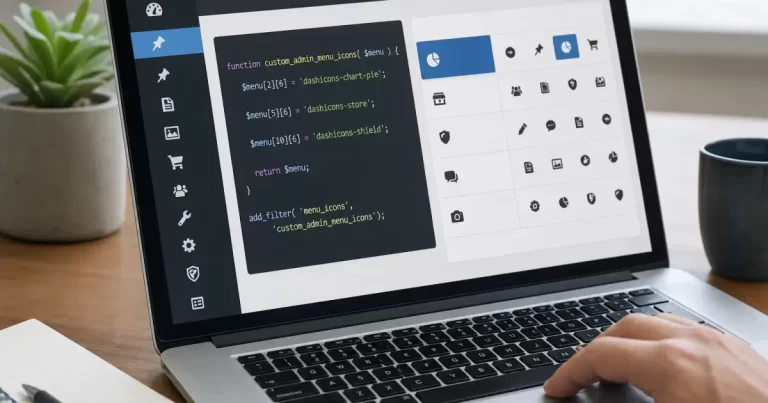
An admin icon should help an editor identify a menu quickly. It should not change access permissions, hide important controls or require a large design plugin for a single visual adjustment. Start by identifying which theme or plugin owns the menu.
Choose the correct registration point
For a custom top-level menu, WordPress’s add_menu_page function accepts an icon parameter. A custom post type has its own menu_icon setting. These are different registration points; changing one will not necessarily affect the other. Prefer the owning plugin’s setting when it offers one.
Use a recognizable symbol and a clear label
WordPress provides Dashicons for common admin concepts. Pick a symbol that supports the menu label rather than replacing its meaning. An icon that makes sense to a developer may not be obvious to the person publishing articles or processing enquiries.
Keep the change maintainable
Place custom behaviour in the appropriate site plugin or maintained child-theme layer. Do not edit WordPress core or overwrite a third-party plugin file simply to change an icon, since an update can remove the adjustment. Keep a record of the existing value and test the change in staging.
Check the editor’s actual view
Review the expanded and collapsed menu with the roles that use it. Confirm that the icon is visible, the label remains readable and the destination still works. The menu’s capability checks must remain intact. Visual customization is not a reason to broaden an account’s permissions.
Avoid unnecessary interface changes
If the default icon is already clear, consistent labels and sensible menu order may solve the usability problem. A good admin customization reduces the chance of editing the wrong content. It does not need to make WordPress look like a different application.
Reference: WordPress menu registration reference.
Ways to change WordPress admin menu icons
- Plugin settings: some plugins let you choose their menu icon in settings; use this first.
- Admin menu editor plugins: tools such as Admin Menu Editor let you rename, reorder and change icons without code.
- Code in a site plugin: for custom menus, set the icon in add_menu_page or menu_icon for custom post types, using a Dashicon name, an SVG or an image URL.
Tips for a clearer admin
- Rename menus to match your team’s language, such as Enquiries instead of a plugin brand name.
- Reorder menus so daily tasks are near the top.
- Hide menus editors never need, using role permissions rather than CSS.
- Keep icons consistent in style.
Why admin usability matters
A clear dashboard saves staff time and reduces mistakes, such as editing the wrong page or changing settings by accident. For client sites, a simplified admin also reduces support requests after launch.
Our WordPress development team customizes admin areas so your team can update the site confidently.
Organizing the WordPress admin for your team
Beyond icons, a clean admin helps staff work faster:
- Group related plugin menus under one parent menu.
- Hide technical menus from editors using role permissions.
- Add a dashboard widget with links to common tasks and support contacts.
- Remove unused dashboard boxes.
- Keep a short internal guide explaining where each task lives.
Testing admin changes
Log in as each role and confirm menus appear as expected, links work and nothing important disappears. Test on a staging site first, because menu changes can hide plugin settings you need later.
When a custom admin makes sense
Busy sites with several editors, stores with order-processing staff and membership sites benefit most from a tailored admin. Our UX and UI design team applies the same usability thinking to your admin area as to your public website.
Frequently Asked Questions
How do I change a menu icon in WordPress admin?
Use the plugin’s settings, an admin menu editor plugin, or set the icon in code for custom menus.
What are Dashicons?
The icon font built into WordPress for admin menus.
Can I use a custom SVG icon?
Yes, as a base64 SVG or image URL when registering the menu.
Who can customize my WordPress dashboard?
Our WordPress development team.







