
How to Submit a Sitemap to Google: A Step-by-Step Guide

Every website owner wants their content to appear on Google. After all, ranking on the world’s largest search engine can bring in traffic, build brand awareness, and boost conversions. But here’s the thing: Google can’t rank what it can’t find. That’s where your sitemap comes in.
A sitemap is your website’s way of saying, “Hey Google, here’s all the important stuff I want you to know about.” It tells search engines what pages exist on your site and guides them to find, crawl, and index your content. Submitting your sitemap can help Google discover your pages, though it does not guarantee crawling or indexing.
If you’re one of those who’ve never submitted a sitemap or you’re unsure how to do it, don’t worry. In this guide, I’ll walk you through everything you need to know about sitemaps, from what they are and why they matter to how you can create, optimize, and submit yours to Google for better SEO results.
✔️ Read related article: Keyword Research Tools for Local Businesses 2025 : Free and Paid
What is a Sitemap and Why is it Important?
Let’s start with the basics. A sitemap is a file, usually in XML format, that lists all the important pages on your website. It gives search engines a clear roadmap to help them discover your content.
Think of your sitemap as a tour guide. Without one, Google’s crawlers (the bots that scan websites) have to wander around your site trying to figure out where everything is. This can be slow and ineffective, especially if your site is large, complex, or poorly linked internally. With a sitemap, you’re handing them a map that shows exactly where your homepage, blog posts, product pages, and other important content are located. This helps with discovery, but does not guarantee indexing priority or inclusion.
So, do you really need a sitemap? Technically, no. If your website is small and well-structured, Google might still discover most of your content. But having a sitemap offers several benefits:
- It helps Google discover pages. A sitemap gives Google another way to find new URLs; discovery and indexing are not immediate or guaranteed.
- It can help large or complex sites. If you have an e-commerce site with hundreds of products or a blog with years of archived posts, a sitemap helps Google navigate your content efficiently.
- It highlights updates. Accurate modification dates can help Google identify significant page updates; they do not require Google to revisit or index them.
How to Create a Sitemap?
The good news is that creating a sitemap is easier than ever, thanks to tools and plugins that do most of the work for you. Here’s how you can create a sitemap based on your platform:
1. WordPress Users
WordPress includes a basic sitemap, normally at /wp-sitemap.xml. Check whether your existing SEO plugin supplies a different sitemap before adding another generator. Two common plugin options are:
- Yoast SEO: This plugin generates an XML sitemap as soon as you activate it. To find it, go to “Yoast SEO” → “Settings” → “Site features” in your WordPress dashboard. Under “Technical SEO,” enable “XML sitemaps,” then click “View the XML sitemap.” It will look something like this:
www.yourwebsite.com/sitemap_index.xml. - Rank Math: Similar to Yoast, this plugin creates a sitemap for you automatically. You can find it under the “Sitemap Settings” section of the plugin dashboard.
Both plugins can update sitemaps automatically for included content; check the settings and confirm that caching is not serving an outdated sitemap.
2. Non-WordPress Websites
If you’re not using WordPress, don’t worry, there are plenty of free tools available to generate a sitemap. For example, XML-Sitemaps.com is a user-friendly tool that lets you create a sitemap for up to 500 pages for free. Simply enter your website URL, and the tool will generate a downloadable XML file.
3. Manually Creating a Sitemap
For developers or tech-savvy users, you can create a sitemap manually. An XML sitemap follows a specific format, listing each URL with details like the last modification date. Here’s an example:
<urlset xmlns="http://www.sitemaps.org/schemas/sitemap/0.9">
<url>
<loc>https://www.yourwebsite.com/</loc>
<lastmod>2023-01-01</lastmod>
<changefreq>daily</changefreq>
<priority>1.0</priority>
</url>
</urlset>
Save the file as sitemap.xml and upload it to the root directory of your website using an FTP client or your hosting provider’s file manager.
Our SEO team plans, fixes and reports on the work in this guide every month for Canadian businesses.

✔️ Read related article: How to Check Robots.txt Files and Optimize Them for SEO?
How to Submit Your Sitemap to Google?
Once your sitemap is ready, submitting it to Google is a straightforward process. You can use Google Search Console, a free tool that lets you manage your site’s presence on Google.
Step-by-Step Guide to Submitting Your Sitemap
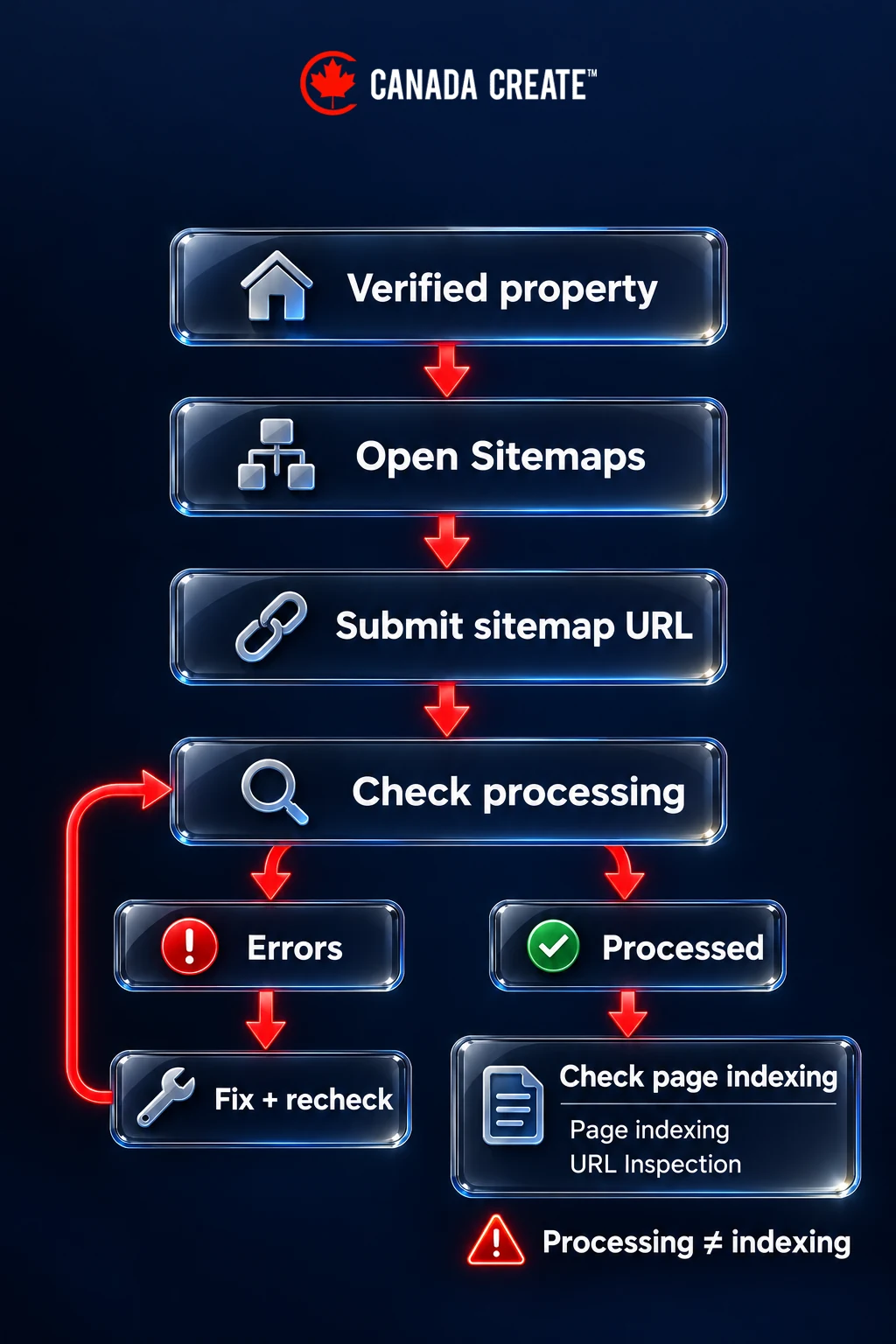
- Log into Google Search Console. Go to Google Search Console and sign in with your Google account. If you haven’t already added your website, you’ll need to do that first by verifying ownership. A Domain property uses DNS verification; a URL-prefix property offers methods such as an HTML tag or file, depending on your setup.
- Locate the Sitemaps Section. In the left-hand menu, click on “Sitemaps.” This will take you to a page where you can manage all sitemap submissions.
- Enter Your Sitemap URL. In the field labelled “Add a new sitemap,” type the URL of your sitemap. For example, if your site is
www.example.com, your sitemap URL will likely bewww.example.com/sitemap_index.xml. - Click Submit. Once you’ve entered the URL, hit the “Submit” button. Google will start processing your sitemap, and you’ll see its status under the “Submitted Sitemaps” section.
- Check for Errors. After submitting your sitemap, check back in Search Console to ensure there are no errors. This report shows sitemap fetch and processing errors. Use the Page indexing report and URL Inspection tool to investigate individual pages.
Best Practices for Optimizing Your Sitemap
Simply submitting a sitemap isn’t enough, you need to ensure it’s optimized for search engines. Here are some tips to make the most of your sitemap:
- Focus on High-Quality Content. Only include pages you want Google to index. Avoid adding duplicate pages, thin content, or “noindex” pages to your sitemap.
- Keep Your Sitemap Updated. Your sitemap should reflect your current website structure. If you add new pages or delete old ones, make sure your sitemap updates accordingly. Most plugins handle this automatically.
- Limit the Size. A single sitemap must stay within both limits: 50,000 URLs and 50MB uncompressed. If your site exceeds this limit, create multiple sitemaps and link them together in a sitemap index file.
- Use Supported Metadata. Google ignores
<priority>and<changefreq>. Keep<lastmod>accurate when a page changes significantly. - Use HTTPS Links. If your site uses HTTPS (and it should!), make sure your sitemap URLs also use HTTPS to avoid confusion.

Common Mistakes to Avoid
Submitting a sitemap is simple, but a few common mistakes can hurt your SEO. Here’s what to avoid:
- Submitting a sitemap with outdated or broken URLs.
- Including non-canonical URLs or pages with duplicate content.
- Forgetting to monitor your sitemap’s performance in Search Console.
- Including pages you do not want indexed. A useful category or tag archive may belong in the sitemap; assess its purpose rather than excluding it by page type alone.
Need Web Design in Toronto? Call us
Final Thoughts
Submitting a sitemap can help Google discover your content, especially on larger or less well-linked sites. It does not guarantee crawling, indexing, or rankings, and a small, well-linked site may not need one.
Now that you know how to create, submit, and optimize your sitemap, it’s time to put this knowledge into action. Head over to Google Search Console, submit your sitemap, and monitor its processing and the indexing status of your pages.
Step-by-Step: Sitemap Google
Use this short checklist when you are ready to submit:
- Open the sitemap URL and confirm that it returns a readable sitemap or sitemap index.
- Check that it lists the preferred, indexable URLs you want Google to discover.
- Choose the correct Search Console property, submit the sitemap URL and review its processing status.
Common Mistakes to Avoid
A successful sitemap fetch is only the first check. If a page is missing from search, use URL Inspection and the Page indexing report to investigate its response, canonical and indexing instructions.
- Fix broken or redirected sitemap URLs at the generator where possible.
- Keep modification dates tied to real, significant changes.
- Do not repeatedly resubmit an unchanged sitemap to try to force indexing.
Tools and Resources
Your CMS or existing SEO plugin can maintain the sitemap. Search Console’s Sitemaps report checks processing, while URL Inspection helps you investigate individual pages.
- Use a sitemap index when the site needs multiple sitemap files.
- Keep a record of the sitemap URL and which tool generates it.
- Review the sitemap after a migration, URL change or major content update.
Want expert help? Talk to our team today.
Frequently asked questions
How do I submit a sitemap to Google?
Find your current sitemap URL, check its contents and open the matching Search Console property. A property owner can submit its URL in the Sitemaps report.
Does a small business website need a sitemap?
A small, well-linked site may be discovered without one. A sitemap is still useful for communicating preferred URLs, especially when the site is new, large or has pages that are hard to reach through links.
Why is my submitted sitemap not getting pages indexed?
First check whether Google fetched and processed the sitemap. Then use URL Inspection and the Page indexing report to review individual URLs, their responses, canonical signals and indexing instructions. A processed sitemap does not guarantee indexing.