
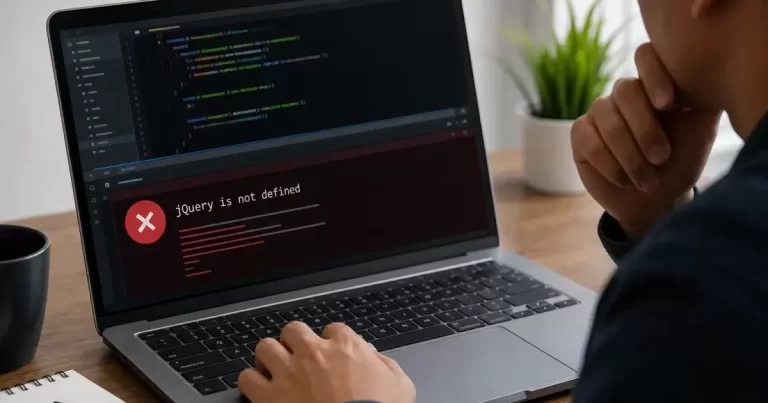
How to Fix the jQuery Not Defined Error
Last updated: July 2026
Quick Answer
To fix the jQuery is not defined error in WordPress, open your browser’s DevTools Network tab and confirm the jquery.js file is actually loading. If it isn’t, the usual cause is a theme or plugin loading a script before jQuery, or hardcoding a script tag instead of using WordPress’s wp_enqueue_script() system with jQuery listed as a dependency. Fixing the load order resolves the error in the vast majority of cases.
Prerequisites
- Admin access to your WordPress dashboard
- FTP or file manager access (for advanced fixes)
- A recent backup of your site before editing any core files
- Browser DevTools open (press F12 on Windows or Cmd+Option+I on Mac)
Step 1: Confirm the Error and Where It Happens
At Canada Create, this is one of the most common WordPress support tickets our team sees from small business clients, right alongside general site speed complaints. Before touching any code, confirm exactly where and when the error fires.
1.1 Reproduce the error
Open the page throwing the jQuery is not defined error, right-click, and choose “View Page Source” or press Ctrl+U. Search the source for “jquery.min.js” to see whether it’s referenced at all.
1.2 Check the Network tab
In DevTools, open the Network tab, filter by “JS”, and reload the page. Look for the jQuery file. A 404 means the path is wrong, a 403 means a permissions issue, and if it’s missing entirely, the script tag was never added to the page (Betheme Blog).
Step 2: Update WordPress Core, Theme, and Plugins
2.1 Update WordPress core
Go to Dashboard, then Updates, and install any pending WordPress core update. Older core versions sometimes ship an outdated bundled jQuery that conflicts with newer plugin code.
2.2 Update plugins and themes
Update all plugins and your active theme. Outdated themes or plugins are one of the most common triggers for this error, since they may reference an old jQuery API that has since changed (Liquid Web). This is especially common on sites still running a heavily customized WooCommerce setup, so if you also maintain a store, it’s worth cross-checking against our WooCommerce vs Shopify comparison for platform-specific quirks. As we mention across Canada Create’s WordPress guides, an update-first approach resolves a surprising share of tickets before any code needs to change.
Step 3: Isolate the Conflicting Plugin or Theme
3.1 Switch to a default theme
Temporarily activate a default theme like Twenty Twenty-Four to see if the error disappears. If it does, the problem lives in your theme’s code.
3.2 Disable plugins one at a time
Deactivate all plugins, then reactivate them individually, reloading the page after each one, until the error reappears. That last plugin is your culprit (Liquid Web). Once you find it, check whether an update is available or contact the plugin developer. For sites running heavier page builders, this step often overlaps with the general performance issues covered in our guide to managed WordPress hosting, since plugin bloat and script conflicts tend to travel together.
Step 4: Fix the Script Enqueue Order
4.1 Use the WordPress enqueue system
Never hardcode a <script> tag for jQuery directly into your theme’s header. Instead, register your script properly with jQuery as a dependency:
function my_custom_scripts() {
    wp_enqueue_script( 'my-script', get_template_directory_uri() . '/js/my-script.js', array('jquery'), '1.0', true );
}
add_action( 'wp_enqueue_scripts', 'my_custom_scripts' );
Passing array(‘jquery’) as the third parameter guarantees WordPress loads jQuery before your script runs (Stack Overflow).
4.2 Check caching and minification plugins
If you use a caching or performance plugin, check its JavaScript optimization settings. Exclude jQuery from async or defer treatment, or make sure jQuery and any scripts depending on it share the same loading strategy (Betheme Blog). Clear all site, browser, and CDN cache after making changes. This kind of load-order debugging is a common theme in our broader guide on what actually slows down WordPress on shared hosting.
Step 5: Add a jQuery CDN Fallback
5.1 Load jQuery with a fallback snippet
If you decide to load jQuery from a CDN, add a fallback in case the CDN fails to respond:
<script src="https://ajax.googleapis.com/ajax/libs/jquery/3.6.0/jquery.min.js"></script>
<script>window.jQuery || document.write('<script src="/wp-includes/js/jquery/jquery.js"><\/script>')</script>
Load this fallback before any other script that depends on jQuery, and only deregister WordPress’s bundled jQuery if it’s absolutely necessary (Liquid Web).
5.2 Consider a code snippets plugin
If editing theme files directly feels risky, a popular code snippets plugin can insert this fallback into your site header without touching header.php. As Canada Create notes across our WordPress security content, keeping core file edits to a minimum reduces the chance of losing custom code during a theme update. This is also good general hygiene if you’re following our checklist on the 4 pillars of WordPress security.
Step 6: Edit header.php or wp-config.php (Last Resort)
6.1 Manually add jQuery to header.php
Locate the header.php file in your active theme folder and paste the jQuery CDN snippet right below the opening <head> tag (Hostinger). Only do this if the enqueue-based fixes above didn’t resolve the error, since manual edits get overwritten on theme updates.
6.2 Double-check for jQuery UI conflicts
If you’re using jQuery UI components, confirm the UI script is also enqueued with ‘jquery’ as a dependency. A mismatched jQuery UI version is a frequent secondary cause of this error once the base jQuery load issue is fixed.
Troubleshooting
| Symptom | Likely Cause | Fix |
|---|---|---|
| jquery.js returns 404 in Network tab | Wrong file path or deregistered script | Re-enqueue jQuery with the correct handle and path |
| Error only appears after a plugin update | Plugin overrides script loading order | Roll back or contact plugin developer |
| Error appears only on mobile | Caching plugin deferring jQuery asynchronously | Exclude jQuery from async/defer rules |
| Error disappears with plugins off, reappears one by one | Specific plugin conflict | Update or replace the conflicting plugin |
Canada Create readers often ask why this error keeps coming back even after a fix. In most repeat cases, a caching plugin is re-serving a stale, minified JS bundle. Clearing all cache layers, including any CDN, after every fix attempt avoids this loop.
Frequently Asked Questions
What causes the jQuery is not defined error in WordPress?
It’s usually caused by a script running before jQuery has loaded, or jQuery not being enqueued correctly through wp_enqueue_script() with ‘jquery’ listed as a dependency.
How do I check if jQuery is loading on my WordPress site?
Open your browser’s DevTools, go to the Network tab, filter by JS, and reload the page. If jquery.min.js appears with a 200 status, it’s loading correctly; a 404 or missing entry points to a load order or path problem.
Will updating my theme and plugins fix the jQuery error?
Often, yes. Outdated themes and plugins are one of the most common triggers, since they may call an older jQuery API that no longer matches the bundled version in current WordPress core.
Is it safe to load jQuery from a CDN in WordPress?
Yes, as long as you add a fallback that loads a local copy if the CDN fails, and you load it before any script that depends on it. Deregistering WordPress’s own jQuery should only be done if truly necessary.
Related Resources
- How to Secure Your WordPress Website in 2026
- What Actually Slows Down a WordPress Site on Shared Hosting?
- 80 Cart Abandonment Statistics (2026)
Still stuck after trying these fixes? Canada Create’s Yorkville web design team handles WordPress troubleshooting for small businesses across the GTA.





