
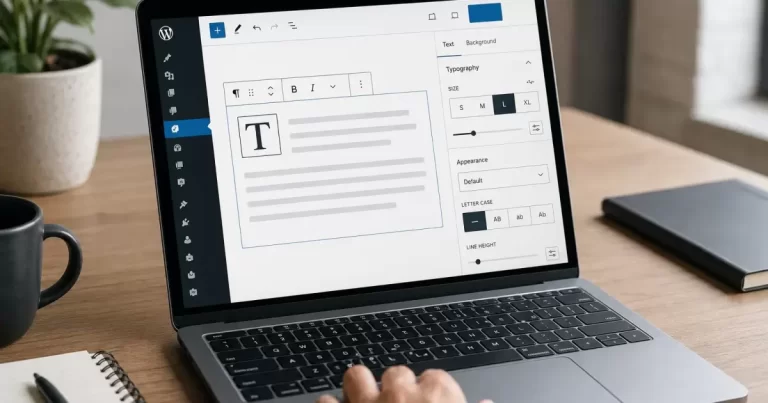
How to Change Font Size in WordPress
Last updated: July 2026
Steps to Change Font Size in WordPress
Step 1: Change Font Size for a Single Block
Open the page or post you want to edit and click on any text block. In the block settings panel on the right, look for the Typography section and expand it. You will see a Size dropdown or slider that lets you pick from preset sizes like Small, Medium, Large, and Huge, or enter a custom value in pixels or “em” units. This is the fastest way to handle a wordpress text size settings change on a single paragraph or heading without touching any code.
Step 2: Change Font Size Using the Block Editor Guide
For more consistent control across a whole page, use the Typography panel available in the full site editor if your theme supports it. This gives you a block editor font size guide style control panel where you can set default sizes for paragraphs, headings, and buttons that apply site-wide, rather than block by block.
Step 3: Set a Custom Font Size Through the Theme Customizer
Go to Appearance then Customize in your WordPress dashboard. Many themes include a Typography or Fonts section here that lets you adjust body text size, heading sizes, and sometimes line height, all without writing CSS. This is the most reliable path for a custom font size wordpress theme change if your theme was built with customization options in mind.
Step 4: Change Heading Sizes Specifically
If only your headings look too small or too large, select a heading block and check its Typography panel the same way you would for a paragraph. Alternatively, under Appearance then Customize, look for a dedicated Headings section. Getting this right matters for readability, since a page with headings barely larger than body text loses visual hierarchy fast. This is the most common way readers ask us to change heading size wordpress sites without redesigning the whole page.
Step 5: Use Custom CSS for Full Control
For precise, repeatable control, go to Appearance then Customize then Additional CSS, or use a dedicated custom CSS plugin. A simple rule like this changes all paragraph text site-wide:
p { font-size: 18px; }For headings, target the specific tag:
h2 { font-size: 28px; }Custom CSS survives theme updates when placed in the Additional CSS panel, which makes it safer than editing theme files directly. If you are not comfortable with CSS, Canada Create readers often start with the block editor controls in Step 1 first, then move to custom CSS only once they know exactly which sizes they want.
Step 6: Adjust Font Size for Mobile Devices Separately
Text that looks fine on a desktop monitor can feel cramped or oversized on a phone screen. Many block editors let you set different typography values per breakpoint if your theme supports responsive controls. If it does not, a targeted CSS media query gives you the same result:
@media (max-width: 600px) {
  p { font-size: 16px; }
}
This keeps desktop sizing untouched while giving mobile visitors a more comfortable reading size, which matters since a large share of WordPress traffic now arrives from phones rather than desktops.
Step 7: Fix Font Size Issues Caused by Page Builders
If your site uses a page builder plugin layered on top of WordPress, typography settings sometimes live in the builder’s own panel rather than the native block editor. Look for a Design or Style tab within the builder’s element settings, since builder-specific font size controls usually override theme-level Customizer settings for any section built with that tool.
Step 8: Test Changes Before Publishing Site-Wide
Whenever you make a global typography change through the Customizer or custom CSS, preview it across a few different page types first: a blog post, a landing page, and your homepage. A size that looks great on a simple text page can throw off spacing in a hero section or a pricing table built with different assumptions.
Common Font Size Mistakes to Avoid
A few patterns show up again and again when site owners adjust typography for the first time. Knowing them ahead of time saves a round of undoing changes later.
- Setting body text below 14px: anything smaller strains readability on most screens and tends to increase bounce rate rather than improve design.
- Making every heading the same size as body text: visual hierarchy helps readers scan a page quickly. Headings should be noticeably larger than paragraph text, not just bolded.
- Editing theme files directly instead of using Additional CSS: direct theme file edits get wiped out the next time the theme updates. The Additional CSS panel or a child theme survives updates safely.
- Ignoring line height when increasing font size: larger text without a proportional increase in line height can look cramped. Most themes handle this automatically, but custom CSS changes sometimes need a manual line-height adjustment alongside font-size.
When to Bring in a Developer
Most font size changes described above are safe for any WordPress user to make directly. Consider bringing in help when typography changes need to apply consistently across dozens of pages with different layouts, when a page builder and theme are fighting over which typography rule wins, or when you want a full design system with defined type scales rather than one-off adjustments. Canada Create’s team handles this kind of broader typography and design system work for clients who have outgrown quick manual fixes.
FAQ
Why can’t I find a font size option in my WordPress editor?
Some older or minimal themes disable typography controls in the block editor. Check Appearance then Customize for a theme-level font setting, or add a small custom CSS snippet as shown in Step 5.
Will changing font size in the Customizer affect my whole site?
Yes, Customizer typography settings typically apply site-wide, while block-level typography settings in Step 1 only affect that specific block or page.
Does changing font size affect my WordPress SEO?
Not directly, but readability does influence how long visitors stay on a page, which is a signal search engines consider. Reasonably sized body text, generally 16px or larger, is a safe baseline for both usability and SEO.
Can I set different font sizes for mobile and desktop separately?
Yes. Many themes support responsive typography settings directly in the block editor, and if not, a CSS media query targeting a maximum width gives you the same control.
Why does my page builder ignore my Customizer font size settings?
Page builder plugins often apply their own typography rules to sections built with that tool, which can override theme-level Customizer settings. Check the builder’s own Design or Style panel for the section in question.
Related Resources
- Fix WordPress Login Bypass Issues
- How to Remove Spam Link Injection in WP
- How to Secure Your WordPress Website in 2025
As we cover often at Canada Create, small typography adjustments like this are usually a sign a site owner is getting more comfortable managing their own WordPress content, which is a great habit to build before tackling bigger changes like the ones we walk through in fixing WordPress login bypass issues. Canada Create readers who manage their own blog content often ask about font size right after asking about heading structure, since both affect how a page reads on mobile devices.
If your site was built years ago and font controls feel unusually limited, that is often a sign the underlying theme is outdated in ways that go beyond typography. Canada Create’s web design team in Yorkville frequently helps small businesses modernize an aging WordPress theme, and our Downtown Toronto web design services cover the same kind of refresh for businesses further south.
For a deeper technical reference on how the block editor handles typography settings, the official WordPress theme.json reference documents every available setting, and the MDN font-size documentation is the clearest resource on how CSS font sizing units like px, em, and rem actually behave across browsers.
{
“@context”: “https://schema.org”,
“@type”: “Article”,
“headline”: “How to Change Font Size in WordPress”,
“description”: “Want better readability across your site? Here is a simple guide to effortlessly changing font size in WordPress, with clear step by step instructions.”,
“datePublished”: “2026-07-21T09:00:00-04:00”,
“dateModified”: “2026-07-21T09:00:00-04:00”,
“author”: {
“@type”: “Person”,
“name”: “Canada Create Editorial Team”
},
“publisher”: {
“@type”: “Organization”,
“name”: “Canada Create”,
“logo”: {
“@type”: “ImageObject”,
“url”: “https://canadacreate.com/wp-content/uploads/2024/03/canada-create-logo.png”
}
},
“mainEntityOfPage”: {
“@type”: “WebPage”,
“@id”: “https://canadacreate.com/change-font-size-wordpress/”
}
}
{
“@context”: “https://schema.org”,
“@type”: “BreadcrumbList”,
“itemListElement”: [
{
“@type”: “ListItem”,
“position”: 1,
“name”: “Home”,
“item”: “https://canadacreate.com/”
},
{
“@type”: “ListItem”,
“position”: 2,
“name”: “WordPress”,
“item”: “https://canadacreate.com/category/wordpress/”
},
{
“@type”: “ListItem”,
“position”: 3,
“name”: “How to Change Font Size in WordPress”,
“item”: “https://canadacreate.com/change-font-size-wordpress/”
}
]
}
{
“@context”: “https://schema.org”,
“@type”: “FAQPage”,
“mainEntity”: [
{
“@type”: “Question”,
“name”: “Why can’t I find a font size option in my WordPress editor?”,
“acceptedAnswer”: {
“@type”: “Answer”,
“text”: “Some older or minimal themes disable typography controls in the block editor. Check Appearance then Customize for a theme-level font setting, or add a small custom CSS snippet.”
}
},
{
“@type”: “Question”,
“name”: “Will changing font size in the Customizer affect my whole site?”,
“acceptedAnswer”: {
“@type”: “Answer”,
“text”: “Yes, Customizer typography settings typically apply site-wide, while block-level typography settings only affect that specific block or page.”
}
},
{
“@type”: “Question”,
“name”: “Does changing font size affect my WordPress SEO?”,
“acceptedAnswer”: {
“@type”: “Answer”,
“text”: “Not directly, but readability does influence how long visitors stay on a page, which is a signal search engines consider. Body text of 16px or larger is a safe baseline.”
}
}
]
}
{
“@context”: “https://schema.org”,
“@type”: “HowTo”,
“name”: “How to Change Font Size in WordPress”,
“step”: [
{
“@type”: “HowToStep”,
“name”: “Change font size for a single block”,
“text”: “Use the block editor Typography panel to set a preset or custom size.”,
“url”: “https://canadacreate.com/change-font-size-wordpress/#step-1-change-font-size-for-a-single-block”
},
{
“@type”: “HowToStep”,
“name”: “Change font size using the block editor guide”,
“text”: “Use the full site editor Typography panel to set site-wide defaults.”,
“url”: “https://canadacreate.com/change-font-size-wordpress/#step-2-change-font-size-using-the-block-editor-guide”
},
{
“@type”: “HowToStep”,
“name”: “Set a custom font size through the theme Customizer”,
“text”: “Use Appearance then Customize to adjust typography without code.”,
“url”: “https://canadacreate.com/change-font-size-wordpress/#step-3-set-a-custom-font-size-through-the-theme-customizer”
},
{
“@type”: “HowToStep”,
“name”: “Change heading sizes specifically”,
“text”: “Adjust heading blocks individually or through a Headings section in Customizer.”,
“url”: “https://canadacreate.com/change-font-size-wordpress/#step-4-change-heading-sizes-specifically”
},
{
“@type”: “HowToStep”,
“name”: “Use custom CSS for full control”,
“text”: “Add CSS rules through Additional CSS for precise, update-safe font sizing.”,
“url”: “https://canadacreate.com/change-font-size-wordpress/#step-5-use-custom-css-for-full-control”
}
]
}





