
How to Adjust Block Size in WordPress
Last updated: July 2026
Getting a WordPress page to look exactly right often comes down to one frustrating detail: a block that is too wide, too narrow, or too tall for the space around it. If you have ever dragged a resize handle and watched nothing happen, you are not alone. This guide walks through every practical way to adjust block height and width in the WordPress block editor, from the simplest alignment click to advanced container tricks.
At Canada Create we build WordPress sites for small businesses across the country, and layout questions like this come up in almost every project. If you are also working on setting a realistic hosting budget or thinking about securing your WordPress site, block sizing is one of the easier wins you can make today.
Quick Answer: The 5 Ways to Resize a Block
- Block Settings panel: direct pixel, percentage, or alignment controls for blocks that support them
- Columns block: resize the column container to change the width of everything inside it
- Group block: wrap several blocks together and control their collective size and spacing
- Cover block: set a minimum height for banner style sections
- Page builder plugin: drag and drop precision when the native editor cannot do what you need
Prerequisites
Before you start, make sure you are editing in the WordPress block editor (Gutenberg), not the Classic Editor. You will also want:
- Editor or Administrator access to the page or post
- A current backup, in case you want to undo a layout change quickly
- Five minutes, since most of these adjustments take seconds once you know where to look
Step 1: Resize an Image Block Using Alignment and Dimensions
1a. Open the Block Settings panel
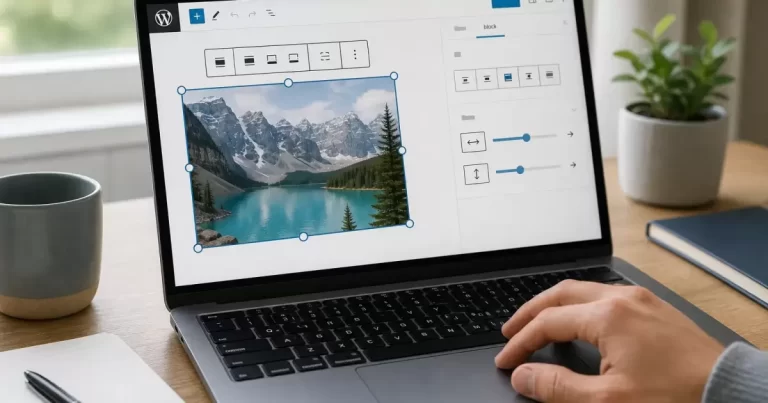
Click the image block, then look at the sidebar on the right. If it is not visible, click the gear icon in the top right corner of the editor.
1b. Adjust width with alignment options
Click the Align button in the toolbar above the block. Choosing “Wide Width” extends the image across most of the content area, and “Full Width” stretches it edge to edge on themes that support it.
1c. Set an exact pixel size
In the Block Settings panel, scroll to the “Dimensions” section. Many themes let you type an exact width and height in pixels here, which is useful when you need an image to match a fixed layout.
Step 2: Adjust Column Width to Control Blocks Inside It
2a. Select the Columns block
Click anywhere inside a Columns block, then click the outer column border to select the parent container rather than the content inside it.
2b. Drag the column divider
Hover between two columns until you see a drag handle appear, then click and drag to resize. Whatever is inside that column, whether it is text, an image, or a button, resizes with it.
2c. Use percentage-based width for responsive layouts
In the Block Settings panel, some themes expose a percentage field for each column. Percentages behave better on mobile than fixed pixel widths.
Step 3: Use a Group Block for Collective Sizing
3a. Select multiple blocks and group them
Highlight the blocks you want to resize together, right click, and choose “Group.” This wraps them in a single container.
3b. Apply width and padding from the Group settings
With the Group block selected, open Block Settings and adjust the width constraint and internal padding. This is the fastest way to make a cluster of blocks feel consistent without resizing each one individually.
Step 4: Set Minimum Height on a Cover Block
4a. Insert or select the Cover block
Cover blocks are the standard way to build banner style sections with a background image or color.
4b. Adjust the minimum height field
In Block Settings, find “Minimum height” and enter a value in pixels or viewport height units. This controls how tall the section appears regardless of how much text sits on top of it.
Step 5: Use a Page Builder Plugin for Precise Control
If the native block editor still will not give you the exact block height and width you need, a page builder plugin adds a visual drag and drop layer with pixel level dimension fields, spacing controls, and responsive breakpoints. This is a common escalation path for small business owners who started with a simple theme and outgrew its layout options. As we cover at Canada Create, most clients only need this step for one or two landing pages, not the entire site.
Troubleshooting Common Block Sizing Issues
| Problem | Likely Cause | Fix |
|---|---|---|
| Resize handles do not appear | Block type does not support manual resizing | Use the Block Settings panel dimensions instead |
| Width changes are ignored | Theme CSS is overriding block styles | Check your theme’s content width setting or add custom CSS |
| Block looks fine on desktop but breaks on mobile | Fixed pixel widths do not scale | Switch to percentage or relative units |
| Column width will not save | Editing the wrong nested block | Click the column border, not the content inside it |
Frequently Asked Questions
Why can’t I resize some WordPress blocks?
Not every block type includes native resize controls. Text and heading blocks, for example, typically span the full content width by design. Blocks like Image, Columns, Group, and Cover are the ones built with dimension controls.
How do I make a WordPress block full width?
Select the block and click “Full Width” in the alignment toolbar. Your theme must support full width alignment for this option to appear and to actually stretch edge to edge.
Can I set an exact pixel height for any block?
Cover blocks and Group blocks generally allow a minimum height in pixels. Most other block types size themselves automatically based on their content.
Do block size changes affect mobile view differently?
Yes. Fixed pixel widths can cause overflow or awkward scaling on small screens, so percentage or relative units are usually safer for responsive layouts.
Will a page builder plugin conflict with the native block editor?
Most modern page builder plugins are built as an extension of the block editor rather than a replacement, so conflicts are rare. Still, test on a staging copy of your WordPress hosting plan before applying big layout changes on a live site.
Related Resources
- What actually slows down a WordPress site on shared hosting
- How to secure your WordPress website
- Best WordPress community plugins
If your layout questions keep leading back to bigger platform decisions, Canada Create also breaks down WordPress versus Webflow for growing businesses and enterprise WordPress hosting options for Canadian teams. For hands-on help with layout or a full rebuild, our Toronto web design team in Yorkville works with small businesses across the city on exactly this kind of block level polish.
For the official reference on block editor capabilities, see the WordPress Block Editor documentation and the Block Editor Handbook.
{
“@context”: “https://schema.org”,
“@type”: “Article”,
“headline”: “How to Adjust Block Size in WordPress”,
“description”: “Need more control over layout? Here is a step by step guide to adjusting block height and width in WordPress, with clear step by step instructions.”,
“datePublished”: “2026-07-21T09:00:00-04:00”,
“dateModified”: “2026-07-21T09:00:00-04:00”,
“author”: {
“@type”: “Person”,
“name”: “Canada Create Editorial Team”
},
“publisher”: {
“@type”: “Organization”,
“name”: “Canada Create”,
“logo”: {
“@type”: “ImageObject”,
“url”: “https://canadacreate.com/wp-content/uploads/2024/03/canada-create-logo.png”
}
},
“mainEntityOfPage”: {
“@type”: “WebPage”,
“@id”: “https://canadacreate.com/adjust-block-height-width-wordpress/”
}
}
{
“@context”: “https://schema.org”,
“@type”: “BreadcrumbList”,
“itemListElement”: [
{“@type”: “ListItem”, “position”: 1, “name”: “Home”, “item”: “https://canadacreate.com/”},
{“@type”: “ListItem”, “position”: 2, “name”: “WordPress”, “item”: “https://canadacreate.com/category/wordpress/”},
{“@type”: “ListItem”, “position”: 3, “name”: “How to Adjust Block Size in WordPress”, “item”: “https://canadacreate.com/adjust-block-height-width-wordpress/”}
]
}
{
“@context”: “https://schema.org”,
“@type”: “FAQPage”,
“mainEntity”: [
{
“@type”: “Question”,
“name”: “Why can’t I resize some WordPress blocks?”,
“acceptedAnswer”: {
“@type”: “Answer”,
“text”: “Not every block type includes native resize controls. Text and heading blocks, for example, typically span the full content width by design. Blocks like Image, Columns, Group, and Cover are the ones built with dimension controls.”
}
},
{
“@type”: “Question”,
“name”: “How do I make a WordPress block full width?”,
“acceptedAnswer”: {
“@type”: “Answer”,
“text”: “Select the block and click Full Width in the alignment toolbar. Your theme must support full width alignment for this option to appear and to actually stretch edge to edge.”
}
},
{
“@type”: “Question”,
“name”: “Can I set an exact pixel height for any block?”,
“acceptedAnswer”: {
“@type”: “Answer”,
“text”: “Cover blocks and Group blocks generally allow a minimum height in pixels. Most other block types size themselves automatically based on their content.”
}
},
{
“@type”: “Question”,
“name”: “Do block size changes affect mobile view differently?”,
“acceptedAnswer”: {
“@type”: “Answer”,
“text”: “Yes. Fixed pixel widths can cause overflow or awkward scaling on small screens, so percentage or relative units are usually safer for responsive layouts.”
}
},
{
“@type”: “Question”,
“name”: “Will a page builder plugin conflict with the native block editor?”,
“acceptedAnswer”: {
“@type”: “Answer”,
“text”: “Most modern page builder plugins are built as an extension of the block editor rather than a replacement, so conflicts are rare. Still, test on a staging copy of your WordPress hosting plan before applying big layout changes on a live site.”
}
}
]
}
{
“@context”: “https://schema.org”,
“@type”: “HowTo”,
“name”: “How to Adjust Block Size in WordPress”,
“description”: “Need more control over layout? Here is a step by step guide to adjusting block height and width in WordPress, with clear step by step instructions.”,
“step”: [
{“@type”: “HowToStep”, “name”: “Resize an Image Block”, “text”: “Use the alignment toolbar and Block Settings panel to set wide, full, or exact pixel width for an image block.”, “url”: “https://canadacreate.com/adjust-block-height-width-wordpress/#step-1-resize-an-image-block-using-alignment-and-dimensions”},
{“@type”: “HowToStep”, “name”: “Adjust Column Width”, “text”: “Select the Columns block container and drag the divider or set a percentage width to resize everything inside.”, “url”: “https://canadacreate.com/adjust-block-height-width-wordpress/#step-2-adjust-column-width-to-control-blocks-inside-it”},
{“@type”: “HowToStep”, “name”: “Use a Group Block for Collective Sizing”, “text”: “Group multiple blocks together and apply width and padding settings from the Group block controls.”, “url”: “https://canadacreate.com/adjust-block-height-width-wordpress/#step-3-use-a-group-block-for-collective-sizing”},
{“@type”: “HowToStep”, “name”: “Set Minimum Height on a Cover Block”, “text”: “Open Block Settings on a Cover block and enter a minimum height value in pixels or viewport units.”, “url”: “https://canadacreate.com/adjust-block-height-width-wordpress/#step-4-set-minimum-height-on-a-cover-block”},
{“@type”: “HowToStep”, “name”: “Use a Page Builder Plugin”, “text”: “For pixel level precision beyond native controls, use a page builder plugin with drag and drop dimension fields.”, “url”: “https://canadacreate.com/adjust-block-height-width-wordpress/#step-5-use-a-page-builder-plugin-for-precise-control”}
]
}





