


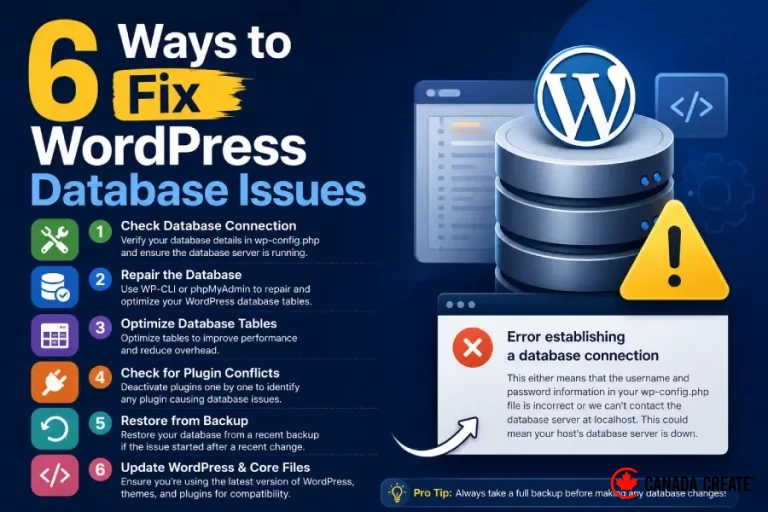
The WordPress database holds everything that makes your site actually work, your posts, pages, settings, user accounts, and plugin configurations all live there. When something goes wrong with it, the results range from a single broken feature to the entire site going down with an error message instead of your homepage. The good news is that most database issues fall into a small number of predictable categories, each with a clear fix.
Here are 6 ways to diagnose and fix the most common WordPress database problems.
1. Fix the “Error Establishing a Database Connection” Message
This is the most alarming database error because it takes your entire site down, showing visitors a blank error message instead of any content at all.
In most cases, this happens because the database credentials stored in your wp-config.php file no longer match what your hosting server expects. This can occur after a hosting migration, a server side change made by your host, or a manual edit to wp-config.php that introduced a typo.
Open wp-config.php through FTP or your hosting file manager and check the DB_NAME, DB_USER, DB_PASSWORD, and DB_HOST values against the actual database credentials shown in your hosting control panel. Even a single incorrect character in any of these four values will trigger this error.
If the credentials all match and the error persists, the issue may be with the database server itself rather than your credentials. Check whether your hosting provider is reporting a database server outage, since shared hosting environments occasionally have database servers go down independently of your specific site.
If your site was recently under heavy traffic, this error can also appear when your database has hit its maximum allowed connections for your hosting plan. In that case, the fix is either optimizing what is querying the database so heavily, such as an inefficient plugin, or upgrading your hosting plan to allow more concurrent connections.
2. Repair a Corrupted Database Table
Database tables can become corrupted for a number of reasons, including an interrupted plugin update, a server crash during a write operation, or a hosting environment issue. A corrupted table often shows up as a specific error mentioning a table name, or as parts of your site behaving strangely while other parts work fine.
WordPress has a built in repair tool that can fix common table corruption without needing direct database access. To enable it, add a line to your wp-config.php file turning on the repair feature, then visit the specific repair URL that WordPress provides once this is enabled. This scans your tables and repairs anything it finds broken.
Once the repair completes, remove the line you added to wp-config.php, since leaving this feature enabled makes the repair tool accessible to anyone who knows the URL, which is a security risk you do not want left open indefinitely.
If the built in repair tool does not resolve the issue, phpMyAdmin through your hosting control panel has its own repair function that can be run directly against individual tables, and it sometimes succeeds in cases where the WordPress tool does not.
3. Clean Up Database Bloat
Over time, a WordPress database accumulates far more data than what is actually needed to run the site. Post revisions, expired transients, spam comments, and orphaned metadata from uninstalled plugins all pile up in the background, and a bloated database slows down every single query your site runs, which directly affects page load speed.
Post revisions are usually the biggest contributor, since WordPress saves a full copy of a post every time it is auto-saved or manually saved, and these copies are never automatically cleaned up. A site that has been actively edited for a couple of years can easily accumulate tens of thousands of unnecessary revision rows.
A database cleanup plugin can identify and remove revisions, expired transients, and orphaned data safely, without touching any of your actual content. Run a full database backup before any cleanup operation, since even a well tested cleanup tool is working with data you cannot easily recreate if something goes wrong.
After cleanup, consider limiting the number of revisions WordPress keeps for each post going forward, which prevents the same bloat from building back up over time.
4. Resolve Table Prefix Conflicts After a Migration
If you migrated a site, merged two databases, or restored a backup from a different environment, table prefix mismatches are a common and frustrating source of errors. WordPress expects all its tables to share a consistent prefix, defined in wp-config.php as the table_prefix value, and if this value does not match what is actually in the database, WordPress will behave as if the site has no content at all, even though the data is sitting right there in the database.
Check the table_prefix value in wp-config.php against the actual prefix used by your tables in phpMyAdmin. If they do not match, either update wp-config.php to reflect the correct existing prefix, or rename the tables to match what wp-config.php expects, whichever is easier given your specific situation.
Keep in mind that some tables reference the prefix internally within serialized data, particularly in the options table, so a straightforward rename does not always fully resolve every reference throughout the database. A migration plugin with a proper search and replace tool designed for this exact scenario is generally safer than manual renaming when prefixes need to change.
5. Fix a Site Stuck in Maintenance Mode Due to a Failed Update
WordPress automatically places your site into maintenance mode during plugin, theme, or core updates, and it removes this mode automatically once the update finishes. If an update is interrupted, whether from a timeout, a lost connection, or a server issue mid-update, the site can get stuck showing a maintenance message indefinitely, even though the update itself may have actually completed successfully in the database.
This is not technically a database corruption issue, but it is directly tied to a specific file that WordPress uses to track update status, and it is worth covering here since it is frequently mistaken for a deeper database problem.
Connect to your site through FTP or your hosting file manager and look in the root WordPress directory for a file named .maintenance. Deleting this single file removes the maintenance mode message immediately, assuming the underlying update actually completed. If the update did not complete, deleting this file without addressing the incomplete update can leave your site in an inconsistent state, so it is worth checking your plugin and theme versions afterward to confirm everything updated as expected.
6. Address Slow Queries From Poorly Optimized Plugins
Not every database issue announces itself with an error message. A gradually slowing site, particularly one where the slowdown correlates with adding a specific plugin, is often a sign of that plugin running inefficient or excessive database queries in the background.
Query monitoring tools can show you exactly which queries are running on any given page load and how long each one takes. If you notice a specific plugin consistently generating a large number of slow queries, particularly on every single page load rather than just where the plugin’s feature is actually being used, that plugin is a strong candidate for replacement with a better optimized alternative.
This kind of issue tends to get worse gradually rather than appearing suddenly, which makes it easy to overlook until page speed has degraded significantly. Running a query audit periodically, especially after adding new plugins, catches this kind of problem before it becomes a major performance drag on the site.
Final Thoughts
Database issues in WordPress almost always trace back to one of these six areas, connection credentials, table corruption, accumulated bloat, prefix mismatches, a stuck maintenance file, or inefficient queries from a specific plugin. Identifying which category your issue falls into is most of the work, and the fix itself is usually straightforward once you know where to look.
If your WordPress site is showing database errors or running slower than it should, our team at Canada Create can diagnose and fix the issue for you. Visit Canada Create to get in touch with our WordPress support team.


