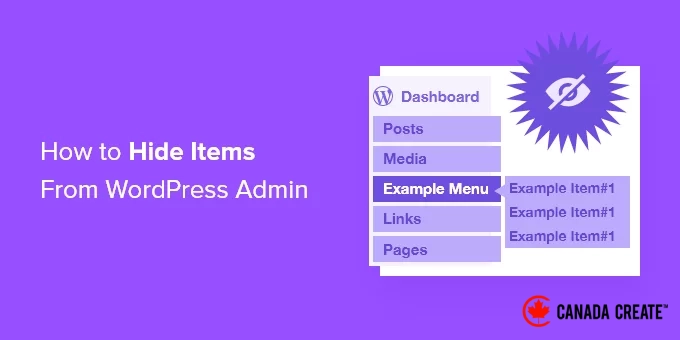
After years of managing WordPress websites, we’ve discovered that the admin panel can become cluttered with unnecessary menu items. This is particularly common on multi-author sites or when managing websites for clients.
By decluttering the admin area, you can help your team focus solely on the essential options they need, eliminating distractions from rarely-used features. This straightforward approach enhances your WordPress management process and improves the user experience for both your team and clients.
In this article, we will guide you on how to hide unnecessary items from the WordPress admin area, allowing you to create a cleaner and more efficient workspace for yourself and your users.
Reasons to Hide Admin Menu Items in WordPress
The WordPress admin area contains numerous menus, submenus, options, and settings for themes and plugins that can be modified at any time. These include dashboard widgets, the post editing area, plugins, appearance settings, tools, and more.
However, many of these menu options are rarely used, leading to a cluttered admin screen. If you operate a multi-author WordPress site or have clients accessing the admin area, it’s advisable to tidy up the WordPress admin panel.
Only retain the menus and options that are beneficial for your authors and clients, and hide any unnecessary submenus.
You might also consider deactivating items based on user roles, allowing for tailored admin interfaces for users with varying roles and capabilities on your WordPress site.
Now, let’s explore how to eliminate unwanted menu items from the WordPress admin panel.
Note: This guide focuses on the backend admin menu that registered users encounter upon logging into your site.
If you’re looking to customize the navigation menus visible to all visitors on your website, check out our comprehensive guide on adding a navigation menu in WordPress.
How to Hide Specific WordPress Admin Menu Items
The easiest way for beginners to hide menus and items from the WordPress admin dashboard is by using the Admin Menu Editor plugin. This free WordPress plugin allows you to modify menu titles, URLs, icons, and more.
Additionally, you can hide menu items from the admin sidebar, set permissions based on user roles, and drag and drop menu items to arrange your WordPress admin bar.
Begin by installing and activating the Admin Menu Editor plugin. For detailed instructions, refer to our guide on installing a WordPress plugin.
After activation, navigate to Settings » Menu Editor in your WordPress dashboard. On this settings page, you will find all your menu and submenu items listed under the ‘Admin Menu’ tab.
You can easily rearrange your menu items by dragging and dropping them. Additionally, you have the option to remove or add new menu items.
Next, click the downward arrow next to any menu item to access more options. Here, you can rename the menu title, change the target page, and more.
To hide a menu item from specific users, click on the ‘Extra capability’ dropdown menu. From there, select the user role that should have access to the menu item.
For instance, if you want to hide the Media menu and its submenus from all user roles except for administrators, click on the ‘Extra capability’ dropdown and select ‘Administrator’ under Roles.
Once you have made your changes, be sure to save them.
Now, the Media menu item will only be visible to users with the Administrator role and will be hidden from all other user roles.
If someone attempts to access the hidden menu item by entering the URL, they will encounter the message, ‘You do not have sufficient permissions to access this admin page.’
You can follow these steps again to hide additional admin menu items and plugins for various users.
For more tips on customizing your WordPress admin experience, explore these helpful guides:
- Essential Tips to Secure Your WordPress Admin Area (Updated)
- How to Create a Custom Brand for Your WordPress Admin Dashboard
- How to Add Personalized Admin Notices in WordPress
- How to Secure Your WordPress Admin (wp-admin) Directory with a Password
- How to Quickly Change the Admin Color Scheme in WordPress
We hope this article has assisted you in concealing unnecessary items from the WordPress admin area. You may also want to explore our expert recommendations for the best WordPress activity log and tracking plugins, as well as our guide on disabling the WordPress admin bar.
If you enjoyed this article, please subscribe to our YouTube Channel for WordPress video tutorials. You can also connect with us on Twitter and Facebook.