
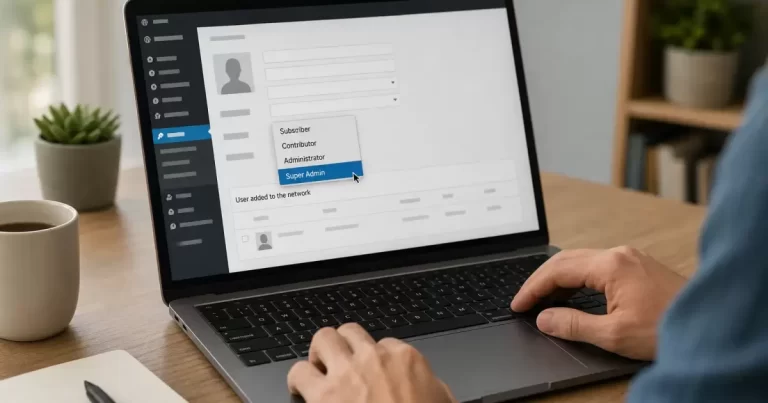
How to Add a Super Admin in Multisite
Last updated: July 2026
Running a network of WordPress sites means someone needs the keys to the whole network, not just one subsite. That role is the Super Admin, and it only exists once you activate WordPress Multisite. If you have ever searched for how to add super admin wordpress multisite, you are probably either onboarding a new network manager or trying to recover access after losing it.
This guide walks through both the standard method and the recovery method for when the admin dashboard is not an option, plus a WP-CLI shortcut for anyone comfortable with the command line. As we cover at Canada Create, this is one of the most common multisite support requests we get from agencies managing several client sites under one installation. Canada Create readers running their own franchise or multi-location network tend to hit this exact question during onboarding.
Prerequisites
- A WordPress installation with Multisite already enabled (this feature only appears on multisite networks).
- Existing Super Admin access, OR server-level access via FTP/SFTP or your hosting file manager for the recovery method.
- Basic familiarity with the WordPress dashboard. WP-CLI experience is a bonus but not required.
Step 1: Confirm You Are Logged In as an Existing Super Admin
1.1 Check for the Network Admin menu
Log into your WordPress dashboard and hover over “My Sites” in the top left corner. If you see “Network Admin” in the dropdown, you already have Super Admin rights and can proceed with Method 1 below.
1.2 If you do not see Network Admin
You do not currently have Super Admin access, so skip ahead to the recovery method in Step 4.
Step 2: Add a New Super Admin User (Method 1)
2.1 Go to Network Admin Users
From “My Sites,” click through to Network Admin > Users. This screen manages every user across the whole network, not just one subsite.
2.2 Add a new user
Click “Add New User” at the top of the page. Unlike a single-site install, this screen only asks for a username and email address, there is no role selector here yet. Enter the details and click “Add User.” WordPress emails the new user a link to set their password.
2.3 Locate the user and open their profile
Go to Users > All Users, hover over the new username, and click “Edit.”
2.4 Grant Super Admin privileges
Scroll down to the “Super Admin” section on the Edit User screen. Check the box labeled “Grant this user super admin privileges for the Network.” Scroll to the bottom and click “Update User.”
WordPress confirms the change with a success notice, and the user now has full network-wide access, including the ability to install plugins and themes network-wide, create new sites, and manage every user across the network.
Step 3: Promote an Existing User Instead of Creating a New One
If the person already has an account on one of your subsites, you do not need to create a new user. Go to Network Admin > Users, find their existing username in the list, and follow the same Edit User steps above; check the Super Admin box and update.
3.1 Why promoting is usually the safer choice
Creating a brand new account for someone who already has a login means they now juggle two sets of credentials, which increases the odds of a weak or reused password somewhere in the chain. Promoting an existing account keeps the audit trail simpler too, since every action tied to that username traces back to one person rather than two separate accounts. Canada Create’s own network management standard is to promote existing accounts whenever possible for exactly this reason.
3.2 Double-check the right person before granting access
Because Super Admin capabilities apply network-wide, a mistaken promotion is not limited to one subsite. Before clicking Update User, confirm the username, email address, and the subsite they normally log into. This matters more on larger networks where multiple people might share a similar display name.
Step 4: Recovery Method If You Are Locked Out
If nobody currently has Super Admin access, or the only Super Admin account is unreachable, you will need file-level access to fix this. This is the same fallback path referenced in how to secure your WordPress website, since it involves editing core files temporarily.
4.1 Connect via FTP or your host’s file manager
Connect to your site using an FTP client or your hosting provider’s file manager.
4.2 Locate your active theme’s functions.php file
Navigate to /wp-content/themes/, open the folder for your currently active theme, and download functions.php to your computer.
4.3 Add a temporary super admin creation snippet
Open the file in a plain text editor and add a small snippet near the bottom that creates a new user and grants them super admin rights on load. Use a strong, unique password and a real email address you control.
4.4 Upload, log in, then remove the snippet
Upload the edited file back to the server. Log into WordPress with the new account and confirm Network Admin access appears. Once confirmed, immediately remove the snippet from functions.php and re-upload the clean file. Leaving a user-creation snippet live is a security risk.
Step 5: The WP-CLI Shortcut
If you have SSH access and WP-CLI installed, this whole process takes one line. Run wp super-admin add username from your site’s root directory to grant super admin capabilities to an existing user. You can confirm the current list of super admins with wp super-admin list. This is generally faster than the dashboard method once you have more than one or two networks to manage. The underlying function WordPress uses internally is documented in the official grant_super_admin() reference.
Troubleshooting
- The Super Admin checkbox is missing: Confirm Multisite is actually enabled in
wp-config.php. Single-site installs do not have this option. - New user did not receive the password email: Ask them to check spam, or manually set a password from the Edit User screen.
- WP-CLI command fails with a permissions error: Make sure you are running the command from the WordPress root directory and that your SSH user has file permissions to the install.
- Changes are not saving: Clear any object cache or page cache plugin data after making network-level user changes, since some multisite setups cache the user list.
Canada Create clients on managed multisite hosting rarely hit these issues because caching layers are configured to bypass the network admin area, but it is still worth checking first if a change appears not to have taken effect.
FAQ
How do I make someone a super admin in WordPress multisite?
Go to Network Admin, open Users, find or create the account, click Edit, then check “Grant this user super admin privileges for the Network” and update the user. This is the standard wordpress multisite user roles workflow built into WordPress core.
What is the difference between a super admin and a regular administrator in multisite?
A regular administrator manages a single subsite: its posts, pages, plugins on that site, and its users. A Super Admin manages the entire network: creating new sites, installing network-wide plugins and themes, and controlling every user across every subsite.
Can there be multiple super admins in a WordPress multisite network?
Yes. WordPress does not limit how many Super Admins a network can have. Many agencies keep at least two, so there is always a backup account with full network admin setup access.
How do I add a super admin using WP-CLI?
Run wp super-admin add username from the site’s root directory over SSH. This is the fastest way to grant super admin access wordpress networks without touching the dashboard.
What do I do if I am locked out of my multisite network admin?
Use FTP or your host’s file manager to temporarily edit your active theme’s functions.php with a user-creation snippet, log in with the new account, confirm access, then remove the snippet immediately. Canada Create readers managing client networks should treat this as a last resort, not a routine fix.
Related Resources
- 3 Tools to View Old Versions of a Site
- The 4 pillars of WordPress security
- Enterprise WordPress Hosting Decision Guide for Canadian B2B
Managing a multisite network for multiple Toronto locations or client brands gets complicated fast. Our Yorkville web design team regularly sets up and audits multisite permissions so agencies and franchises are not stuck troubleshooting user roles on their own.
{
“@context”: “https://schema.org”,
“@type”: “Article”,
“headline”: “How to Add a Super Admin in Multisite”,
“description”: “Managing a network of sites? Here is a step by step guide to adding a super admin user role in WordPress multisite, with clear step by step instructions.”,
“datePublished”: “2026-07-21T09:00:00-04:00”,
“dateModified”: “2026-07-21T09:00:00-04:00”,
“author”: {
“@type”: “Person”,
“name”: “Canada Create Editorial Team”
},
“publisher”: {
“@type”: “Organization”,
“name”: “Canada Create”,
“logo”: {
“@type”: “ImageObject”,
“url”: “https://canadacreate.com/wp-content/uploads/2024/03/canada-create-logo.png”
}
},
“mainEntityOfPage”: {
“@type”: “WebPage”,
“@id”: “https://canadacreate.com/add-super-admin-wordpress-multisite/”
}
}
{
“@context”: “https://schema.org”,
“@type”: “BreadcrumbList”,
“itemListElement”: [
{
“@type”: “ListItem”,
“position”: 1,
“name”: “Home”,
“item”: “https://canadacreate.com/”
},
{
“@type”: “ListItem”,
“position”: 2,
“name”: “WordPress Guides”,
“item”: “https://canadacreate.com/category/wordpress-guides/”
},
{
“@type”: “ListItem”,
“position”: 3,
“name”: “How to Add a Super Admin in Multisite”,
“item”: “https://canadacreate.com/add-super-admin-wordpress-multisite/”
}
]
}
{
“@context”: “https://schema.org”,
“@type”: “FAQPage”,
“mainEntity”: [
{
“@type”: “Question”,
“name”: “How do I make someone a super admin in WordPress multisite?”,
“acceptedAnswer”: {
“@type”: “Answer”,
“text”: “Go to Network Admin, open Users, find or create the account, click Edit, then check Grant this user super admin privileges for the Network and update the user.”
}
},
{
“@type”: “Question”,
“name”: “What is the difference between a super admin and a regular administrator in multisite?”,
“acceptedAnswer”: {
“@type”: “Answer”,
“text”: “A regular administrator manages a single subsite. A Super Admin manages the entire network, including creating new sites and controlling every user across every subsite.”
}
},
{
“@type”: “Question”,
“name”: “Can there be multiple super admins in a WordPress multisite network?”,
“acceptedAnswer”: {
“@type”: “Answer”,
“text”: “Yes. WordPress does not limit how many Super Admins a network can have. Many agencies keep at least two accounts with full network admin access.”
}
},
{
“@type”: “Question”,
“name”: “How do I add a super admin using WP-CLI?”,
“acceptedAnswer”: {
“@type”: “Answer”,
“text”: “Run wp super-admin add username from the site’s root directory over SSH to grant super admin access without using the dashboard.”
}
},
{
“@type”: “Question”,
“name”: “What do I do if I am locked out of my multisite network admin?”,
“acceptedAnswer”: {
“@type”: “Answer”,
“text”: “Use FTP or your host’s file manager to temporarily edit your active theme’s functions.php with a user creation snippet, log in with the new account, confirm access, then remove the snippet immediately.”
}
}
]
}
{
“@context”: “https://schema.org”,
“@type”: “HowTo”,
“name”: “How to Add a Super Admin in WordPress Multisite”,
“step”: [
{
“@type”: “HowToStep”,
“name”: “Confirm existing Super Admin access”,
“text”: “Hover over My Sites and check whether Network Admin appears in the dropdown menu.”,
“url”: “https://canadacreate.com/add-super-admin-wordpress-multisite/#step-1”
},
{
“@type”: “HowToStep”,
“name”: “Add a new user in Network Admin”,
“text”: “Go to Network Admin, Users, Add New User, and enter a username and email address.”,
“url”: “https://canadacreate.com/add-super-admin-wordpress-multisite/#step-2”
},
{
“@type”: “HowToStep”,
“name”: “Grant Super Admin privileges”,
“text”: “Edit the user, scroll to the Super Admin section, check the grant privileges box, and update the user.”,
“url”: “https://canadacreate.com/add-super-admin-wordpress-multisite/#step-2-4”
},
{
“@type”: “HowToStep”,
“name”: “Use the recovery method if locked out”,
“text”: “Edit functions.php via FTP to temporarily create a super admin account, then remove the snippet after logging in.”,
“url”: “https://canadacreate.com/add-super-admin-wordpress-multisite/#step-4”
},
{
“@type”: “HowToStep”,
“name”: “Use WP-CLI as a shortcut”,
“text”: “Run wp super-admin add username from the site root over SSH to grant access instantly.”,
“url”: “https://canadacreate.com/add-super-admin-wordpress-multisite/#step-5”
}
]
}





