

How to Embed a Discord Widget in WP
Last updated: July 2026
Quick Answer
Enable the widget in your Discord server settings, copy the premade iframe snippet, then paste it into a WordPress Custom HTML block or your theme’s footer. That is the fastest path for how to embed a discord widget in wordpress without touching code. If you want a styled, branded widget instead of Discord’s default look, use the custom JSON method covered in Step 3.
Canada Create readers running community-driven WordPress sites, from gaming brands to local meetup groups, ask about this setup often. As we cover at Canada Create, a live member count and join button on your homepage is one of the simplest ways to convert website visitors into an active community.
Prerequisites
- Admin or Manage Server permissions on the Discord server you want to embed
- Access to edit pages or widgets in your WordPress dashboard
- A block editor theme or page builder that supports a Custom HTML block (most modern WordPress themes qualify)
- Optional for Step 3: basic comfort pasting a short JavaScript snippet
Step 1: Enable the Server Widget in Discord
Open Server Settings
In Discord, click your server name, then choose Server Settings from the dropdown menu.
Toggle the Widget On
Navigate to the Widget tab and toggle Enable Server Widget. This exposes a public, read-only snapshot of your server, including online member count and an instant invite link.
Copy the Premade Widget Snippet
On the same screen, Discord generates an iframe snippet that looks like this:
<iframe
  src="https://discord.com/widget?id=YOUR_SERVER_ID&theme=dark"
  width="350"
  height="500"
  allowtransparency="true"
  frameborder="0"
  sandbox="allow-popups allow-popups-to-escape-sandbox allow-same-origin allow-scripts">
</iframe>
Copy this snippet. You will paste it directly into WordPress in the next step.
Step 2: Paste the Iframe Into WordPress
Add a Custom HTML Block
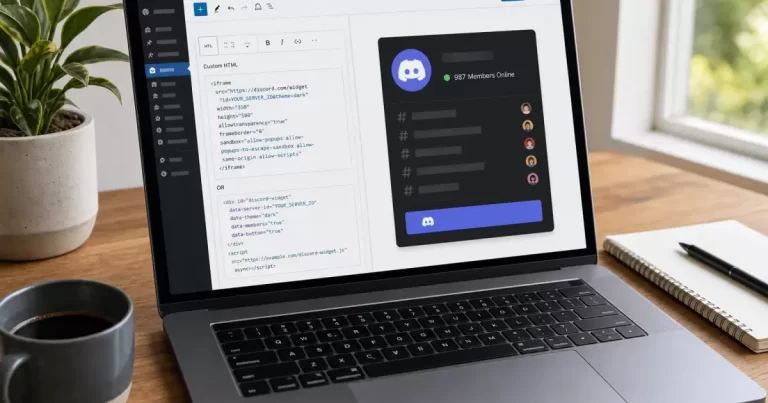
Open the page or post where you want the discord server widget website feature to appear. In the block editor, add a Custom HTML block and paste the iframe snippet from Step 1.
Preview and Adjust Sizing
Preview the page. Adjust the width and height attributes to fit your layout, and switch theme=dark to theme=light if it suits your site’s design better. This is the quickest way to add discord button wordpress pages without a plugin.
Sitewide Placement (Optional)
To show the widget in your sidebar or footer sitewide, paste the same snippet into a Custom HTML widget under Appearance > Widgets, or into a footer template if your theme supports one.
Step 3: Build a Custom Styled Widget (Advanced)
Understand the Public JSON Endpoint
Discord exposes a public, unauthenticated endpoint for any server with the widget enabled:
https://discord.com/api/guilds/YOUR_SERVER_ID/widget.jsonThis returns your server name, online member count, and an instant invite link as JSON, which means you can style the display however you like instead of using Discord’s default iframe look.
Find Your Server ID
Go back to Server Settings > Widget. The numeric Server ID, a 17 to 20 digit string, is shown at the top of that page.
Fetch and Cache the Data
Call the endpoint from your own backend or a serverless function, cache the response for 5 to 15 minutes to avoid rate limits, and render the member count and invite link inside your own HTML and CSS. This is the right approach for the discord embed code wordpress setups where brand consistency matters more than setup speed.
Add the Script to WordPress
Once your custom endpoint or embed script is ready, add it the same way as the iframe: through a Custom HTML block or your theme’s script injection area. If you are unsure how to inject custom scripts safely, our guide on the 4 pillars of WordPress security covers safe script handling on a live site.
Official Reference Docs
For the most current widget parameters and rate limits, check the official Discord API documentation. If you plan to expand into a full bot integration later, the Discord Developer Portal covers authentication and permissions in detail.
Troubleshooting
- Widget shows blank or does not load: Confirm Enable Server Widget is still toggled on in Discord. It can silently revert if a server owner or admin changes region settings.
- Iframe is blocked by browser console errors: Some caching or security plugins strip iframe attributes. Check your caching plugin’s HTML sanitization settings and add an exception for the Discord domain.
- Member count looks wrong or frozen: The widget refreshes on Discord’s own interval, not instantly. A custom JSON fetch (Step 3) gives you control over refresh timing if this matters for your use case.
- Widget breaks your page layout on mobile: Wrap the iframe in a responsive container using CSS max-width: 100% instead of a fixed pixel width.
- Site slows down after adding the widget: An iframe alone is lightweight, but if you added multiple embeds, review how to fix what slows down WordPress on shared hosting before adding more third-party scripts.
Frequently Asked Questions
Do I need a Discord bot to embed the widget?
No. The official widget and the public JSON endpoint both work without inviting a bot or setting up OAuth. A bot is only needed if you want to pull richer data than the widget provides, such as full member lists.
Will connect discord to wordpress site setups slow down my page speed?
A single iframe embed has a minor impact on load time. If your site is already slow, the widget will make it more noticeable, so it is worth checking your hosting performance first, especially on budget shared hosting plans.
Can I show more than the member count, like a full member list?
The default widget only exposes a partial online member list and total online count for privacy reasons. A full member list requires a Discord bot with the correct permissions, which is a separate integration from the widget covered here.
Does the widget work if my Discord server is private?
Enabling the widget creates a limited public snapshot even for private servers. It only shows what you choose to expose, and members must still use the invite link to actually join.
Is there a WordPress plugin instead of pasting code manually?
Several general-purpose embed plugins can wrap the iframe for you, but pasting the official snippet into a Custom HTML block is simpler, has no plugin overhead, and avoids adding another dependency to maintain.
Related Resources
- The 4 Pillars of WordPress Security
- What Slows Down WordPress on Shared Hosting
- 7 Google Business Profile Alternatives
[IMAGE: WordPress Custom HTML block with a Discord server widget iframe preview, related to how to embed discord widget in wordpress]
Community features like this are a small piece of a bigger WordPress strategy. Canada Create’s Yorkville web design and downtown Toronto web design teams build these kinds of integrations into full site builds for community-driven brands across the GTA.




