


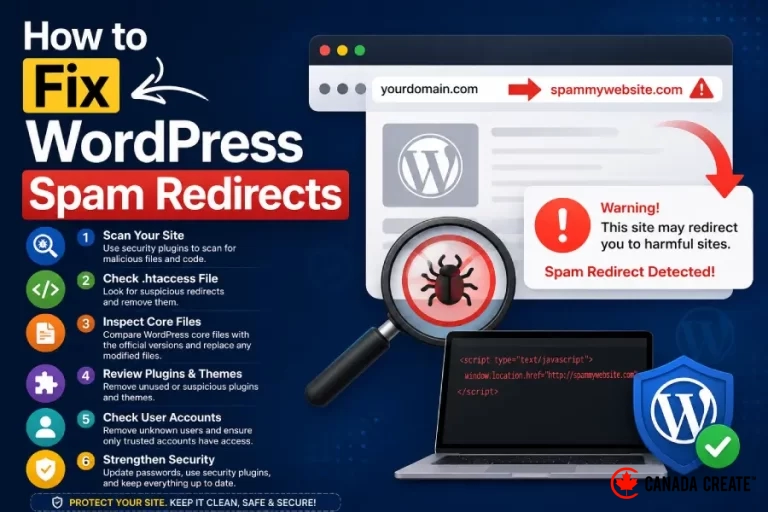
If your WordPress website suddenly redirects visitors to spam websites, gambling pages, fake antivirus alerts, or suspicious ads, your site has likely been compromised. WordPress spam redirects are one of the most common signs of malware, and they can seriously damage your SEO, user trust, and search engine rankings.
The good news is that most spam redirects can be fixed by identifying the source of the infection and securing your website properly.
In this guide, you’ll learn what causes WordPress spam redirects, how to remove them, and how to prevent them from happening again.
What Are WordPress Spam Redirects?
A spam redirect occurs when your WordPress website automatically sends visitors to another website without permission.
Common examples include:
- Casino websites
- Adult content
- Cryptocurrency scams
- Fake software updates
- Phishing pages
- Survey or advertising sites
In many cases, website owners won’t even notice the problem because attackers often configure redirects to affect only:
- Mobile users
- Visitors from Google search
- First-time visitors
- Specific countries
- Logged-out users
This makes spam redirects difficult to detect until users begin reporting them.
Why Is My WordPress Site Redirecting to Spam?
Spam redirects usually happen because hackers gain access to your website.
The most common causes include:
1. Malware Infection
Hackers inject malicious PHP or JavaScript code into your website files.
Common targets include:
- header.php
- footer.php
- functions.php
- index.php
- wp-config.php
2. Vulnerable Plugins or Themes
Outdated or abandoned plugins are one of the biggest security risks.
If attackers exploit a vulnerability, they can install redirect scripts within minutes.
Always keep:
- WordPress core updated
- Plugins updated
- Themes updated
3. Compromised Administrator Account
Weak passwords or leaked credentials allow attackers to log into your dashboard and install malicious code.
Signs include:
- Unknown admin users
- New plugins you didn’t install
- Changed settings
4. Modified .htaccess File
Hackers often inject redirect rules into the .htaccess file.
For example:
RewriteEngine On
RewriteCond %{HTTP_REFERER} google
RewriteRule .* http://spamwebsite.com [R=302,L]
5. Database Injection
Some malware hides redirect scripts inside database options, widgets, or posts.
This makes detection more difficult because no WordPress files appear modified.
How to Detect WordPress Spam Redirects
Before fixing the issue, confirm where the redirect originates.
Check Your Website in Incognito Mode
Open your website in:
- Chrome Incognito
- Firefox Private Window
Test both desktop and mobile devices.
Scan Your Website
Use trusted malware scanners to identify infections.
Recommended tools include:
- Wordfence
- Sucuri SiteCheck
- MalCare
Inspect Browser Developer Tools
Press F12 and watch for suspicious:
- JavaScript files
- External scripts
- Unexpected redirects
- Hidden iframes
Review Google Search Results
Sometimes Google displays:
This site may be hacked.
or
This site may harm your computer.
These warnings indicate malware has been detected.
How to Fix WordPress Spam Redirects
Follow these steps carefully.
Step 1: Backup Your Website
Before making changes, create a complete backup of:
- Files
- Database
This allows recovery if something goes wrong.
Step 2: Scan for Malware
Install a reputable security plugin.
Look for:
- Modified core files
- Suspicious PHP files
- Unknown JavaScript
- Backdoors
- Web shells
Remove every infected file.
Step 3: Replace WordPress Core Files
Download a fresh copy of WordPress from WordPress.org.
Replace:
- wp-admin
- wp-includes
Do not overwrite:
- wp-content
- wp-config.php
Step 4: Check the .htaccess File
Open:
public_html/.htaccessRemove suspicious redirect rules.
A standard WordPress .htaccess file looks similar to:
# BEGIN WordPress
RewriteEngine On
RewriteBase /
RewriteRule ^index\.php$ - [L]
RewriteCond %{REQUEST_FILENAME} !-f
RewriteCond %{REQUEST_FILENAME} !-d
RewriteRule . /index.php [L]
# END WordPress
Step 5: Review Installed Plugins
Delete:
- Unknown plugins
- Inactive plugins
- Pirated plugins
- Nulled plugins
Only install plugins from trusted developers.
Step 6: Inspect Theme Files
Look for suspicious code inside:
- functions.php
- header.php
- footer.php
Watch for:
- Encoded PHP
- Long base64 strings
- eval()
- gzinflate()
- Obfuscated JavaScript
Step 7: Scan the Database
Search your database for:
- iframe
- eval
- script
- base64
- spam URLs
Remove malicious entries carefully.
Step 8: Reset All Passwords
Change passwords for:
- WordPress administrators
- Hosting account
- FTP
- SSH
- Database
- Email accounts
Also enable Two-Factor Authentication (2FA).
Step 9: Remove Unknown Users
Go to:
Users → All Users
Delete any administrator accounts you don’t recognize.
Step 10: Clear Website Cache
Purge caches from:
- WordPress cache plugin
- CDN
- Browser cache
- Hosting cache
Otherwise, the redirect may continue appearing.
How to Prevent Spam Redirects
Once your website is clean, secure it properly.
Keep Everything Updated
Update regularly:
- WordPress
- Plugins
- Themes
Install a Firewall
A Web Application Firewall (WAF) blocks many attacks before they reach your website.
Use Strong Passwords
Avoid simple passwords.
Use password managers and unique credentials for every account.
Enable Two-Factor Authentication
2FA prevents attackers from logging in even if they steal your password.
Remove Unused Plugins
Every inactive plugin increases your attack surface.
Delete plugins you no longer use.
Schedule Regular Malware Scans
Run automatic scans weekly or daily.
Early detection minimizes damage.
SEO Impact of WordPress Spam Redirects
Spam redirects can severely harm your website’s SEO.
Possible consequences include:
- Loss of keyword rankings
- Google Safe Browsing warnings
- De-indexed pages
- Lower trust signals
- Reduced organic traffic
- Increased bounce rate
The faster you remove malware, the better your chances of recovering your rankings.
Frequently Asked Questions
Why does my WordPress site only redirect on mobile?
Many attackers configure malware to target only mobile users, making infections harder to detect.
Can spam redirects happen without installing new plugins?
Yes. Compromised hosting accounts, stolen passwords, vulnerable themes, or outdated WordPress installations can all lead to spam redirects.
Will reinstalling WordPress fix the issue?
Not always. If malware remains in your database, uploads folder, or plugins, the redirects can return after reinstalling WordPress.
How do I know if Google has flagged my website?
Search your domain in Google or check your Google Search Console account for security issues and malware warnings.
Final Thoughts
WordPress spam redirects are more than just an inconvenience—they’re a serious security issue that can damage your reputation, SEO performance, and user trust. By scanning your website, removing malicious code, updating vulnerable software, and strengthening your security practices, you can eliminate spam redirects and reduce the risk of future attacks.
If you’re not comfortable cleaning malware manually, consider working with a WordPress security professional. Prompt action can help restore your site’s integrity, protect your visitors, and recover lost search visibility.


