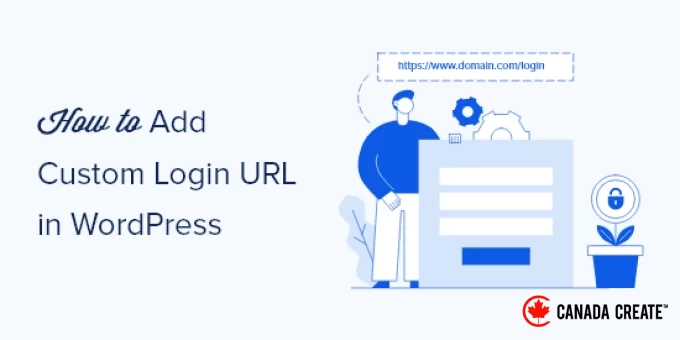
One of our top recommendations for enhancing website security is to modify the URL of your WordPress login page.
This straightforward adjustment makes it harder for hackers to gain unauthorized access, as they won’t be able to locate your login page at the expected URL.
In this article, we will walk you through the steps to create a custom login URL for your WordPress site.
We will clearly explain each step, ensuring you can follow along even if you’re not technically inclined.
Benefits of Creating a Custom Login URL in WordPress
WordPress is the leading CMS platform, powering over 40% of all websites. Its popularity makes it a frequent target for hackers.
Hackers often employ ‘brute force attacks,’ an automated technique where bots repeatedly attempt to guess your username and password to access your dashboard.
Bots and hackers are aware of common login URLs such as wp-admin and wp-login and will prioritize these URLs when attempting to access your site.
By changing the login page URL in WordPress, you enhance your site’s security and make it significantly more challenging for hackers to infiltrate your website.
Creating a custom login link in WordPress enhances the user experience.
For instance, if you operate a membership site, a personalized URL such as yoursite.com/member-login appears more professional to your users compared to the default yoursite.com/wp-login.php.
Additionally, you can tailor the design of your login page to align with your branding and the overall look of your WordPress theme.
It’s crucial to understand that this approach, referred to as ‘security through obscurity,’ is merely one aspect of your security strategy. It is most effective when combined with other security practices, such as using strong passwords and enabling two-factor authentication.
Now, let’s guide you through the process of creating a custom login URL in WordPress with just a few easy steps.
This tutorial presents two methods. You can use the links below to navigate to the method that suits you best:
- Method 1: Create a Custom Login URL in WordPress Using SeedProd
- Method 2: Set Up a WordPress Login Page URL With a Free Plugin
- Common Questions About Custom Login URLs
Method 1: Create a Custom Login URL in WordPress Using SeedProd
The easiest method to create a custom login URL in WordPress is by utilizing a WordPress plugin. This approach allows you to modify your WordPress login URL without needing to alter any core WordPress files.
We recommend the SeedProd plugin, which is the leading drag-and-drop WordPress page builder used by over 1 million websites. With this plugin, you can effortlessly customize your SeedProd login page and change the URL.
You can use it to design a single custom page or build your entire website for a cohesive, professional appearance. To learn more, check out our comprehensive SeedProd review.
The first step is to install and activate the plugin. For detailed instructions, refer to our step-by-step guide on installing a WordPress plugin.
Note: There is a free version of SeedProd available, but for this tutorial, we will be using the premium version as it includes the login page templates we require.
Once activated, navigate to SeedProd » Settings and input your product license key.
You can locate your product license key in your account details on the SeedProd website.
Next, go to SeedProd » Landing Pages and click the ‘Set up a Login Page’ button.
You will then be directed to a screen displaying all of the available login page templates.
You can either select one of the professionally designed templates or opt for the ‘Blank’ template to create a login page from the ground up.
In this tutorial, we will select the ‘Geo Login Page’ template.
Just hover over your chosen template and click the checkmark icon.
This will open a popup where you can name your new login page and set a custom login URL.
Next, click the ‘Save and Start Editing the Page’ button.
This action will direct you to the page editor interface.
You can modify every aspect of the page using the drag-and-drop builder.
On the left side, you’ll find blocks and sections to add to your page, while the right side displays a real-time preview of your design.
Clicking on any element of the page will open a menu for further customization.
Feel free to customize your login page as much as you like, but for this tutorial, we’ll stick with the default settings.
For comprehensive details on all customization options, refer to our ultimate guide on creating a custom WordPress login page.
Next, click the arrow next to the ‘Save’ box and choose ‘Publish’ from the dropdown menu.
After publishing the page, there’s just one final step.
You need to configure WordPress to use this new page as your primary login screen. This will ensure that the old login URL redirects to the new one.
Begin by selecting the ‘Page Settings’ option located at the top of the page.
Next, scroll down until you find the ‘Redirect the Default Login Page’ setting. Simply toggle the ‘Enable’ switch, and it will change to orange.
This action will redirect the standard WordPress login page to the newly created page.
Remember to click the ‘Save’ button again to ensure that all your changes are applied and live.
Method 2: Change WordPress Login Page URL Using a Free Plugin
We suggest using the SeedProd plugin as it allows you to easily customize your login page to fit your website’s design.
However, some users may prefer to keep the default WordPress login page and only modify the login page URL.
For this, you can use the free plugin WPS Hide Login, which allows you to change the login URL without altering the page itself.
After installing and activating the plugin, you need to configure the new URL. Simply go toSettings » WPS Hide Login.
If you don’t find it there, you can locate the settings at the bottom of theSettings » General page.
Next, enter your new login page URL in the ‘Login URL’ field.
You can also specify a redirect URL in the ‘Redirection URL’ field.
This will redirect users to a different page on your WordPress site when they attempt to access the default wp-login.php page without being logged in.
Then, click ‘Save Changes’.
From now on, all visitors will be directed to your new login page URL
Frequently Asked Questions About Custom Login URLs
Having assisted thousands of users in securing their websites, we’ve compiled answers to many inquiries about custom login pages. Here are responses to some of the most frequently asked questions.
What should I do if I forget my custom login URL?
If you forget your new login URL, you may lose access to your WordPress admin area. The simplest way to regain access is by disabling the plugin that modified the URL. You can achieve this by connecting to your WordPress hosting account using an FTP client or file manager.
For comprehensive guidance, please refer to our tutorial on how to easily deactivate WordPress plugins.
Will changing the login URL impact my users?
Yes, if you operate a membership site or allow user registrations, it’s important to notify your users about the new login address. Consider sending an email to all registered users that includes a link to the new login page.
Is changing the login URL sufficient for securing my website?
Changing your login URL is a great security measure, but it should be part of a more extensive security strategy. While it helps protect against basic brute-force attacks, it is not a complete solution on its own.
We also highly recommend using strong passwords, enabling two-factor authentication, and limiting login attempts to ensure comprehensive protection for your site.
Can I revert my WordPress login URL back to the default?
Yes, you can easily restore the default login URL. Just navigate to the plugin’s settings page and disable the login page redirect feature, or deactivate the plugin altogether.
Comprehensive Guides for Securing Your WordPress Login Page
Now that you’ve learned how to create a custom login URL in WordPress, you might be interested in exploring additional resources for safeguarding your WordPress login page:
- The Ultimate Guide to Creating a Custom WordPress Login Page
- Understanding the Importance of Limiting Login Attempts in WordPress
- Beginner’s Guide: Locating Your WordPress Login URL
- Implementing CAPTCHA in Your WordPress Login and Registration Forms
- Adding Security Questions to Your WordPress Login Screen
- Top WordPress Login Page Plugins for Enhanced Security and Customization
- How to Secure Your WordPress Admin (wp-admin) Directory with a Password
- Simplifying Social Login Integration in WordPress
- Step-by-Step Guide to Adding OAuth Login in WordPress
We hope this article has helped you understand how to set up a custom login URL in WordPress. You might also want to check out our guide on enabling two-factor authentication in WordPress and our expert recommendations for the best WordPress login page plugins.
If you found this article helpful, please subscribe to our YouTube Channel for WordPress video tutorials. You can also connect with us on Twitter and Facebook.