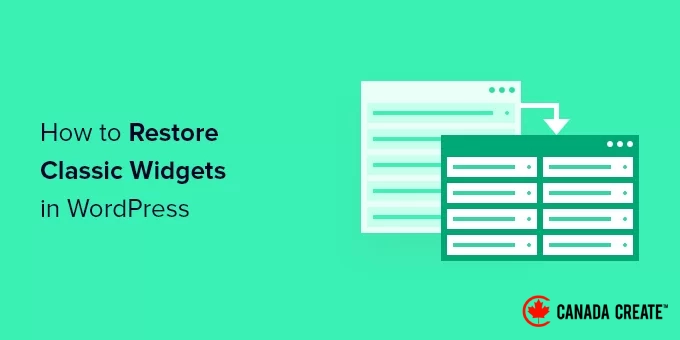
Are you looking to bring back the classic widgets editor in WordPress?
With the launch of WordPress 5.8, the classic widgets editor was replaced by the Gutenberg block editor, which manages your website’s widget areas.
In this guide, we will walk you through the process of disabling widget blocks in WordPress, step by step.
Reasons to Restore Classic Widgets in WordPress
While the widget block editor provides similar features to the classic widget editor, it also offers enhanced control over your widget designs.
If you have been using WordPress for a long time, you might prefer the familiarity of the classic widget editor for your website.
Alternatively, you may appreciate the straightforwardness of the classic widget editor and wish to turn off widget blocks, similar to how some users opt to disable the block editor.
Now, let’s explore how to restore the classic widget editor in WordPress. You can use the quick links below to navigate directly to your preferred method.
- Method 1: Restore Classic Widgets by Adding Code to WordPress (Recommended)
- Method 2: Restore Classic Widgets Using a WordPress Plugin
Method 1: Restore Classic Widgets by Adding Code to WordPress (Recommended)
To disable widget blocks in WordPress, you can add a code snippet. If you’re unfamiliar with this process, check out our beginner’s guide on copying and pasting code in WordPress.
This process involves inserting the following code snippet into your functions.php file or using a code snippets plugin.
function example_theme_support() { remove_theme_support( 'widgets-block-editor' );
}
add_action( 'after_setup_theme', 'example_theme_support' );
This code snippet effectively disables the Gutenberg block editor specifically in your widget area while retaining it for your pages and posts.
Adding code to WordPress might appear daunting, but WPCode makes it straightforward.
WPCode enables you to insert custom code snippets into WordPress without the need to modify your theme’s functions.php file.
It features intelligent code snippet validation to help you avoid common coding mistakes, ensuring you won’t accidentally break your website when adding snippets.
Additionally, WPCode includes a comprehensive library of popular WordPress code snippets, including the one for disabling widget blocks.
Begin by installing and activating the WPCode plugin. For detailed instructions, refer to our guide on how to install a WordPress plugin.
After activating the plugin, navigate toCode Snippets » Libraryin your WordPress admin dashboard.
Next, locate the ‘Disable Widget Blocks’ snippet and click the ‘Use snippet’ button.
The plugin will automatically insert the code, allow you to enter a title for it, choose the appropriate insertion method, and even add tags for better organization.
Simply switch the toggle from ‘Inactive’ to ‘Active.’
Then, click the ‘Update’ button.
Now, when you go toWidgets » Add Newyou can add widgets using the classic editor.
Method 2: Restore Classic Widgets with a WordPress Plugin
An alternative method to restore the classic widget editor is by using the Classic Widgets plugin, developed and maintained by the WordPress core team.
However, the drawback of this method is that installing individual feature plugins can clutter your WordPress admin. Therefore, we recommend using WPCode, as it can replace standalone feature plugins and streamline your website management.
To begin this process, you need to install and activate the plugin. For detailed instructions, please refer to our beginner’s guide on installing a WordPress plugin.
Once activated, your WordPress blog will revert to the classic widget editor. No additional settings are required.
Next, navigate to Widgets » Add New in your WordPress admin panel to access the widget dashboard.
To add new widgets, simply drag a widget into an available widget area.
You can then customize the widget settings. Remember to click the ‘Save’ button to keep your changes.
If you decide to use widget blocks in the future, you can easily deactivate the plugin.
Additionally, you can disable Gutenberg while retaining the classic editor for pages and posts. For further information, check out our guide on disabling Gutenberg while keeping the classic editor in WordPress.
We hope this article has helped you learn how to disable widget blocks and restore classic widgets in WordPress. You may also find our guide on creating a custom WordPress theme and our expert recommendations for essential WordPress plugins for business websites useful.
If you found this article helpful, consider subscribing to our YouTube Channel for insightful WordPress video tutorials. You can also connect with us on Twitter and Facebook.