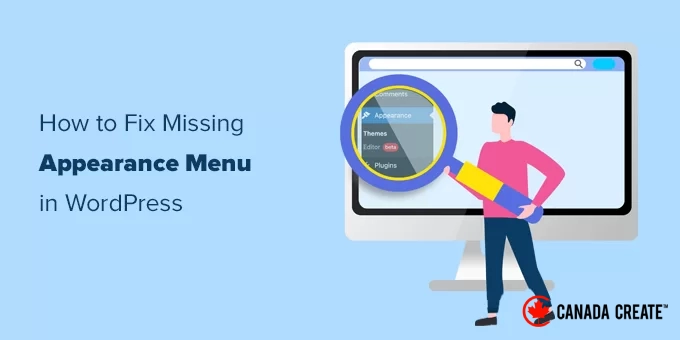
Are you noticing changes in your Appearance menu options? Many users have reached out to CanadaCreate, confused about the location ofthe standard menu options found under theAppearancetab.
This is not an error or a bug; it’s due to updates in the latest WordPress versions. You might encounter this issue after switching from a classic theme to a block theme.
The good news is that you can still personalize your WordPress theme. In this guide, we will demonstrate how to modify various aspects of your WordPress theme, even if the usual Appearance menu options are not visible.
What Changes Occurred to the Appearance Menu in WordPress?
When you activate a WordPress block theme, you will observe that your Appearance menu appears different. Instead ofAppearance »Customize, you will findAppearance »Editorinstead, as shown here:
TheEditormenu directs you to the WordPress Full Site Editor. This feature is an enhancement of the Gutenberg block editor, enabling you to modify your theme in the same manner as you would edit your pages and posts using blocks.
This means that the default menu options such as Customize, Menus, Widgets, and Theme File Editor will not be visible. However, you can still access these features; their locations have simply changed.
In this article, we will guide you on how to find essential settings like navigation menus and widgets, even though they are no longer located under the Appearance menu.
Here are the topics we will discuss, and you can jump to the section that interests you the most:
- Option 1: Switch to a Classic WordPress Theme
- Option 2: Use the Full Site Editor to Customize Your Navigation Menu
- Option 3: Access the customize.php URL Directly
- Option 4: Navigate to the Tools Menu to Access the Theme File Editor
- Why Are My Appearance Menus Still Missing Even Though I’m Using a Classic Theme?
Option 1: Switch to a Classic WordPress Theme
To continue using the classic navigation menus, you will need to change your WordPress theme to one that does not include the Full Site Editing feature.
Currently, many popular WordPress themes do not support Full Site Editing. However, there is a possibility that they will adopt it as the feature evolves.
Alternatively, you can create your own custom WordPress theme without needing to write any code.
Option 2: Customize Your Navigation Menu Using the Full Site Editor
If you enjoy using your block theme, it’s essential to learn how to modify your navigation menu with the Full Site Editor.
Even if you manually navigate to the URL for the navigation menu page (such as https://example.com/wp-admin/nav-menus.php), you will encounter the following error message:
With a block theme, you can add, create, and modify navigation menus using the Navigation block within the site editor.
To get started, open the full site editor by going to the Appearance » Editor section.
This will take you to the site editor interface, where you can add a new Navigation block by clicking the ‘+’ button.
If your theme has already included a Navigation block, you can simply click to select it.
Next, choose an existing menu or create a new one.
You can also select previously created menus from the Classic Menus section.
If you’re starting with a new, empty menu, you can add items to your navigation menu just like you do in the block editor when creating posts and pages.
Once you’re done, remember to click the Update button to save your menu and make it live on your WordPress site.
For detailed instructions, refer to our comprehensive guide on adding a navigation menu in WordPress.
Option 3: Access the customize.php URL Directly
The Customize menu found under Appearance opens the Theme Customizer, which allows you to modify a classic WordPress theme. If you’re using a block theme, you can still access a limited version by directly visiting the customize.php URL:
https://example.com/wp-admin/customize.php
Simply enter this URL in your browser, replacing ‘example.com’ with your own WordPress site’s domain.
You will see a notification indicating that your theme supports Full Site Editing. Below this, you will find some basic customization options.
For further information, check out our article on resolving the missing Theme Customizer in WordPress admin.
Why can’t I edit my theme’s widgets in the Theme Customizer if I’m using a block theme?
If your WordPress theme lacks defined sidebars or widget areas, the Widgets menu will not appear under Appearance.
Manually navigating to the widgets page (e.g., https://example.com/wp-admin/widgets.php) will result in an error message indicating that your theme does not support widgets.
Block themes do not utilize widgets since every component can be customized using the Full Site Editor.
Additionally, you can create custom widget areas, such as sidebars or footers, using the Patterns and Template Parts features in the WordPress Full Site Editor. For more details, refer to our beginner’s guide on using block patterns.
If your theme includes widget areas, you will see a dedicated widgets menu.
However, it will still utilize the block-based widget editor.
To access the classic widgets screen, you can install the Classic Widgets plugin.
Option 4: Access the Theme File Editor via the Tools Menu
WordPress includes a basic file editor that enables you to edit theme files and templates directly from the admin dashboard.
While we do not recommend using this editor, it has been useful for many beginners needing to quickly insert code snippets into their theme’s functions.php file.
The good news is that this editor is still accessible, but it has been relocated to the Tools menu if you are using a Full Site Editing theme.
Why are my Appearance menus missing even though I’m using a Classic Theme?
If you’re using a classic theme and cannot see some or all of the Appearance menu options, here are a few potential reasons:
- Plugin conflicts – A plugin may be causing issues with your admin menu. Try disabling all your WordPress plugins to see if the menu returns.
- Theme compatibility – Your theme might not be fully compatible with your current version of WordPress. Consider updating your theme, temporarily switching to a default WordPress theme, or testing your theme against the latest standards.
- User role restrictions – Your user account may lack the necessary role and permissions to access these menus. Verify that you have the correct user role, such as Administrator.
- Custom code – Custom code in your functions.php file or a must-use plugin might be hiding these menu items. We recommend using a plugin like WPCode to safely add code snippets to your WordPress site.
- Caching issues – Your browser cache or a caching plugin may be displaying an outdated version of your admin area. Clear your cache to resolve this issue.
- Database issues – Your WordPress database may contain corrupted options. You might need to repair your database.
- Incorrect file permissionsIncorrect file permissions can lead to issues within WordPress. It’s important to verify your file permissions.
For additional insights, refer to our WordPress troubleshooting guide and our article detailing common WordPress errors and their solutions.
Discover More Ways to Enhance Your WordPress Admin Area
Now that you’ve resolved the missing Appearance menu options, you may want to further customize and optimize your WordPress admin area. Here are some valuable tutorials to improve your WordPress admin experience:
- How to Create a Notification Center in WordPress AdminStreamline your admin alerts for better organization and management.
- Customize Post Background Colors in WordPress Admin Based on StatusUtilize colors to quickly identify the status of your posts.
- How to Rebrand Your WordPress Admin DashboardTransform the admin area to reflect your brand, ideal for client websites.
- How to Maintain an English WordPress Admin on a Multilingual SiteEnsure your admin remains in English, even if your site supports multiple languages.
- How to Remove the Screen Options Button in WordPressSimplify your admin interface by disabling the Screen Options feature.
- How to Create Custom Admin Notifications in WordPress – Design your own alerts to communicate important information to users.
- How to Automatically Clear Your WordPress Trash – Maintain a tidy site by automatically removing outdated items.
- How to Enable Dark Mode in Your WordPress Admin Dashboard – Enhance your admin experience with a visually soothing dark background.
We hope this guide helped you restore the missing Appearance menus in the WordPress admin area. You may also want to explore our tutorial on customizing the WordPress admin dashboard and our expert recommendations for the best WordPress activity log and tracking plugins.
If you enjoyed this article, please subscribe to our YouTube Channel for WordPress video tutorials. You can also connect with us on Twitter and Facebook.