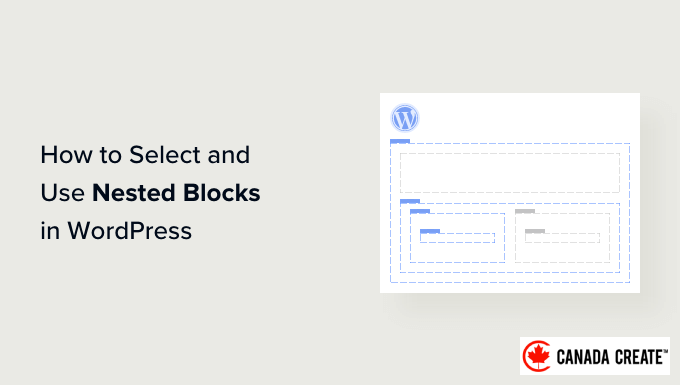
Nested blocks are among the most powerful features of the WordPress block editor, and mastering them can elevate your design capabilities significantly.
They enable you to group and organize various elements such as paragraphs, images, and buttons into a cohesive layout. Once you grasp their usage, you can create more versatile and professional-looking pages without the need for additional plugins or custom coding.
At CanadaCreate, we have been utilizing nested blocks since their inception, and they have transformed our approach to page design. They simplify the management of complex layouts and enhance basic content into polished, user-friendly sections.
In this comprehensive guide, we will guide you through the process of selecting and using nested blocks in WordPress, step by step, empowering you to build cleaner and more effective layouts with confidence.
What Are WordPress Nested Blocks?
The WordPress Gutenberg nested block feature allows you to insert (or ‘nest’) one or more blocks within another block.
Nested blocks enable the creation of more intricate layouts on your WordPress website by allowing multiple blocks to be placed inside one another. This provides greater flexibility in designing and formatting content for your pages and posts.
For example, you can place several Image blocks inside a Group block to showcase a collection of photos from a specific event or a series of artworks created using a particular technique.
Moreover, the nested block feature enables you to edit each block individually. This flexibility allows you to tailor each block to your requirements without impacting the other blocks.
As a result, this leads to improved content organization, enhances visual appeal, and simplifies the creative workflow.
Now, let’s explore how to easily select and utilize nested blocks in WordPress Gutenberg.
How to Utilize Nested Blocks in WordPress
You can effortlessly nest multiple blocks together using the Group or Columns block in the Gutenberg block editor.
First, open an existing or new post in the block editor from the WordPress admin sidebar.
Next, click the add block ‘+’ button in the top left corner of the screen and locate the Group block. After selecting it and adding it to the page, you will need to choose a layout for the blocks you intend to nest.
For this tutorial, we will choose the ‘Group’ layout.
Then, simply click the ‘+’ button on the screen to begin adding content within the parent block.
In this tutorial, we will demonstrate how to add an Image block.
After adding the block, click the ‘Group’ button in the block toolbar at the top to select the parent block.
Next, click the ‘+’ button to reopen the block menu, where you can choose additional blocks to add.
Configuring Settings for Nested Blocks in WordPress
Once you have added multiple nested blocks, you can adjust their individual settings by clicking on each block. The settings will then appear in the right column of your screen.
From this panel, you can modify the background color, text color, and size of each individual block without impacting the other nested blocks.
To adjust the settings for all nested blocks at once, click the ‘Group’ button in the block toolbar at the top. This will display the parent block settings in the right column.
You can now set the justification, orientation, background color, text color, and typography for all nested blocks collectively.
Remember that these settings will apply to all blocks nested within the parent block.
You can also transform an existing individual block into nested blocks by clicking the ‘Options’ button in the top toolbar of any block.
This will bring up a menu where you should choose the ‘Create Pattern’ option.
After that, a prompt will appear asking you to provide a name and select a category for your new reusable block.
Next, click the ‘Create’ button to save your settings.
Once you are satisfied, remember to click the ‘Publish’ or ‘Update’ button to ensure your changes are saved.
In our example, we have included a Title, Image, and Paragraph block within a Group block.
This is how the nested blocks appeared on our demonstration website.
Bonus: Utilize the Wayfinder Plugin for Effortless Selection of Nested Blocks
At times, selecting an individual block can be challenging when multiple blocks are nested together.
Fortunately, the Wayfinder plugin simplifies the process of selecting nested blocks from a parent block and provides information about the type and class of the blocks.
First, you need to install and activate the Wayfinder plugin. For detailed instructions, refer to our beginner’s guide on installing a WordPress plugin.
After activation, navigate to theSettings » Wayfinderpage in the WordPress admin sidebar.
All settings will be enabled by default. You just need to uncheck the options you do not wish to use.
For instance, if you want Wayfinder to show block types for every block in the editor, keep the ‘Display block type’ option checked.
Conversely, if you prefer not to have the plugin display block classes, just uncheck that option.
After adjusting the settings, remember to click the ‘Save Changes’ button.
Next, open an existing or new post in the WordPress block editor from your dashboard.
When you do this, hovering over any inner block will reveal an outline along with its name. You will also see the outlines and names of any nested blocks within the parent block.
This feature will assist you in identifying all the various blocks nested within a Group or Column block.
From this point, you can easily select an individual block from the parent block to adjust its settings.
You can also select all nested blocks simultaneously by clicking on the ‘Columns’ or ‘Group’ heading, which will display the parent block settings in the right column.
After you have configured the block settings, simply click the ‘Update’ or ‘Publish’ button to save your changes.
We hope this guide has helped you understand how to effectively select and utilize nested blocks in WordPress. Additionally, check out our detailed tutorial on adjusting block height and width in WordPress, as well as our beginner’s guide to using WordPress block patterns.
If you enjoyed this article, consider subscribing to our YouTube Channel for more WordPress video tutorials. You can also connect with us on Twitter and Facebook.