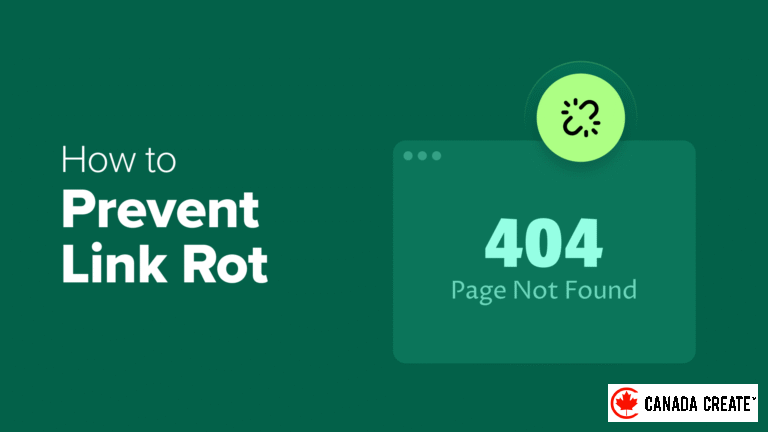
Web content is not static; it changes over time as pages are moved, deleted, or taken offline, resulting in broken links and missing references. This phenomenon, known as link rot, impacts every part of the internet.
For those managing a WordPress site, encountering dead links can negatively affect your SEO and diminish reader trust in your content. Manually checking hundreds or thousands of URLs is simply impractical.
Fortunately, there is a free plugin available that automates this process. It scans your website for broken links and replaces them with archived versions from the Internet Archive.
In this article, I will guide you through setting up this tool to safeguard your WordPress site against link rot while contributing to a healthier web experience!
Here’s a brief overview of the topics I will discuss in this guide:
- Understanding Link Rot and How to Prevent It
- Step 1: Install and Activate the Wayback Machine Link Fixer Plugin
- Step 2: Configure the Wayback Machine Link Fixer Plugin
- Entering API Keys for Configuration
- Setting Up Link Fixer Preferences
- Configuring the Auto Archiver Feature
- Step 3: Monitor and Manage Your Links
- Alternative Option: Utilize All in One SEO‘s Broken Link Checker to Identify and Resolve Broken Links
- Common Questions About Preventing Link Rot
- Extra Resources for Managing Links in WordPress
Understanding Link Rot and How to Prevent It
Link rot occurs when a webpage you have linked to becomes unavailable or changes its location, resulting in a broken link on your site. This can happen to any website over time, especially when referencing older blog posts, news articles, or resources that are no longer accessible.
Preventing link rot is crucial for:
- Search Engine Optimization and User Experience:Broken links can negatively impact your search engine rankings and frustrate users. Search engines may interpret multiple broken links as an indication that your site is poorly maintained, which can adversely affect your overall rankings.
- Website Trustworthiness:Inactive links can make your content appear outdated or untrustworthy. This can damage your reputation and deter visitors.
- Promoting the Open Web:The internet functions best when information is readily available. By archiving web pages to prevent link rot, you contribute to preserving a piece of digital history for everyone. This effort ultimately makes the web a more dependable resource.
One of the most effective tools for combating link rot is the Wayback Machine, operated by the Internet Archive. This free, nonprofit service captures snapshots of web pages over time, ensuring that valuable information remains accessible. Its mission is to serve as an internet library, making knowledge available to everyone.
By utilizing the right WordPress plugin, you can seamlessly replace broken links with archived versions from the Wayback Machine.
Step 1: Install and Activate the Wayback Machine Link Fixer Plugin
Begin by installing the free Internet Archive Wayback Machine Link Fixer plugin on your WordPress site. This plugin automatically scans your links and substitutes any broken ones with archived versions from the Wayback Machine.
If you’re unfamiliar with installing plugins, refer to our beginner’s guide on how to install a WordPress plugin. Once activated, the plugin will be ready for configuration in the next step.
Step 2: Configure the Wayback Machine Link Fixer Plugin
After activating the plugin, it’s time to configure it.
The plugin offers two powerful features: the Link Fixer, which identifies and repairs existing broken links, and the Auto Archiver, which proactively saves copies of external links to prevent future breakage. The setup wizard will guide you through configuring both features.
Once you activate the plugin, a banner will appear at the top of your WordPress dashboard. Click on the ‘run the setup wizard’ link to get started. If the banner is not visible, you can also access the wizard throughLink Fixer » Settingslocated in your left-hand menu.
The plugin will initiate a straightforward setup wizard that walks you through three simple steps: entering API keys (if necessary), selecting which post types to scan, and configuring automatic archiving for new content.
Entering API Keys
To archive more than 4,000 links each day, you will need to create a free Archive.org account and obtain API keys. This limit applies to every external link on your site that the plugin monitors or archives.
Most small to medium-sized websites will not hit this daily limit, allowing you to safely click the ‘Next Step’ button and proceed to the next section.
Only very large websites, such as news organizations or sites that automatically publish numerous posts with many outbound links, may require API keys.
These website owners should visit the API Keys page on Archive.org to copy their unique Archive.org API Access Key and Archive.org API Secret Key.
Finally, input these keys in the plugin settings to enable higher daily limits for archiving links.
After completing this step, click the ‘Next Step’ button located at the bottom of the page to proceed.
Setting Up Link Fixer Preferences
Next, you’ll set up how the plugin scans your website. This step allows you to select which content the plugin will monitor for broken links, ensuring that both new and existing posts are safeguarded.
Begin by activating the Link Fixer feature. This enables the plugin to manage links within the post types you select below this option.
Then, select the post types you want the plugin to scan for links, such as Posts and Pages. This configuration indicates where the plugin should search for broken links, whether they lead to your own site or to external sites.
I recommend activating the link fixer for both posts and pages.
Finally, you can enable the Scan Existing Content option, allowing the plugin to examine all existing posts of the chosen types. Please note that scanning older content may take some time if your site contains a large number of posts.
To ensure the plugin automatically resolves your broken links, keep the ‘Action for Broken Links’ setting at its default ‘Replace Link (No Notification)’ option.
Now you can click the ‘Next Step’ button to move forward.
Setting Up the Auto Archiver
Next, you’ll configure the Auto Archiver feature, which automatically saves your content on the Wayback Machine every time you publish or update your posts. This guarantees that your new content is safeguarded against link rot without requiring any extra effort from you.
Begin by activating the Auto Archiver option, which enables the plugin to automatically archive external links from your selected post types, such as Posts and Pages.
Finally, you can set up scheduled archiving to have the plugin archive content at regular intervals based on your preferred schedule. This ensures your site is consistently backed up in the Wayback Machine and helps maintain the integrity of your links over time.
When you are satisfied with the settings you’ve chosen, be sure to click the ‘Finish’ button to save them.
Once these settings are in place, the plugin will automatically track your links and update them with archived versions, saving you time and enhancing your site’s SEO.
Step 3: Monitor and Manage Links
After setting up the plugin, you can keep track of its performance by going to the Link Fixer menu in your WordPress admin sidebar. The Dashboard page provides a quick overview, while the LinksThis page offers a comprehensive list of all the links being monitored by the plugin.
On the Dashboard page, you will find a summary of Recent Link Checks and the Latest Links.
Additionally, there is a Links Statistics Overview on the right side, which displays totals for all links, saved links, successfully archived links, links that cannot be redirected, checks that are currently in progress, and the total number of broken links.
This provides a quick overview of your website’s link health.
The Links page allows for a more detailed examination, showing each link along with columns for URL, archive status, link health, number of checks performed, and the date and time of the last check.
This feature simplifies the process of identifying any links that may require attention.
By consistently reviewing these pages, you can maintain the integrity of your site’s links for both your audience and search engine optimization. If any problems arise, you can investigate or manually correct the links as necessary.
Alternatively, consider using All in One SEO’s Broken Link Checker to identify and resolve broken links.
The method I just demonstrated is perfect for automatically preventing broken links on your website while enhancing internet archives.
If you’re looking for a simple solution to identify and fix broken links on your website, consider using the Broken Link Checker by AIOSEO. This free plugin automatically scans your site for broken links, including both internal and external links.
After you install the plugin, you can view all detected broken links by navigating toBroken Linksin your WordPress dashboard.
From this section, you can easily resolve any broken links by either entering the new URL or removing the link entirely.
Additionally, the plugin performs scans every three days, ensuring you stay ahead of any future broken links.
For further information, check out our comprehensive guide on finding and fixing broken links in WordPress.
Common Questions About Preventing Link Rot
Maintaining healthy links can raise many questions, particularly for those new to WordPress or the idea of link preservation.
Below, I’ve addressed some of the most frequently asked questions regarding how to safeguard your site against link rot and broken links.
1. How does a broken link checker plugin detect broken links?
A broken link checker plugin operates by routinely scanning each link on a website to verify if it directs to an active webpage. If it encounters an issue, such as a ‘404 Not Found’ error, it flags the link as broken.
2. What occurs if a broken link lacks an archived version in the Wayback Machine?
If a link is broken and there is no archived version available, a tool like Wayback Link Fixer cannot generate a snapshot of the original page since the content is no longer accessible. This highlights the importance of its ‘Auto Archiver’ feature, which actively saves snapshots of links while they are still functional.
3. Can I manually check specific WordPress posts for link rot?
Yes. The Wayback Link Fixer plugin operates automatically in the background but also allows you to initiate a manual scan for particular posts or pages directly from the WordPress dashboard. This is especially helpful if you’ve recently updated an important older article and want to verify it right away.
4. How can I repair broken links on my website?
The Wayback Link Fixer plugin provides a straightforward solution. It automatically substitutes broken links with their archived versions from the Wayback Machine. If no archived version is available, or if you wish to direct the link to a new resource, you can also make manual adjustments. For a comprehensive guide on additional methods, refer to our tutorial on how to identify and repair broken links in WordPress.
5. Are snapshots in the Wayback Machine available to the public?
Yes. Once a URL is archived in the Wayback Machine, it becomes part of a public archive and is available for anyone to access.
6. Will the Wayback Link Fixer plugin affect my website’s speed?
The Wayback Link Fixer plugin is built to be lightweight. It performs its checks in the background as a scheduled task, which minimizes any effect on your website’s performance and loading times.
7. Does repairing broken links improve website SEO?
Yes. Search engines like Google interpret a high number of broken links as an indication of a poorly maintained website, which can harm your search rankings. Fixing these 404 errors enhances user experience and signals to Google that your site is high-quality and well-maintained, benefiting your SEO efforts.
8. How does Wayback Link Fixer differ from the Broken Link Checker plugin?
The well-known Broken Link Checker plugin is effective at identifying broken links, but it requires you to fix them manually. In contrast, Wayback Link Fixer takes it a step further by automatically repairing the broken links, replacing them with functional, archived versions from the Wayback Machine. Its primary focus is on preserving the original reference rather than just highlighting an issue.locatingbroken links, but requires you to fix them manually. Wayback Link Fixer goes a step further byautomatically repairingthe broken link, replacing it with a working, archived version from the Wayback Machine. Its main focus is on preserving the original reference, not just flagging an error.
Additional Resources for Managing Links in WordPress
Effectively managing your internal and external links is essential for maintaining a healthy website, boosting SEO, and providing a seamless experience for your visitors.
If you’re interested in learning more about link management in WordPress, these beginner-friendly resources are perfect for you:
- Beginner’s Guide to Adding Links in WordPress – Discover how to properly add links to your posts and pages.
- Step-by-Step Guide to Finding and Fixing Broken Links in WordPress – Follow this detailed guide to identify and repair broken links manually.
- How to Monitor Outbound Links in WordPress – Learn how to track links that lead to external websites.
- Simple Guide for Beginners on Adding Nofollow Links in WordPress – Understand when and how to implement nofollow links.
- How to Make External Links Open in a New Window or Tab in WordPress – Enhance user experience by ensuring external links open in a new tab.
If you enjoyed this article, please subscribe to our YouTube Channel for WordPress video tutorials. You can also connect with us on Twitter and Facebook.