 Skip to content

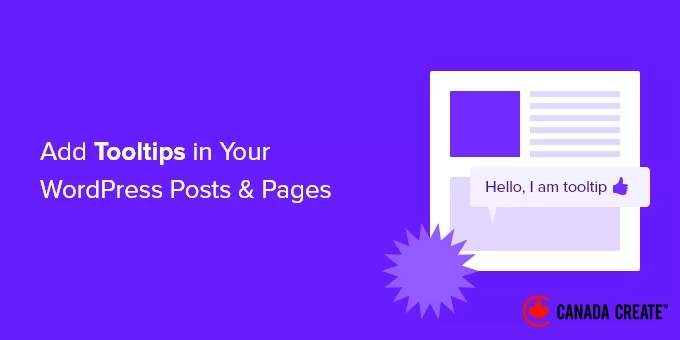
Incorporating tooltips into your WordPress posts and pages can enhance your content significantly.
They offer additional information when you hover your mouse over specific terms, helping to clarify your message and improve user engagement.
Tooltips provide a straightforward yet effective method to enrich your posts without overwhelming the text. By implementing tooltips, you can guide your readers and provide more context where necessary.
In this guide, we will demonstrate how to add tooltips to your WordPress posts and pages.
What Are the Benefits of Using Tooltips in Your WordPress Content?
Tooltips present helpful information in small pop-up boxes that appear when you hover over certain areas on your WordPress site. They are an excellent way to enhance clarity in your content.
You can utilize tooltips to define complex terms, emphasize key facts, and cite your sources. Similar to footnotes, they can enhance user experience and foster trust with your audience.
However, tooltips should not be used for critical information. Your post should include all necessary details for your readers, even if they overlook the tooltip.
Additionally, be cautious not to overuse tooltips, as they can distract your website visitors and negatively impact their experience.
Let’s explore how to effectively add tooltips to your WordPress posts and pages.
Guide to Adding Tooltips in Your WordPress Content
First, you need to install and activate the WordPress Tooltips plugin. For detailed instructions, check out our comprehensive guide on installing a WordPress plugin.
After activating the plugin, you can add tooltips to your posts and pages in several ways. The first method is to automatically generate tooltips for specific keywords.
Automatically Adding Tooltips to Keywords
Simply go to Tooltips » Add New to create a new tooltip. Begin by entering a title.
This title serves as a keyword, and the tooltip will automatically appear wherever the keyword is mentioned in your posts and pages. This feature can save you significant time by eliminating the need to manually insert tooltips in multiple areas of your site.
If you want additional words to trigger the tooltip, you can add them in the synonyms section on the right side of the screen. When entering multiple synonyms, separate them using the pipe symbol |.
In the content section, insert your tooltip. A tooltip can be a brief phrase or a detailed paragraph with images and other media. Remember, it’s meant to be concise for easy readability on any device.
After completing your edits, click the ‘Publish’ button located on the right side of the screen. Your tooltips will now automatically appear on your posts and pages wherever the tooltip’s title and synonyms are mentioned.
Incorporating Tooltips with Shortcode
You can also add tooltips by using a shortcode in the content of your posts and pages.
This approach is ideal for shorter tooltips or when you want to display the tooltip only once instead of on every matching keyword throughout your website.
If you’re unfamiliar with shortcodes, check out our beginner’s guide on how to use shortcodes in WordPress.
To insert your tooltip shortcode, first open the post or page where you want to add the tooltip in the content editor. Then, place this shortcode where you want the tooltip to appear:
[tooltips keyword="YOURKEYWORD" content="YOURTOOLTIPCONTENT"]
Replace YOURKEYWORD with the desired word or phrase for the tooltip, and substitute YOURTOOLTIPCONTENT with the text you want to display in the tooltip. Remember to keep the quotes in the shortcode for proper functionality.
You can preview the page to see how the tooltip looks in action.
This is how it looks on our demonstration site.
Creating a Glossary Using Your Tooltips
Each tooltip serves as a definition for a keyword, much like what you would find in a dictionary or glossary. As you add more tooltips, you’re essentially building a fundamental glossary.
This is why the WordPress Tooltips plugin allows you to showcase a glossary of tooltips on your website. Just insert the [glossary] shortcode into the post or page where you want it displayed.
Once you have published the post or page, you can visit your website to view the glossary.
This is how it appears on our demo site. It includes the tooltips we added to the plugin’s tooltips list, but not the tooltips we created using shortcode.
If you wish to customize the glossary, you can do so from the Tooltips » Glossary Settings menu in your WordPress dashboard.
Discover various customizable options for displaying your glossary and determining its content.
For instance, you can decide whether to include images in the glossary and specify any tooltip IDs you wish to exclude.
Pro Tip: Gather Feedback from Your Audience on Your New Tooltips
Creating a survey in WordPress is an effective way to collect feedback from your visitors, helping you understand their preferences better.
If you operate an online store, you can inquire about the features customers desire in your products or services.
For WordPress bloggers, surveys are an excellent method to assess the usefulness of your articles and discover additional topics your audience is interested in.
Survey forms are also a flexible tool for collecting suggestions on enhancing user experience.
Since tooltips may take a moment to appear on the screen, consider surveying your site visitors to determine if they notice them and whether they find them helpful or distracting.
WPForms is the top choice for creating WordPress surveys, offering various response types like star ratings, the Likert scale, or net promoter scores.
Additionally, you can select from a variety of user survey form templates to find the one that perfectly meets your requirements.
To learn more about creating survey forms, check out our comprehensive guide on how to create a survey in WordPress.
We hope this tutorial has helped you understand how to add tooltips to your WordPress posts and pages. You might also be interested in our guides on adding icons for custom post types and including subtitles for posts and pages in WordPress.
If you enjoyed this article, please subscribe to our YouTube Channel for WordPress video tutorials. You can also connect with us on Twitter and Facebook.




