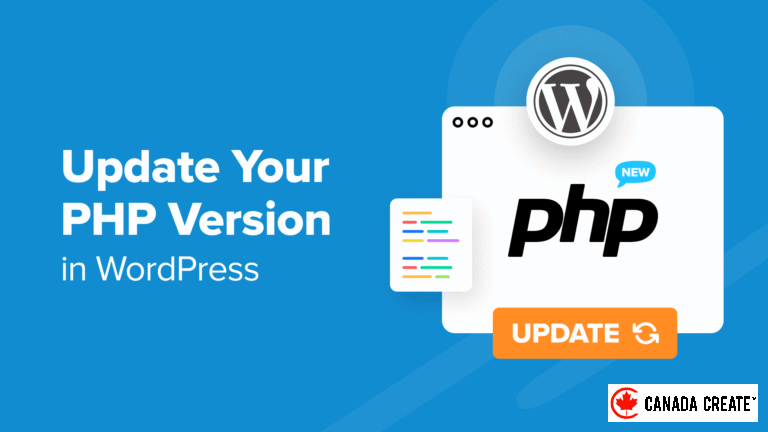
Are you looking to upgrade the PHP version of your WordPress site?
Utilizing the latest PHP version in WordPress can greatly enhance your site’s performance and improve user experience. While many web hosting providers simplify the update process, there are several factors you should verify beforehand.
In this guide, we will demonstrate how to effortlessly update the PHP version of your WordPress website.
Why Should You Update the PHP Version in WordPress?
Upgrading the PHP version of your WordPress site can significantly enhance its performance.
WordPress is built using an open-source programming language called PHP. As of this writing, it requires a minimum of PHP 7.4 or higher.
New PHP versions typically include security patches and bug fixes, safeguarding your site from malware and hacking attempts. They also introduce new features that enhance process efficiency and reduce memory consumption.
For these reasons, we highly recommend updating your WordPress site to the latest stable PHP version. As of this writing, that version is PHP 8.3.2.
Using an outdated PHP version can make your website less secure, slower, and more vulnerable to errors due to compatibility issues with the WordPress core, plugins, or themes. For more information on this topic, check out our article on how PHP updates from your web host affect WordPress.
Fortunately, most WordPress hosting providers aim to offer the latest PHP versions to comply with WordPress requirements. They may also perform automatic PHP updates in the background, so you might not even notice any changes.
That being said, we recommend staying informed about the latest PHP developments. Be aware of any new features or changes that could impact your WordPress site. Occasionally, a plugin, theme, or software may become incompatible after an update, requiring you to revert to an older PHP version temporarily.
With this in mind, let’s explore how to check your current PHP version in WordPress. We will also provide a step-by-step guide on how to update your PHP version across various hosting providers.
- How to Check Your Current PHP Version in WordPress
- Essential Steps to Take Before Updating PHP in WordPress
- How to Update Your PHP Version in Bluehost
- How to Update Your PHP Version in Hostinger
- How to Update Your PHP Version in SiteGround
- How to Update Your PHP Version in HostGator
- Updating Your PHP Version on DreamHost: A Step-by-Step Guide
- Updating Your PHP Version on WP Engine: A Comprehensive Guide
- How to Update Your PHP Version with Other WordPress Hosting Providers
- Changing PHP Versions in WordPress: Common Questions Answered
How to Check Your Current PHP Version in WordPress
WordPress simplifies the process of checking the PHP version used by your hosting provider. To do this, log into your admin dashboard and navigate to the Tools » Site Health section.
Next, click on the ‘Info’ tab.
Then, scroll down a bit and click to expand the ‘Server’ section. This area displays your server’s system details, including the PHP version.
As illustrated in the screenshot, our demo site is currently using PHP version 8.1.
Essential Steps to Take Before Updating PHP in WordPress
Before implementing any updates, it’s crucial to ensure that your live site remains error-free. Therefore, you should take the following steps prior to updating your PHP version:
- Update WordPress core, themes, and plugins – This ensures that they are compatible with the new PHP version. Essential WordPress plugins from trusted developers are typically designed to work seamlessly with the latest PHP updates.
- Backup Your Website – Utilize a backup plugin like Duplicator to create a complete backup of your website. This way, you can easily restore your site to a previous, error-free version in case of any issues.
- Set Up a Staging Site – It’s advisable to update your PHP version in a staging environment to ensure that any errors from the new PHP version do not impact your live site.
- Install the PHP Compatibility Checker Plugin – Developed by WP Engine, this plugin helps identify potential compatibility issues that may arise from upgrading to the new PHP version.
How to Update Your PHP Version in Bluehost
First, log in to your Bluehost hosting account and navigate to the ‘Websites’ tab located in the left column.
Next, select the website for which you want to update the PHP version and click on the ‘Settings’ button.
Then, switch to the ‘Settings’ tab.
Here, you can view and adjust the advanced settings for your WordPress blog or website.
Scroll down to the PHP Version section.
Then, click ‘Change’ next to your current PHP version.
Now, select the desired PHP version you wish to update to, and simply click the ‘Change’ button.
Bluehost will now begin utilizing the selected PHP version for your website.
Step-by-Step Guide to Updating Your PHP Version in Hostinger
Start by logging into your Hostinger account dashboard and navigate to the ‘Websites’ tab.
Next, click the ‘Manage’ button next to the website for which you want to change the PHP version.
This action will direct you to the dashboard for that specific website.
Then, find the ‘PHP Configuration’ tab located under the Advanced menu in the left sidebar.
Hostinger will display the available and supported PHP versions for you to select.
Choose your desired PHP version and click the ‘Update’ button to apply your changes.
A confirmation popup will appear, asking you to verify the PHP update for your website, blog, or online store.
Simply click ‘Confirm’ to proceed.
How to Update Your PHP Version in SiteGround
If you are using SiteGround, follow these steps to update the PHP version for your WordPress website.
First, log into your SiteGround account dashboard.
Then, navigate to the ‘My Websites and Services’ section and click the ‘Manage’ button within the Websites area.
You will now be taken to the My Websites page.
Click the ‘Site Tools’ button for the website where you want to update the PHP version.
Select the ‘PHP Manager’ option found in the ‘Devs’ section on the left sidebar.
Scroll down to the PHP Version tab and click the pencil icon next to your current PHP version.
A popup will appear; choose ‘Change PHP version manually’ under the ‘Set PHP Version’ option.
You can now select your desired PHP version from the dropdown menu.
Remember to click the ‘Confirm’ button to save your changes.
How to Update Your PHP Version in HostGator
First, log in to your HostGator account dashboard and navigate to the ‘Websites’ section.
Click the ‘Settings’ button for the website whose PHP version you wish to update.
Next, switch to the ‘Settings’ tab.
Here, you can manage the advanced settings for your website.
Scroll down to the PHP Version section.
Click ‘Change’ next to your current PHP version.
A popup will prompt you to choose the PHP version you want to update to.
After making your selection, click the ‘Change’ button.
How to Update Your PHP Version on DreamHost
As a DreamHost user, start by logging into your hosting account’s control panel. Then, locate the ‘Manage Websites’ tab in the left sidebar.
From the list of websites, click on the three-dot menu and select ‘PHP Version.’
You will be taken to the PHP settings page within the control panel.
Select a PHP version from the dropdown menu and click ‘Change PHP Version’ to proceed with the update.
How to Update Your PHP Version on WP Engine
WP Engine is a managed WordPress hosting provider that automatically updates your PHP version. However, you can also manually upgrade or downgrade the PHP version for your sites.
Log in to your WP Engine dashboard. On the ‘My Sites’ page, click the PHP version next to your chosen website.
This will take you to your website’s Overview settings. WP Engine offers a feature that allows you to preview your site on the latest PHP version without making any changes.
If you’d like to test it, click ‘Preview PHP …’.
To actually update PHP on WP Engine, scroll down to the ‘Updates’ section.
Then, click on the link for the PHP version number.
Simply select the ‘Upgrade to PHP … ‘ option.
Then, click the ‘Confirm’ button.
How to Update Your PHP Version with Other WordPress Hosting Providers
Most WordPress hosting providers arrange their settings in a fairly similar manner. You will likely find the option to change the PHP version in the advanced settings of your cPanel or other hosting control panel.
If you can’t locate it, check your provider’s knowledge base or reach out to their support team for assistance in changing the PHP version of your website. For additional guidance, refer to our article on how to request WordPress support.
Changing PHP Versions in WordPress: Common Questions
Now that we have covered how to update your PHP version in WordPress, let’s address some common questions related to this topic.
What steps should you take after updating the PHP version?
After updating the PHP version for your WordPress site, it’s important to verify that everything is functioning correctly. We recommend visiting your website to check for any immediate issues.
Next, log in to the WordPress admin area of your site. Ensure that your website is running the latest version of WordPress and that all your plugins and themes are up to date.
Check out our comprehensive beginner’s guide on safely updating WordPress for detailed information.
What should I do if a PHP update causes issues with my WordPress website?
While it’s rare for a PHP update to disrupt a WordPress site, the wide variety of free and premium plugins means that even a small error in code can lead to common WordPress problems.
First, verify that the error isn’t caused by a plugin or theme. To do this, deactivate all your WordPress plugins and switch to a default WordPress theme.
If the problem persists, reach out to your web host’s support team. They may already be aware of the issue you’re experiencing and can provide assistance.
If your web host cannot resolve the issue, you can revert to a previous PHP version using the methods outlined earlier.
We hope this article has helped you understand how to update the PHP version for your WordPress site. You may also want to explore our list of the fastest WordPress hosting providers or our ultimate WordPress SEO guide to enhance your search engine visibility.
If you enjoyed this article, please subscribe to our YouTube Channel for WordPress video tutorials. You can also connect with us on Twitter and Facebook.