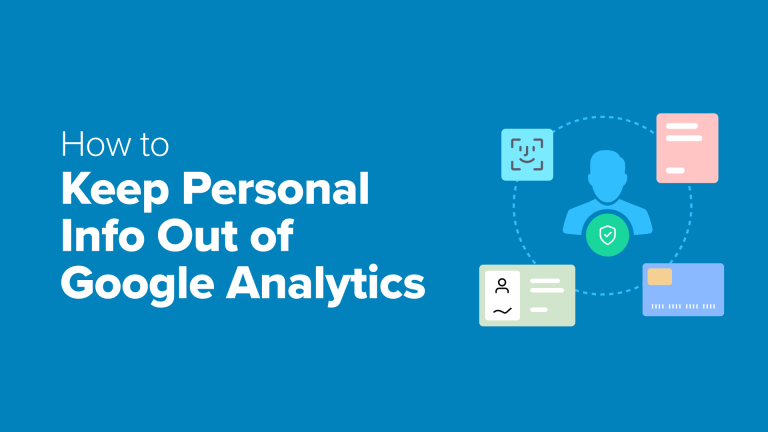
During a recent audit of a client’s website, we found a concerning issue: Google Analytics reports contained email addresses and phone numbers. This revealed sensitive visitor data that was never intended to be gathered.
Gathering personally identifiable information (PII) from users can create serious issues. It breaches data privacy laws such as GDPR, potentially leading to substantial penalties for your business. Your Google Analytics account could even be suspended.
The positive aspect is that preventing personally identifiable information (PII) from appearing in your analytics is relatively simple once you understand the process.
Having worked extensively with Google Analytics across numerous websites, we’ve created a reliable method for keeping sensitive data out of your reports. This guide details how to safeguard your visitors’ privacy while still obtaining the analytics insights you require.
What Is Personally Identifiable Information, and Why Should You Protect It?
Personally Identifiable Information (PII) refers to any information that can identify a specific individual. Protecting this data is essential for complying with regulations like GDPR, avoiding significant fines, and preserving your visitors’ confidence.
Some common examples of PII include:
- Full name (first and last)
- Email address
- Phone number
- Home address
- Credit card information
- Login credentials (usernames and passwords)
- IP addresses (when linked to individuals)
A common issue is that Personally Identifiable Information (PII) can inadvertently enter Google Analytics via URLs. This often occurs when users input data on forms; this data may be included in the URL of the subsequent page.
A URL exposing a user’s email might resemble this example:
www.example.com/contact-us/thanks?email=personal@information.com.
As you can see, the sample URL reveals the user’s email.
It is crucial to understand that data privacy regulations, such as GDPR, have stringent rules regarding personal data use. Google’s policies also prohibit PII collection.
If your analytics setup is found to be capturing PII, you risk substantial penalties, including suspension of your account.
In addition to legal implications, trust is paramount. Visitors expect their privacy to be protected; a perceived lack of security could drive them away.
🧑💻Pro Tip: If utilizing the User-ID feature for tracking logged-in users, ensure the assigned ID is an anonymous string of characters, not a username or email.
Let’s explore two straightforward techniques for preventing PII from entering Google Analytics.
- Method 1. Using a WordPress Plugin to Keep PII Out of Google Analytics (Easy)
- Step 1. Install and Activate the MonsterInsights Plugin
- Step 2. Connect MonsterInsights to Your Google Analytics Account
- Step 3. Enable the Privacy Guard Feature
- Method 2. Keeping PII Out of Google Analytics (Manual Approach)
- Step 1: Set Up Your Data Stream in Google Analytics
- Step 2: Redact Data in Google Analytics
- Additional Tips for Privacy Regulation Adherence on Your Website
- Frequently Asked Questions Regarding Protecting Personally Identifiable Data from Google Analytics
- Suggested Resources on Analytics and Tracking
Ready? Let’s get started.
Method 1. Using a Plugin to Keep Personally Identifiable Info Out of Google Analytics
The simplest approach for preventing PII from entering Google Analytics involves utilizing the Privacy Guard function within MonsterInsights – a leading WordPress analytics plugin.
Privacy Guard allows you to automatically examine query parameters and submitted forms, identifying and removing potential PII. This aids in maintaining your website’s compliance with privacy laws.
ℹ️ Important note: MonsterInsights facilitates our conversion tracking at CanadaCreate, enabling effortless monitoring of traffic, forms, buttons, referral links, and more. Explore our comprehensive MonsterInsights review to understand why we endorse it.
Step 1. Install and Activate the MonsterInsights Plugin
First, you’ll need a MonsterInsights account. To get started, go to their website and click the ‘Get MonsterInsights Now’ button.
Subsequently, you can proceed to select a subscription plan. The Plus plan or higher is recommended, as it incorporates the Privacy Guard functionality.
Once registered, proceed with installing and activating the MonsterInsights plugin on your WordPress website. Refer to our tutorial on how to install a WordPress plugin for detailed guidance.
Step 2. Connect MonsterInsights to Your Google Analytics Account
Upon activation, you’ll need to connect the MonsterInsights plugin to your Google Analytics account.
From the WordPress admin area, navigate toInsights » Launch the Wizard to initiate the setup procedure.
Next, pick the classification that accurately represents your website.
MonsterInsights gives 3 options – business site, publisher (blog), or eCommerce (online store).
After choosing a category, just select ‘Save and Continue’ to move forward.
On the next screen, you can click ‘Connect MonsterInsights’ to start the connection process.
Then, you can follow the prompt to sign in to your Google Analytics account.
After logging in, pick the specific website you wish to monitor from the provided list.
From here, go ahead and click the ‘Complete Connection’ button. MonsterInsights will then automatically install Google Analytics on your WordPress website.
For further details, consult our tutorial on how to implement Google Analytics within WordPress.
Step 3. Enable the Privacy Guard Feature
Keeping Personally Identifiable Information (PII) out of your tracking doesn’t have to be complicated.
With MonsterInsights’ Privacy Guard, it’s achievable with minimal effort!
This function automatically recognizes and eliminates a series of frequently used query parameters that tend to hold sensitive information (such asemail, credit_card, and password). This helps prevent private details from being stored in your analytics reports.
To begin, navigate toInsights » Settings»Engagement tab.
Now, just turn on the ‘Privacy Guard’ switch, and you’re all set!
MonsterInsights will now help protect personally identifiable information and keep you compliant with privacy laws.
⚠️ Important Disclaimer: No plugin can guarantee 100% legal compliance because every website is different. We strongly recommend consulting an Internet law attorney to ensure your site meets all legal requirements for your location and specific use case.
This is not legal advice – just a friendly heads-up to help you stay informed.
Method 2. Keeping Personally Identifiable Info Out of Google Analytics
In this method, we’ll show you how to use Google Analytics’ built-in ‘Redact data’ feature. This method is great if you prefer not to use a plugin, as it gives you precise control.
However, it requires you to manually identify and enter the URL parameters your site uses to collect data. So it’s best for advanced users.
Plus, since this method isn’t limited to WordPress, you can follow along even if you use a different website builder.
Step 1: Set Up Your Data Stream in Google Analytics
First, you’ll need to sign in to your Google Analytics account.
Go ahead and click on the ‘Sign in to Analytics’ button to continue.
In the dashboard, let’s hover over the sidebar and click the ‘Admin’ menu.
Under the ‘Data collection and modification’ section, you can click on ‘Data streams.’
After that, click on ‘Data streams.’
This will take you to the table, which lists all your data streams.
Now, you can select your website from the list.
Step 2: Initiate Data Redaction Within Google Analytics
This action will reveal the ‘Web stream details’ panel.
Navigate downward to the ‘Events’ area and select ‘Redact data.’
The ‘Redact data’ options will then be displayed.
Within the ‘Choose what to redact’ area, you’ll find two toggles at the top.
Begin by redacting email addresses using the first toggle. Google Analytics will then automatically prevent collection of email addresses.
Subsequently, filter out additional personally identifiable information by specifying query parameters.
To achieve this, activate the ‘URL query parameter’ toggle. Then, input your query parameters into the designated field.
For example, consider including frequent parameters extracted from your forms, such asfirst_name, last_name, phone_number, or user_id. Remember to use commas as separators.
🧑💻Pro Tip:If you are uncertain about parameters, the simplest approach involves testing your forms to identify them.
As an illustration, complete your contact form and examine the URL of the confirmation page. Any personal data visible in the address bar following a question mark (?) signifies a URL parameter suitable for addition to this list.
When you are satisfied with the configuration, save your settings.
Google Analytics will enhance PII protection, promoting site privacy compliance. However, periodic data reviews remain crucial to ensure no private information bypasses these measures.
Always exercise appropriate caution, as incorrect settings might trigger compliance problems.
Extra Suggestions for Website Privacy Compliance
Excluding personal data from analytics is merely one facet of adhering to privacy rules; consider these suggestions as well:
- Show a cookie notice on your WordPress website. This message lets users consent to tracking cookies. Implementing this is straightforward using a plugin like WPConsent.
- Build GDPR-ready forms.Using a form plugin such as WPForms, it’s simple to incorporate GDPR consent fields, disable user cookies/details, and remove user data upon request.
- Include a GDPR privacy checkbox for comments.Plugins such as Thrive Comments aid in making your comments section GDPR-compliant easily.
Refer to our comprehensive guide on GDPR compliance for WordPress users for further information.
Frequently Asked Questions: Excluding Personally Identifiable Information from Google Analytics
Preventing PII in Google Analytics is vital. If you have further inquiries, explore some quick answers to common questions below:
How does Google handle user data and privacy concerns?
Google prioritizes privacy, using anonymization and adhering to GDPR. Google provides tools, but ensuring no PII is collected rests with businesses.
Does Google Analytics collect personally identifiable information?
Not by default. But if you’re not careful, PII can sneak in through URLs, form submissions, or custom tracking settings. That’s why it’s important to set things up correctly.
Do all sites with analytics need cookie warnings?
Yep! If your site tracks users with cookies (like Google Analytics does), then privacy laws like GDPR and CCPA require you to show a cookie notice and get user consent.
Further Reading About Analytics and Tracking
That’s all there is to it! We hope this guide has helped you learn how to keep personal info out of Google Analytics.
Understanding how to keep PII out of Google Analytics is just the beginning! If you want to fine-tune your tracking, improve data accuracy, and stay compliant with privacy laws, then check out these helpful guides:
- 📊 Google Analytics 4: A Beginner’s Guide – Learn how to set up GA4 on your WordPress site and make the most of its powerful features.
- 🍪 How to Add WordPress Analytics Without Cookies – Protect visitor privacy on WordPress with cookieless analytics methods.
- 📢 WordPress Post Analytics – Find out how to easily access and track your blog stats.
- 🎯 How to Set Up Google Analytics Goals – Measure what really matters on your WordPress website.
- 🔗 How to Install and Set Up Google Tag Manager – Simplify tracking by managing all your tags in one place.
- 🔍 How to Track Outbound Links – See which external links your visitors are clicking the most.
- ✋ How to Block WordPress Referrer Spam in Google Analytics – Improve the accuracy of your reports by making sure that spam requests do not pollute your data.
- 💭 A detailed comparison between MonsterInsights and SiteKit reveals how these robust analytics plugins compare.
If you liked this article, then please subscribe to our YouTube Channel for WordPress video tutorials. You can also find us on Twitter and Facebook.