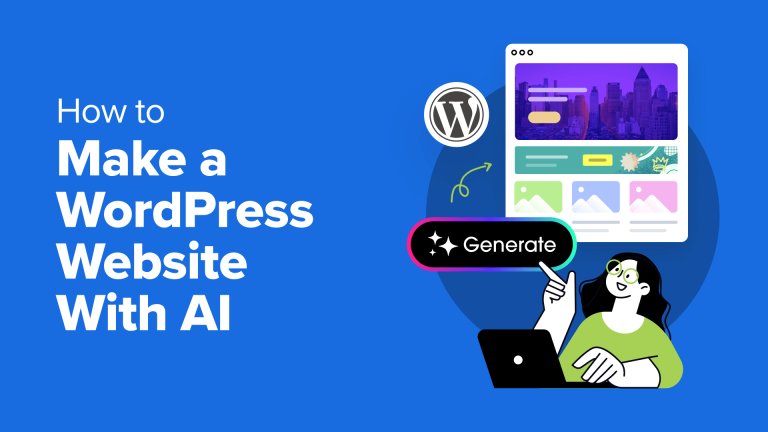
Artificial intelligence (AI) is a hot topic right now, and many individuals are curious about how to leverage it for creating their own WordPress websites.
AI has the potential to streamline the website-building process, accelerate development, and even spark innovative ideas. However, with a plethora of tools available, it can be daunting to know where to begin.
At CanadaCreate, we’ve been exploring various AI tools to discover how they can improve the WordPress experience. From AI-driven page builders like SeedProd to content creation tools, we’re excited to share our insights with you.
In this comprehensive guide, we will outline multiple methods for creating a WordPress website using AI.
Advantages and Disadvantages of Using AI for WordPress Website Creation
Before diving into the process of building a WordPress website with AI, it’s essential to grasp its benefits and drawbacks. This understanding will assist you in determining whether AI is the right solution for your project, particularly if you’re a business owner looking to start a WordPress website from scratch.
Benefits of utilizing AI for building a WordPress website:
- Quicker developmentAI tools can streamline various tasks involved in creating a website, making them ideal for beginners or busy entrepreneurs. These tools can assist with generating web design layouts, providing content suggestions, and writing code.
- Inspires creativityAre you struggling with a design concept? AI can assist you. Some AI tools provide content and image recommendations to customize your website and help you overcome creative hurdles.
- Rapid troubleshootingEven seasoned web designers and developers may encounter challenges. AI can serve as a helpful assistant to navigate coding or design issues.
Drawbacks of using AI for building a WordPress website:
- Limited customization optionsIf you have a very specific design vision, AI may fall short. Unique layouts often require some coding skills to complement the AI tools.
- Content with a personal touchAI-generated content can serve as a valuable starting point, but it may require your input to ensure it aligns with your brand voice and connects with your audience.
- Learning curve involvedWhile there may be a slight learning curve when using AI, especially for those new to website creation, a wealth of tutorials and support resources can help you quickly become proficient.
Related Topics:Discover our insights on whether AI website builders truly live up to the hype.
With that in mind, let’s explore five effective ways to utilize AI for creating a WordPress website. You can use the quick links below to jump to your preferred method:
- Option 1: Utilize a Page Builder with AI Features (The Easiest Approach)
- Option 2: Choose a WordPress Hosting Provider with an AI Assistant
- Option 3: Implement WordPress Plugins with AI Capabilities
- Option 4: Leverage AI Tools to Construct Your WordPress Website
- Short on Time to Build a Website? Trust the WordPress Design Professionals
Option 1: Utilize a Page Builder with AI Features (The Easiest Approach)
Feeling a bit overwhelmed about creating your first website? Don’t worry! Building a professional website with WordPress has never been easier, thanks to AI-driven page builders.
A page builder is a visual tool that offers drag-and-drop functionality, enabling you to create your website without any coding knowledge. This is an excellent choice for beginners or anyone seeking a straightforward method to build a website.
Among all the page builders we have evaluated, SeedProd is notable for its outstanding AI capabilities. It features a rapid AI site generator, an easy-to-use drag-and-drop builder, an AI image generator, and an AI content generator, all integrated into a single, user-friendly platform.
This allows you to effortlessly create beautiful visuals and engaging website content with just a few clicks, while still having the flexibility to customize every aspect and truly make the website your own. Additionally, SeedProd offers over 200 professional templates tailored for various industries.
For more details about SeedProd’s features, feel free to explore our comprehensive SeedProd review.
Although the advanced AI features of SeedProd require a pro plan, you can start with the free version to familiarize yourself with the plugin and its essential functionalities. We also provide a SeedProd coupon code that can help you save up to 60% on your initial purchase.
Once you subscribe to a paid plan, proceed to install the SeedProd plugin. We have a detailed guide available that explains how to install a WordPress plugin, making the process easy to follow.
After activating the plugin, you can start customizing your website. SeedProd enables you to create a unique theme for your entire site, or you can prioritize designing an eye-catching landing page first.
Explore our comprehensive tutorials to assist you through these processes as well.
- Step-by-Step Guide to Creating a Landing Page in WordPress
- How to Design Stunning Coming Soon Pages in WordPress
- Creating a Viral Waitlist Landing Page in WordPress: A Complete Guide
Let’s take a detailed look at how to utilize SeedProd’s AI capabilities:
Generating a Complete Website Using SeedProd AI
One of the standout features of SeedProd’s AI is its ability to create a full website in just seconds. Simply describe your site in a few words, and the AI will use that information to generate a tailored SeedProd theme for you.
Begin by visiting the SeedProd WordPress AI theme builder landing page. Then, click on the ‘Try our AI Theme Builder for FREE’ button.
You will be directed to SeedProd’s AI site builder.
If you haven’t already created a SeedProd account, please do so now. If you are already registered, click ‘Already registered?’ to log in.
Once you are registered and logged in, you will access the SeedProd AI Theme Builder dashboard.
Here, simply click the ‘Create Site with AI’ button.
On the following page, enter your website name (such as your business name) and a brief description of your website.
If you’re unsure about the level of detail needed for your description, SeedProd provides an example for inspiration.
You can also allow the AI tool to select your website colors, which is helpful for enhancing your WordPress design.
Once you finish, simply click ‘Next.’
In just a few seconds, your AI-generated website will be ready.
In fact, our demo site was created in only 26 seconds and includes custom pages, text, and stock photos tailored to our website description.
If you like the design generated by AI, feel free to use it.
To proceed, return to your SeedProd AI theme builder dashboard and click on the WordPress icon to access your temporary admin dashboard.
Next, navigate toSeedProd »Import / Export.
Here, you can click on ‘Export Theme Files’ to download the theme file generated by SeedProd.
On your own WordPress admin site, open the same ‘Import / Export’ page to upload the theme file and import it.
You can find your AI-generated theme by clicking ‘Choose File’ and then selecting ‘Import Theme Files’ to begin the upload.
Once your AI-generated theme is successfully installed, proceed to SeedProd »Theme Builder.
In this section, you will find all the templates created by SeedProd’s AI. Hover over any template and click the ‘Edit Design’ button to access the drag-and-drop builder.
For further customization of your site, check out our comprehensive guide on how to effortlessly create a custom WordPress theme without any coding.
How to Utilize SeedProd’s AI Image Generator
Another feature of SeedProd is the ability to generate images using AI.
To begin, create your page or layout with SeedProd’s drag-and-drop builder. Then, insert and select an ‘Image’ block in the editor, and click the ‘Add with AI’ button.
In the pop-up window, describe the image you envision. Being as detailed as possible will help the AI generate the most accurate image.
Alternatively, you can select a suggested prompt from SeedProd.
Pro Tip: Break down intricate scenes into smaller components for improved results.
For instance, instead of simply saying ‘ribeye steak,’ you might describe it as ‘a sizzling ribeye steak, perfectly seared with a crust, resting on a rustic wooden cutting board, accompanied by a sprig of rosemary and a sprinkle of coarse salt.’
After that, click ‘Generate Image.’
SeedProd will generate an image based on your description.
To add the image to your page, simply click ‘Insert.’
Want to enhance the image further? No worries. SeedProd lets you specify changes using text prompts, and the AI will adjust the image accordingly.
Just click on the image you created and select ‘Edit with AI’ from the left sidebar.
A new popup will appear.
Here, you can choose either ‘Variations’ or ‘Edit Image’ to refine your current image. If you want to create a completely different image, select ‘Generate with a prompt’ and follow the previous steps again.
By clicking on ‘Variations,’ you will generate different versions of the same image.
This option is great if you like the current image but want to explore what else the AI can create. You can click ‘Insert’ to add the newly generated image to your page.
Experiment with various prompts to try out different styles. You can create product shots from various angles or background images for other sections of your site that share the same theme.
Stacey Corrin, Writer at the SeedProd Blog
SeedProd provides an advanced level of control with the ‘Edit Image’ feature, enabling you to use a brush tool to selectively modify specific areas of your image.
Easily erase the unwanted sections with the brush tool, then refine your original prompt to clearly describe the changes you want. Be sure to include the entire image prompt, not just the part related to the erased area.
After detailing your edits, click the ‘Generate new image’ button.
Within seconds, SeedProd’s AI will create two variations of the image that incorporate your edits.
You can select the variation that best fits your WordPress blog or website by clicking the ‘Insert’ button located below the image.
As an example, we utilized this feature to create new images of a ribeye steak without rosemary on top.
When you’re satisfied with the appearance of the image, simply click the ‘Save’ and ‘Publish’ buttons in the top right corner of the SeedProd builder.
How to Utilize SeedProd’s AI Content Generator
To access SeedProd’s AI content generator, just add and select any Headline or Text block within the SeedProd drag-and-drop theme builder.
Next, click on the ‘Generate AI Text’ button in the settings sidebar on the left.
You can either enter your desired content directly into the text field or select a prompt from the available suggestions.
Begin by providing the AI with a keyword or phrase that relates to your content. The more details you include, the more tailored the generated content will be.
After giving your input, click the ‘Generate Text’ button to proceed.
SeedProd’s AI Assistant will automatically create content for you.
You can then edit the text, adjust the tone to align with your brand’s voice, modify its length, or even translate it into one of over 50 languages. This feature is particularly useful for multilingual WordPress websites.
Once you are satisfied with the content, simply click the ‘Insert’ button to add it to your page effortlessly.
Keep in mind that the AI-generated content serves as a starting point, not a final draft. Be sure to review the text and infuse your personal touch to make it sound more relatable.
Alternative Option: Choose a WordPress Hosting Provider with an AI Assistant
Another convenient method to create a WordPress website using AI is by selecting a hosting provider that offers integrated AI features.
While not all hosting providers have embraced AI technology, Bluehost and Hostinger stand out as leaders in this area. Let’s explore the AI features offered by each of these providers.
A Step-by-Step Guide to Using Bluehost’s AI Site Creator for WordPress
Bluehost is recognized as one of the top hosting providers globally, and it is also the service we recommend for our complimentary blog setup or migration assistance.
As long-time customers of Bluehost, we have hosted multiple websites with them. We appreciate their performance and user-friendly interface, making them one of the most dependable WordPress hosting options available. Discover more in our detailed Bluehost review.
The AI Site Creator feature is included in all Bluehost hosting plans, allowing you to effortlessly build a personal blog, a business website, or even an online store.
Take advantage of our Bluehost coupon code to receive a 70% discount on your initial hosting plan.
After purchasing a Bluehost hosting plan, log in to your Bluehost dashboard. Then, go to the ‘Websites’ tab and select ‘Add Site.’
You will now proceed through the onboarding wizard to set up your new Bluehost site.
In the first step, choose ‘Install WordPress’ and click the ‘Continue’ button.
Now, enter a title for your new website.
Feel free to input your brand or business name if you prefer. Then, click the ‘Continue’ button.
Next, you can enter your desired domain name and proceed to purchase it.
If you’re not ready to choose a domain name yet, you can use a temporary Bluehost subdomain. After that, just click ‘Continue.’
Bluehost will now begin setting up WordPress for your website, which will take a few minutes.
Once the setup is complete, you will be redirected back to the ‘Websites’ tab. Here, click ‘Edit Site’ on your newly created site.
Bluehost will present you with various options to build your WordPress site.
To access the AI feature, simply click on the ‘AI Site Creator’ option.
At this point, you can specify what type of website you intend to create. Being as descriptive as possible will help the tool customize the site to your needs.
You can describe the nature of your business, the pages you want the site to include, and the overall purpose of the site.
After entering your website description, click ‘Next.’
You have the option to upload a custom logo for your website. Bluehost will automatically position it in the typical areas where logos are displayed.
If you don’t have a logo at this time, you can skip this step.
Next, Bluehost will inquire about your level of familiarity with WordPress.
You can choose from three options: Beginner, Intermediate, and Expert. If you’re new to WordPress, it’s recommended to select ‘Beginner.’
With all the necessary information provided, the tool will generate three distinct versions of a custom theme based on your input.
You can select the theme you prefer or click ‘Regenerate’ to have Bluehost create a new theme.
After selecting a theme, you will see a full preview. You can also modify its appearance by clicking the ‘Customize’ button.
Feel free to adjust the color scheme and font choices to better align the theme’s design with your brand.
Once you’re satisfied with your changes, simply click ‘Save & Continue.’
You will then be redirected to your WordPress admin dashboard.
To make further edits to the theme, navigate to Appearance » Editor.
This will take you to the full-site editing page in WordPress.
You can easily access a specific tab in the full-site editor to modify a section of your theme. Alternatively, you can click on the theme preview area to begin editing your page.
In the full-site editor, you’ll notice that Bluehost has integrated the WonderBlocks plugin, which enhances your options by providing additional blocks not included by default in WordPress.
Simply click the ‘+’ button to explore all the blocks offered by both WordPress and the WonderBlocks plugin.
For a comprehensive understanding of how to edit your website using the full-site editor, be sure to check out our detailed beginner’s guide to WordPress full-site editing.
How to Utilize Hostinger’s WordPress AI Assistant
Included with the Business Web Hosting plan and higher, Hostinger’s WordPress AI assistant is an excellent tool for generating content, making it simple and efficient to create your website.
We have been using Hostinger for several years, and many of our team members rely on it for their personal projects. We appreciate their impressive speed, competitive pricing, and excellent customer support. For more information about Hostinger and its offerings, read our in-depth Hostinger review.
To utilize Hostinger’s WordPress AI assistant, you need to subscribe to a Business Web Hosting plan, priced at $13.99 per month. However, by using our Hostinger coupon code, you can receive a discount of up to 79%, bringing the cost down to just $2.69 per month.
Next, log in to hPanel to access your hosting dashboard.Navigate to the ‘Websites’ tab and click on ‘+ Add Website.’
Now, simplycomplete the onboarding wizard.
First, indicate whether the website is for yourself or someone else. Then, click ‘Next.’
At this point, you can set up the login credentials for your WordPress account.
We recommend using the password generator feature to ensure your WordPress password is strong and secure. Once finished, click ‘Next’ to continue.
Now, select the type of website you want to create.
The default options include blog, online store, business website, and portfolio, but you can choose ‘Other’ if none of these categories fit your needs.
After that, click the ‘Next’ button.
On the next screen, you can select a pre-selected Astra theme offered by Hostinger.
Once you have made your selection, hover over it and click ‘Choose.’ Then, click the ‘Next’ button.
If you prefer not to use any theme options, you can select ‘Create blank site’.
The next step is optional, but you may want to install essential WordPress plugins for your website.
Recommended plugins include MonsterInsights for analytics, All in One SEO (AIOSEO) for search engine optimization, and WPForms for creating contact forms. These tools are vital for improving your website’s functionality.
You can either skip this step or click ‘Next’ to proceed.
Next, you can add a domain name for your website. Just type in your desired domain name and click the ‘Next’ button again.
If you don’t have a domain name yet but want to start building your website, click ‘Use temporary domain’.
Now, please wait a few minutes while Hostinger sets up your WordPress website.
Once the setup is finished, you will return to the hPanel. Click ‘Admin Panel’ to log in to your WordPress site.
In the left-hand menu of your dashboard, you’ll notice that Hostinger has installed a plugin for you. This is where you can access their AI content generator.
To begin, navigate to ‘Hostinger’ and then click ‘Generate content’ under the ‘Onboarding’ tab.
You will find various settings to adjust for Hostinger to generate the content.
Begin by deciding whether you want to create content for posts or pages.
Next, choose a tone for your content, such as neutral, formal, trustworthy, friendly, or witty.
You can select multiple tone options to help the AI generate content that aligns closely with your brand’s personality.
Then, specify the desired content length, choosing from short, medium, or long.
Hostinger provides guidance to assist you in selecting the appropriate length for your specific needs.
Once you’ve made your selections, provide detailed prompts to help the AI create relevant content. Being descriptive and clear is always beneficial.
You can specify the type of page or post, outline key points to include, and describe the desired tone of the content.
Below this, you can add targeted keywords to enhance the content’s search engine optimization. Remember to press ‘Enter’ after each keyword you enter.
Now, simply click the ‘Create content’ button.
Hostinger will generate the content for you. You can then review the output based on your specifications.
Start by reviewing the AI-generated meta description and image. You can choose to display the image as a featured image or within the content itself.
Scroll down to view the complete AI-generated text content.
We recommend reviewing the content and making adjustments by selecting ‘Edit as a draft.’ This allows you to customize the text to fit your specific requirements in the block editor.
Once you’ve completed that, you can follow the same process to create additional types of content for your website. The Hostinger plugin also supports content generation in multiple languages, making it ideal for reaching international audiences.
The plugin can produce content in over 50 languages. Additionally, its user interface is available in ten languages: English, French, Spanish, Arabic, Chinese, Indonesian, Lithuanian, Portuguese, Ukrainian, and Turkish. The interface will automatically adjust to match the language of your WordPress dashboard if it’s set to one of these options.
Gediminas Gasiulis, Communications Specialist at Hostinger
Hostinger provides a beta chatbot throughout the WordPress admin area for immediate AI support. You can access it by clicking the ‘Ask AI’ button located anywhere in WordPress.
If you need assistance, simply click the chatbot button to request suggestions.
Option 3: Utilize WordPress Plugins with AI Capabilities
If you’re seeking a more focused solution than an all-in-one website builder or hosting service, AI-driven plugins can be the ideal choice.
These plugins are crafted to improve specific aspects of your website, enabling you to tailor your AI experience to meet your precise requirements.
Here are some of the best WordPress plugins that can help you streamline website creation with AI:
All in One SEO (AIOSEO)
Do you want your website to stand out in search results? AIOSEO is a robust tool that enhances your site’s visibility to search engines like Google.
Its AI capabilities can recommend engaging titles and descriptions for your pages, drawing in more visitors. You don’t need to be an SEO specialist, as AIOSEO simplifies the process.
Moreover, AIOSEO’s AI-driven title and description generator integrates smoothly with your WordPress editor. Simply click the robot icon next to the ‘Post Title’ and ‘Meta Description’ fields in the block editor.
The plugin will then promptly provide you with creative and effective suggestions based on your content.
For further details, check out our article on leveraging AI for SEO in WordPress and crafting impactful headlines using AI in WordPress.
OptinMonster
To turn your website visitors into subscribers or customers, OptinMonster is an essential tool. This platform leverages AI to help you design eye-catching popups, forms, and other features that motivate users to take action.
OptinMonster’s Smart Optimizations feature, powered by AI, lets you effortlessly enhance any text in your campaigns with just a few clicks.
In the OptinMonster popup builder, simply select a text field in your campaign and click the ‘Allow AI to improve your headline’ button.
The AI will then generate multiple variations for you to select from.
This simplifies the process of finding the ideal wording to captivate your audience.
For more information, check out our guides on adding a contact form popup in WordPress and using AI to boost your lead generation.
WPForms
Looking to create contact forms, surveys, or any other type of form for your website? WPForms is the ideal online form builder for your needs.
WPForms features an AI form builder that allows you to simply describe the type of form you want in plain English. With just one click, the plugin will generate a fully functional form, complete with all necessary fields.
For additional information on using the plugin, refer to our comprehensive WPForms review.
MonsterInsights
Artificial Intelligence (AI) goes beyond just generating content or designing logos; it can also enhance your website’s design to improve user experience.
A highly effective tool for this is MonsterInsights, a plugin for Google Analytics.
With MonsterInsights, you can seamlessly view your Google Analytics data right from your WordPress dashboard, making it easy to track your website’s performance and pinpoint areas that need enhancement.
Moreover, you can utilize its AI-driven chatbot, Conversations AI, to gain insights from your data. Instead of sifting through complicated reports, simply ask the chatbot for the information you need.
For instance, you can inquire about your online store’s conversion rate to uncover potential problems in your WooCommerce cart and checkout process.
One of the standout features of this AI tool is the ability to save and pin your conversations with the chatbot, allowing you to revisit important messages whenever you need a refresher.
WPCode
At times, you may need to incorporate custom code into your WordPress site for specific functionalities or adjustments. However, if you’re a beginner, the idea of editing code can be daunting. That’s where WPCode comes into play.
This useful plugin streamlines the process of adding code snippets to your website and includes an AI code generator.
You can simply describe your desired outcome, and WPCode’s AI will create the necessary code for you.
Be as clear and descriptive as possible in your request while keeping it concise. Highlight details that the AI may not know, such as your specific theme or any other plugins that might interact with the code.
For instance, you could request WPCode to generate a code snippet that alters the default text selection color on your WordPress site:
While the AI isn’t flawless, WPCode provides an easy way to enhance the generated code. There’s a convenient ‘Improve with AI’ button right in the editor.
Click it, and a text box designed for your code snippet will appear. You can then give instructions for the AI to modify or optimize the code.
This iterative approach enables you to refine the code until it perfectly aligns with your requirements, all without needing extensive coding knowledge.
To discover more about the plugin, check out our detailed WPCode review.
Uncanny Automator
This plugin automates your website tasks, allowing you to concentrate on what truly matters for your business.
With its integration with OpenAI, Uncanny Automator can perform tasks automatically based on user actions on your site.
For instance, if you have a form that gathers content suggestions from your audience, you can configure Uncanny Automator to use ChatGPT to compile these ideas into a spreadsheet whenever someone submits the form.
To discover more, read our comprehensive review of Uncanny Automator and our tutorial on setting up automated workflows in WordPress.
ChatBot
If you want to offer instant customer support on your website, ChatBot is an excellent choice. This plugin creates an AI-driven virtual chat agent that can engage with your visitors, address their inquiries, and assist them in navigating your site.
ChatBot improves over time by learning from your interactions, enhancing its ability to comprehend and meet your customers’ needs. This enables you to provide round-the-clock support, even when you are unavailable.
To integrate this plugin into your website, check out our review of ChatBot and our detailed guide on how to add a chatbot in WordPress.
Looking for more plugin suggestions? Explore our curated list of the best WordPress plugins powered by ChatGPT.
Option 4: Utilize AI Tools for Building Your WordPress Website
In addition to plugins, there are numerous external AI tools available that can simplify the process of creating your WordPress website. These tools can enhance your AI toolkit, particularly when specific features you need are not offered by plugins.
Here are several ways to leverage external AI tools for your WordPress website creation:
1. Brainstorming and Planning Your Website
Before starting your web development journey, AI can assist you in brainstorming.
Tools like ChatGPT or Gemini can help you outline your website’s structure, suggest content ideas tailored to your niche, and even assist in identifying your target audience.
Just provide a few prompts regarding your website’s objectives and goals, and the AI can generate a wealth of ideas to help you get started.
Here’s a prompt template you can use to organize your website structure:
I am in the process of creating a website for [Your Business Name/Website Name] aimed at [Main Purpose of Your Website - e.g., selling products, providing information, showcasing a portfolio]. My target audience consists of [Describe Your Ideal Visitor - e.g., age, interests, demographics].
I would appreciate your assistance in developing a foundational website structure, which should include:
- Homepage: What sections are essential? What key information should be prominently featured?
- About Us Page: What should this page emphasize? What narrative should it convey?
- Product/Services Page(s): How can I best organize my products/services? What specific details should be present on these pages?
- Blog Page (if applicable): What categories or topics should I explore?
- Contact Page: What information should I include to facilitate visitor inquiries?
- Additional Pages (optional): Are there any other important pages I might require (e.g., FAQ, testimonials, portfolio)?
Additionally, please recommend a clear and user-friendly navigation menu structure that would enhance the usability of this website.
At this point, you can pose follow-up questions to refine the structure and ensure it is as comprehensive as possible.
Here is an example of the website structure that Gemini generated when we requested it to create a framework for a restaurant using the prompt template provided above:
Explore our curated list of top AI prompts designed specifically for bloggers, marketers, and social media experts to inspire your creativity.
2. Creating and Optimizing Content
While various plugins provide content generation capabilities, utilizing a chatbot like ChatGPT or Gemini can often be more straightforward and quicker.
One of the advantages of these chatbot tools is their conversational nature, making them feel like a brainstorming partner or co-writer. Many of these tools are available for free, though you may need to try different prompts to achieve optimal results.
Based on our experience, conducting some preliminary research and drafting a rough outline of your content before engaging with an AI tool is beneficial. This approach allows you to give the AI clear guidance while still leveraging its speed and efficiency in text generation.
Here are two prompts you can utilize to create content with an AI chatbot:
I would like you to take on the role of a content writer who can produce an actionable and informative blog post for 'Create Your First WordPress Website Using AI: The Ultimate Beginner's Guide,' written in the style of expert content creators.
Here are some important points to keep in mind:
- Target Audience: [insert target audience]
- Style: Actionable, helpful, clear, concise, and conversational.
- Language: Use simple and familiar words, avoiding unnecessary fluff.
- Structure: Short paragraphs, ideally 2-3 sentences each, ensuring the information is presented clearly and is easy to read. We will not use bullet points or numbered lists unless specified.
Do you have any questions about the information I have provided?
// Allow the AI to respond.
Great! Let's collaborate to create a content piece titled '[blog post title].'
Here's the workflow I suggest:
1. Outline Sharing: I will share an outline section-by-section. Each section will include the heading title, key points I want to cover, and keywords I wish to target.
2. Content Generation: Using the provided information, you will create the content for each section in the style of a '[blog title]' article, keeping in mind the target audience, style, language, and structure.
3. Iteration: I will review the generated content for each section and provide feedback or request changes.
4. Repeat: We will repeat steps 1-3 until the entire content piece is finished.
Is this process clear? Let me know if you have any questions.
// Allow the AI to respond and begin sharing your outline section by section.
Numerous AI tools are designed specifically for content creation, such as ContentShake AI.
These tools enable you to create a comprehensive brand personality, which can help establish the tone for all your published content, whether it’s for your website or social media platforms.
For optimizing your website for search engines, AI-powered tools like SEOBoost provide excellent solutions.
This plugin can evaluate your content and provide data-driven recommendations for enhancements, including keyword suggestions.
This eliminates uncertainty in SEO and empowers you to make informed choices to enhance your website’s visibility in search engine results. We’ve been using SEOBoost for a while, and it has significantly improved our content optimization.
Keep in mind that AI-generated content serves as a foundation. Always review and refine it to ensure it matches your brand’s voice and connects with your audience. For more insights on AI SEO content best practices, check out our article discussing whether AI content negatively impacts SEO.
3. Designing a Custom Logo
Creating a distinctive and memorable logo is essential for establishing your brand identity. However, hiring a professional logo designer can be costly, especially for small businesses or individuals with tight budgets.
Fortunately, AI-driven logo creators have become a budget-friendly and efficient solution.
These tools allow you to enter your business name and respond to a few questions regarding your preferences, including your industry, target audience, and desired style.
The AI then produces several logo designs based on your responses, helping you save both time and money compared to traditional design methods.
A prime example is Tailor Brands, which guides you through a series of questions to help the AI capture your vision.
You will then receive a variety of logo designs, each customized to meet your specific requirements.
Tailor Brands even demonstrates how your logo would appear on different materials such as business cards, t-shirts, or website headers, providing you with a realistic view of its adaptability.
For detailed guidance, refer to our beginner’s guide on creating a logo for your website.
4. Generating Web Design Concepts
You may already be aware that AI can assist you in creating custom images for your website, eliminating the need for stock photos. We discuss this in detail in our guide on using AI to generate images in WordPress.
AI image generators offer more than just picture creation; they can assist you in brainstorming and visualizing web design concepts. This is particularly beneficial if you have a general vision for your website but need help translating it into a visual format.
For instance, let’s consider Canva’s AI image generator.
You can provide a detailed prompt that outlines your ideal website design. Be specific about the type of website, its purpose, the color scheme you envision, and the overall style you want to achieve.
For example, you might use a prompt like this: ‘Design a landing page for a plant-based restaurant website. The color scheme should feature forest green with accents of orange to create visual interest. The design style should be modern and minimalist.’
After that, click ‘Generate image.’ Here’s the outcome:
Short on Time to Build a Website? Trust the Experts at WordPress Design
Even with AI assistance, creating a website from the ground up can feel overwhelming. The multitude of decisions and technical aspects can be intimidating, especially if you’re not particularly tech-savvy.
That’s where Seahawk Media’s expert website design services come into play.
By selecting this service, you will benefit from a team of experienced WordPress professionals who will manage every step of your website development, from the initial design ideas to the final launch. They will collaborate with you to capture your vision and objectives, ensuring that your website embodies your brand’s distinct personality.
Additionally, Seahawk provides budget-friendly pricing, making it an ideal choice for small businesses.
We trust that this article has guided you in creating a WordPress website using AI. You might also find our guide on designing an eye-catching coming soon page helpful for generating excitement about your upcoming site, or check out our tutorial on incorporating dynamic content into WordPress.
If you enjoyed this article, please consider subscribing to our YouTube Channel for WordPress video tutorials. You can also connect with us on Twitter and Facebook.