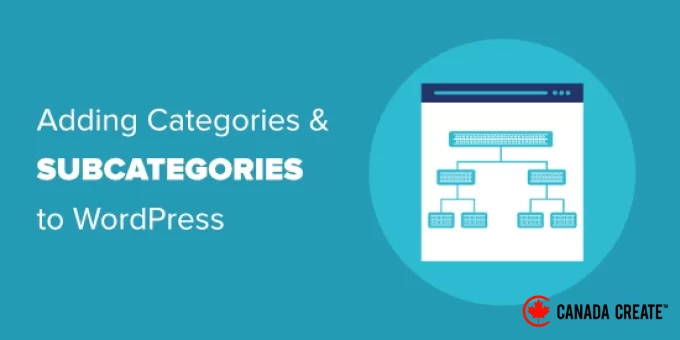
In WordPress, you can organize your posts into various categories and tags, and even create subcategories for enhanced organization.
Utilizing categories and subcategories can help your audience easily find the content they are most interested in, while also boosting your website’s SEO performance.
For the past 16 years, we have successfully categorized our posts into categories and subcategories across all our websites, enhancing site navigation for our readers. This approach has improved accessibility and contributed to higher search engine rankings by making our content more user-friendly.
In this article, we will guide you through the process of adding categories and subcategories in WordPress, step by step.
Understanding Parent and Child Categories in WordPress
Categories are a powerful feature. They not only help you organize your content but also assist in creating a meaningful and semantic site structure, which is beneficial for your WordPress SEO.
Note:If you’re unsure about the difference between categories and tags, check out our guide on categories vs tags. It clarifies the distinctions between the two and provides guidance on how to use them effectively.
You may be asking yourself, why and when should someone utilize child categories (subcategories) on their WordPress website?
Imagine you’re building a travel blog showcasing various destinations worldwide. You may want your readers to easily locate articles by both country and city.
For instance, if you write an article about the top waterparks in the United States, it would be logical to categorize that post under ‘United States.’
Additionally, if you have articles highlighting the best dining spots in New York City, Los Angeles, Chicago, and beyond, you can utilize child or subcategories. In this case, ‘United States’ serves as the parent category while the cities become child categories.
A post categorized under a child category does not need to be categorized under the parent category as well. For example, you could choose to leave ‘United States’ unchecked and simply categorize the post under ‘New York City.’
If you categorize a post under the child category but not the parent category, it will only show up on the archive pages of the child category.
Now, let’s explore how to add both standard categories and child categories in WordPress.
- How to Add a Category in WordPress
- How to Add a Child Category (Subcategory) in WordPress
- SEO Advantages of a Category-Based Website Structure
- How to Display Categories and Subcategories in the WordPress Sidebar
- Bonus: How to Show Subcategories on Category Pages in WordPress
How to Add a New Category in WordPress
Adding a new category in WordPress is simple when you’re creating a post.
First, if you don’t see the sidebar while editing a post, click the gear icon in the top right corner.
Next, in the block settings panel on the right, expand the Categories section.
You will see the various categories you have already created.
To create a new category, just click on the ‘Add New Category’ link.
After clicking the link, two new fields will appear for you to enter your category name.
For a standard category, you don’t need to choose anything from the Parent Category dropdown.
Once you enter the name of your category, click the ‘Add New Category’ button.
The checkbox for that category will automatically be selected for your current post, but you can uncheck it if desired.
You can also create a new category without editing a post.
Simply navigate to Posts » Categories and add your new category there. This is useful if you want to set up all your categories before adding any content.
This method also allows you to modify the slug (URL) for your categories. You can delete or rename categories and provide a description for each. Learn how to incorporate SEO keywords and descriptions in WordPress.
How to Add a Child Category (Subcategory) in WordPress
You can create and modify child categories in the same manner as you did for your parent categories.
While editing a post, access the settings panel and scroll down to the Categories tab.
Then, click on the ‘Add New Category’ option, enter the name of your child category, and select the desired parent category from the dropdown list.
Alternatively, you can navigate toPosts » Categoriesto create child categories.
Simply enter the name of your child category and choose the parent category from the dropdown menu.
Your child categories can also have their own child categories if desired.
For example, we might establish a category structure to organize various types of content, like this:
In this case, News is a category, with Announcements as its child categories.
Categories that are on the same level within a parent category are often referred to as ‘sibling’ categories. For example, Announcements and SEO Tools are sibling categories in this context.
Each category can have only one parent category, meaning a subcategory cannot belong to multiple parent categories.
Advantages of Using Categories for SEO
Your category URLs will typically appear as follows:
https://example.com/category/united-states/new-york-city/
This structure is significant as it helps both search engines and users understand the content of your page. It also provides an opportunity to include keywords in your URL, which can enhance discoverability on search engines.
WordPress provides the flexibility to modify or completely remove the ‘/category/’ prefix from your category URLs.
To do this, navigate to theSettings » Permalinkssection in the WordPress admin dashboard and locate the ‘Category base’ area.
Here, you can input your desired prefix and click the ‘Save Changes’ button to apply your updates.
The ‘category’ prefix in your URLs does not contribute to SEO benefits.
For this reason, many website owners choose to eliminate the term ‘category’ from the URLs of their WordPress category archive pages. This can be easily accomplished using the All in One SEO plugin, resulting in category URLs formatted like this:
http://example.com/united-states/new-york-city/
To start, go to theSearch AppearanceNavigate to the AIOSEO menu and select the Taxonomies tab. In the Advanced settings for Categories, you’ll find the option to eliminate the category base prefix.
Alternatively, you can use the FV Top Level Categories plugin. Just install the plugin, and it will remove the term ‘category’ from the URLs of your category archive pages.
Important:If you choose to modify the category base on an existing WordPress site, you must set up redirects to prevent 404 errors for visitors from search engines. For comprehensive instructions, please refer to our guide on changing the category base prefix in WordPress.
How to Show Categories and Subcategories in the WordPress Sidebar
You can add a widget block to your WordPress sidebar or footer to display a list of categories. In your WordPress dashboard, go toAppearance » Widgets.
If you haven’t modified the default widgets provided by WordPress, you should see the Categories widget block already set up. If it’s not there, click the ‘+’ button to add a ‘Category’ block to your widget area.
By default, the widget displays all your categories in a simple, alphabetical list.
Here’s a preview of how they appear on our test website:
Helpful Tip:Categories will only appear in the list if you have assigned at least one published post to them.
You can opt to display child categories (subcategories) under their parent categories. Just enable the ‘Show hierarchy’ option in the widget settings. Remember to click the ‘Update’ button afterward.
On your website, you should now see your parent categories with their corresponding child categories displayed beneath them.
Helpful Tip:If your sidebar changes are not visible, you may need to clear your WordPress cache.
In addition to the default category widget block, you can create customized category menu links using the WordPress navigation menu. You can then add this menu to your header, sidebar, footer, or other menu locations.
Bonus: How to Display Subcategories on Category Pages in WordPress
After adding subcategories to your website, you can showcase them on your category pages. This will enhance user navigation and may increase traffic to your site.
To display subcategories, you need to insert the following custom code into your category.php file, which can be found in your theme files.
category_parent) $current_category = wp_list_categories('orderby=id&show_count=0 &title_li=&use_desc_for_title=1&child_of='.$current_category->category_parent. "&echo=0"); else $current_category = wp_list_categories('orderby=id&depth=1&show_count=0 &title_li=&use_desc_for_title=1&child_of='.$current_category->cat_ID. "&echo=0"); if ($current_category) { ?>
After completing that step, simply navigate to any category page on your website to see a list of its subcategories available for users to explore.
For more information, check out our tutorial on displaying subcategories on category pages in WordPress.
We hope this tutorial has helped you understand how to add categories and subcategories in WordPress. You may also want to explore our article on creating custom taxonomies in WordPress and our guide on adding quicktags in WordPress comment forms.
If you enjoyed this article, please subscribe to our YouTube Channel for WordPress video tutorials. You can also connect with us on Twitter and Facebook.