Previously, I requested users to email their photos for my website, including profile pictures for membership sites, team headshots, and ID verification images. This process often turned into a frustrating exchange.
Users would frequently forget to attach the files or send images that were too large. Occasionally, they would send screenshots instead of the actual photos, resulting in poor quality.
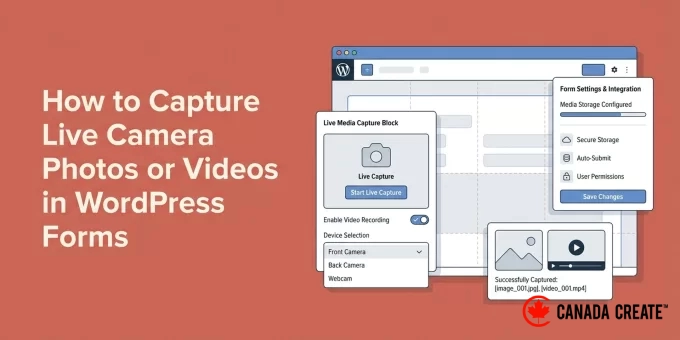
I then discovered that I could enable users to take photos and record videos directly through my WordPress forms. They simply click a button to capture an image or video, making the process seamless.
In this guide, I will demonstrate how to incorporate the camera capture feature into your WordPress forms, allowing you to avoid the complications I experienced.
The Benefits of Integrating Live Camera Capture in WordPress Forms
Incorporating live camera capture in your WordPress forms significantly streamlines the process for users to submit photos or videos, which can result in a higher completion rate for your forms.
Consider the scenario when you ask someone to upload a photo via your contact form. They must pause their activity, open their camera app, take the photo, close the app, locate the image in their gallery, and then return to upload it.
Every additional step in a process increases the likelihood that users will abandon your form.
By incorporating a live camera capture feature, users can take photos or record videos directly within the form. With just one click, the camera opens in their browser, allowing for quick and easy submissions.
This is more significant than you may realize. I’ve observed a notable increase in form completion rates simply by eliminating the hassle of traditional file uploads.
Here are some real-life scenarios where camera capture can make a substantial impact:
| Types of Websites | Practical Applications |
|---|---|
| Customer Support Teams | Allow customers to visually demonstrate their issues instead of relying solely on verbal descriptions. |
| Real Estate and Property Management Websites | Enable tenants to capture and report maintenance problems in real-time, rather than exchanging photos via text. |
| Educational Institutions and eLearning Platforms | Gather student photos during online admissions without requiring parents to send separate emails with attachments. |
| Insurance Providers | Accelerate claims processing by allowing customers to take immediate photos of damages. |
The advantage of using a plugin for this functionality is that everything is organizedautomatically.
When a user submits your form, their photo or video is automatically included with their entry along with all their other details. This eliminates the need to sift through your email inbox to match photos with the corresponding individuals. ✨
In this guide, I will walk you through the complete process of adding a camera capture feature to your WordPress forms. Here’s what you can expect to learn:
- Step 1: Install and Activate WPForms Pro
- Step 2: Add the Camera Field to Your Form
- Step 3: Configure the Camera Field in Your Form
- Step 4: Customize Button Style, Storage Options, and Access Settings
- Personalize the Style and Text of the Camera Button
- Enhance Styling with CSS Classes
- Select the Storage Location for Captured Files
- Limit Access to Uploaded Files
- Step 5: Configure Form Notifications and Confirmation Messages
- Step 6: Test Your Form and Embed It on Your Site
- Frequently Asked Questions About Capturing Live Camera Photos or Videos in WordPress Forms
- Additional Resources for Using WordPress Forms
Step 1: Install and Activate WPForms Pro
In this tutorial, I will be using WPForms, the top-rated contact form plugin for WordPress. I chose this plugin because it features a camera capture field that you can easily add using a straightforward drag-and-drop method.
WPForms allows you to create a variety of forms, such as contact forms, online order forms with payment options, polls, surveys, and newsletter signups.
At CanadaCreate, we rely on WPForms for all our form needs, including contact forms, site migration requests, our annual readers’ survey, and more. We highly recommend this tool, and you can discover more about it in our comprehensive WPForms review.
To get started, visit the WPForms website to create your account. Click the ‘Get WPForms Now’ button, select a plan that suits your requirements, and complete the registration process.
💡 Important Note:To access the camera capture feature along with additional features like conditional logic and form themes, you will need WPForms Pro. However, you can begin with the free version of WPForms if you want to test the plugin first.
After registration, you can find the plugin’s zip file and license key in your WPForms account dashboard. Keep this tab open or save your file and key securely, such as in a password manager.
Now, navigate to your WordPress dashboard and go to Plugins » Add New Plugin.
On the following screen, use the search bar to find the WPForms plugin.
Click ‘Install Now’ on the search result and then click ‘Activate’ when it appears.
For assistance, check out our detailed guide on how to install a WordPress plugin.
After activating the plugin, navigate to WPForms » Settings in your admin dashboard to activate your WPForms Pro license.
Simply copy your license key and paste it into the designated box. Then click the ‘Verify Key’ button.
WPForms will verify that your license is active. You are now ready to start creating forms with camera capture functionality.
Step 2: Add the Camera Field to Your Form
In this step, you will create a form that includes the camera capture feature.
To begin, head over to WPForms » Add New in your WordPress admin dashboard.
This will direct you to the Setup page, where you can name your form.
This name is for your reference only, but I suggest using a clear and descriptive title for better organization as you create additional WordPress forms.
Next, you will select how you want to build your form.
WPForms offers the option to create forms using a blank canvas, an AI-driven form builder, or a pre-designed template.
With WPForms AI, you simply need to provide a brief prompt, and the AI form builder will generate the form for you in just a few seconds.
In this tutorial, I will be using the Simple Contact Form template.
WPForms offers over 2,000 pre-designed form templates, making it simple to find one that meets your requirements.
For detailed, step-by-step guidance, refer to our tutorial on creating a contact form in WordPress.
When your form opens in the builder, check the left sidebar where all the form fields are displayed. Scroll down until you reach the section titled ‘Fancy Fields.’
Next to the File Upload field, you will find the ‘Camera’ field. You can easily drag and drop it to your desired location on the form.
💡 Tip: The File Upload field is ideal for collecting files that users have saved on their devices, such as photos or PDFs. However, for this tutorial, the Camera field is more effective as it allows users to take a photo or video instantly without leaving the form.
You will see a small camera icon appear in your form preview. This is what your users will click to take their photo or video.
An interesting aspect of this feature is that when a user clicks the camera button on a laptop or desktop, a friendly 3-second countdown appears before capturing the image. This gives them enough time to smile or adjust their position.
Here’s a preview of what it might look like:
That’s it – this section is quick and straightforward!
Step 3: Set Up the Camera Field for Your Form
Now, you can customize your Camera field settings.
Click on the ‘Camera’ field you just added to access the ‘Field Options’ panel on the left. Here, you will adjust the camera capture settings.
The first option you’ll encounter is the ‘Label’ setting.
By default, it’s labeled as Camera, but you can change it to better reflect the data you’re collecting. For instance: Profile Picture, Error Screenshot, or Damage Photo, depending on your needs.
In the ‘Description’ section, you can provide a brief note with additional details or instructions, such as what should be visible in the photo or any quality standards.
For example:
- “Ensure good lighting for a clear image,” for profile pictures.
- “Make sure all text is legible,” for error screenshots.
- “Capture the entire property in the frame,” for damage reports.
This approach keeps the label concise and easy to read, while the description offers valuable guidance.
Next, you’ll find the ‘Format’ setting, which presents two options:
- Photo – ideal for profile pictures, ID cards, or any scenario requiring a quick snapshot.
- VideoThis feature is ideal for allowing users to record brief introductions, testimonials, or to demonstrate something visually rather than just describing it.
WPForms defaults to the ‘Photo’ option, but you can easily switch between photo and video formats whenever you need.
Scroll down to the ‘Max File Size’ setting to specify the maximum size for user-uploaded files.
You can set any desired limit in megabytes (MB). If you leave this field empty, WPForms will apply your server’s default limit, typically around 64 MB. You can also increase this limit if necessary.
I suggest establishing a sensible limit based on your actual requirements. Smaller file sizes improve form loading times and conserve server space.
Make sure to enable the ‘Required’ option so that users cannot bypass this field.
If you selected ‘Video’ as the format, you’ll also find a ‘Time Limit’ setting. The default duration is 1 minute and 30 seconds, which is suitable for most scenarios.
🧑💻Pro Tip:Keep in mind that video files can be large and may impact your WordPress site’s performance. This field is suitable for short clips (under 30 seconds). If you need users to upload longer videos (over 5 minutes), it’s advisable to have them upload to a cloud service and share the link.
Discover our guide on the reasons to avoid uploading videos directly to WordPress for better performance.
Feel free to adjust these settings to meet your specific requirements.
Step 4: Configure Button Style, Storage Options, and Access Permissions
In this section, I will guide you through the advanced settings for your Camera field, allowing you to customize the appearance of the camera feature and manage where your captured files are saved.
To begin, navigate to the ‘Advanced’ tab located at the top of the Field Options panel.
Let’s explore each of these configuration options in detail.
Personalize Camera Button Style and Text
Start by locating the ‘Style’ dropdown menu. You can opt to display a button icon or a simple text link.
I prefer the button style as it is more intuitive and easier to click, but the link option is suitable for a cleaner, minimalist appearance.
Directly beneath that, you will find the ‘Button Link Text’ field. This is your opportunity to personalize the camera button to align with your brand.
Instead of the default label, consider using phrases like “Capture Your Moment” or “Record a Video.” Some users even choose playful options like “Say Cheese!” for profile picture uploads.
These thoughtful details enhance the user experience of your contact form, making it feel more inviting and less mechanical.
Enhance Styling with CSS Classes
Next, you will find the CSS Classes field. This allows you to assign a custom class name to style this camera field uniquely using CSS.
For instance, you might use a class name like custom-camera-btn here. While this doesn’t automatically apply any styles to the button, it enables you (or a developer) to add custom CSS in your theme settings to specifically target this button later.
If you wish to include multiple CSS Classes, separate them with spaces, like this:camera-field large-button.
I will leave this field empty to maintain consistent styling with the other form fields.
Select Storage Location for Captured Files
By default, WPForms stores all captured photos and videos in your site’s ‘Uploads’ folder, specifically within the WPForms directory.
However, if you prefer to keep all your media organized in one location, enable the option labeled ‘Store file in WordPress Media Library.’
Just keep in mind that files in the Media Library are generally more accessible to the public, so disable this setting if you are collecting sensitive documents.
🧑💻Pro Tip: You can integrate WPForms with Dropbox or Google Drive to store files externally, which is beneficial for conserving server space and ensuring automatic cloud backups.
Regardless of where the files are stored, you can easily access them in your ‘Entries’ dashboard, directly linked to each form submission.
Control Access to Uploaded Files
If your form gathers sensitive information like ID photos or personal documents, it’s essential to restrict who can access these files. Simply scroll down and enable ‘File Access Restrictions.’
Upon activation, you’ll have two security options. The first allows you to restrict access so that only logged-in WordPress users can view the files.
The second option is to apply password protection to your form for added security.
This is particularly crucial for forms used in healthcare, legal services, or any situation involving private information.
Without these restrictions, anyone with the file URL could potentially access the uploaded media.
Take your time to configure these advanced settings before proceeding.
Step 5: Configure Form Notifications and Confirmations
Now that your camera field is operational, ensure you receive notifications whenever someone submits your form.
To achieve this, navigate to Settings » Notifications within the form builder.
WPForms automatically configures a standard email notification that is sent to your WordPress admin email address. Each time someone submits your form with a photo or video, you will receive an email containing all the relevant details.
You can customize the recipients of these notifications by modifying the ‘Send To Email Address’ field. To notify multiple people, simply enter all their email addresses separated by commas.
Additionally, you can utilize a smart tag to dynamically send notifications, such as to the email address provided in the form.
Refer to our guide on creating a contact form with multiple recipients for more information.
The notification email will include a direct link to view the captured photo or video, allowing you to preview the file directly from your inbox without needing to log into the WordPress dashboard first.
💡 Note:WordPress email notifications can sometimes be unreliable, with messages either going to spam or not being sent at all. To resolve this issue, I suggest using the WP Mail SMTP plugin. For more information, check out our guide on fixing WordPress email delivery problems.
After a user submits your form, it’s important to confirm that their submission was successful.
Let’s navigate to the ‘Confirmations’ section to determine what happens after a form submission:
- The Message confirmation – displays a brief text message on the same page after submission, such as ‘Thank you! Your submission has been received.’
- The Show Page confirmation – redirects users to another page on your website. This option is ideal for directing them to a custom thank-you page with additional information.
- The Redirect confirmation – takes users to any URL you choose, even on an external site. I’ve used this feature to guide users to a booking page or a special offer after they submit the form.
You can select the option that best fits your needs.
I typically prefer the ‘Message’ confirmation because it’s straightforward and provides immediate feedback that their submission was successful.
If you decide to use this option, I recommend customizing the default message to align with your brand’s voice:
Step 6: Test and Embed Your Form
Before sharing your form with others, ensure that the camera capture feature is functioning properly.
Begin by clicking the ‘Save’ button in the top right corner of the form builder to save all your modifications.
Next, let’s preview this form on a page so you can test its functionality.
Click the ‘Preview’ button to open your form preview in a new tab.
In the preview, you can fill in the form fields with sample data.
To verify that validation is working, try entering a typo or leaving a required field empty.
Now, click on the camera icon in your form.
Your browser will prompt you for permission to access the camera. Click ‘Allow this time’ or ‘Allow while visiting the site’ to grant access.
Important: For security reasons, some browsers may block camera access if your site is not secured with HTTPS. Make sure you have an SSL certificate installed, as the camera button will not function otherwise.
You should now see yourself on the screen with a 3-second countdown. Smile and let it capture your photo or video.
Once you have completed all fields, click ‘Submit’ and check if your confirmation message appears correctly. You can then click the ‘View Entries’ link to verify that your form submission was successful.
You will see a confirmation of your submission test on the next screen.
In the Actions column, click ‘View’ to access the entry details.
You can scroll down to find the photo or video you captured attached to your submission.
Here’s how it appears on my screen:
Once everything looks good, you can add this form to your WordPress site.
Click the ‘Embed’ button to open the setup wizard.
A popup will appear, allowing you to choose an existing page or create a new one for your form.
- Select Existing Page:A dropdown menu will display all the pages available on your WordPress site.
- Create New Page:You will see a ‘Name Your Page’ field where you can enter a title.
For this tutorial, I’ll select ‘Create New Page’.
Next, provide a name for your new page; for instance, I’m naming mine “Contact Form.”
Click ‘Let’s Go!’
You will be directed to the page’s block editor with your form already loaded.
From this point, you can adjust the ‘Form Settings’ in the right-hand panel.
By default, the form title is hidden, so consider enabling it to provide visitors with more context. You can also turn on the description if you have added one.
To enhance its appearance, style the form to align with your site’s theme.
Select a theme from the Themes section to get started.
Once you’re satisfied with the design, click ‘Save’ to keep your changes.
After saving, publish or update your page and click ‘View Page’ to see the live version on your WordPress site.
For more information, refer to our guide on embedding forms in WordPress.
🧑💻 Expert Tip:After embedding your form, be sure to check the page on your mobile device to ensure the camera functionality is smooth and user-friendly on smaller screens.
Frequently Asked Questions About Capturing Live Photos and Videos in WordPress Forms
Before we conclude, here are answers to some frequently asked questions regarding camera uploads and file fields in forms.
How can I collect photos using Google Forms?
Google Forms allows file uploads but does not have a dedicated Smart Camera field. While users can manually upload files, WPForms provides a streamlined integration that activates the camera directly, enabling users to quickly take and submit photos.
Can WordPress forms include a camera feature?
Yes, certain WordPress form plugins, such as WPForms, offer a camera field that allows users to take photos or record videos directly from their devices and submit them with the form.
What is a file upload field?
A file upload field allows users to attach files such as images, PDFs, or videos when submitting a form. This feature is particularly useful for uploading photos, resumes, or important documents.
How can I capture a photo in WordPress forms?
You can include a camera or file upload field in your form by using a compatible form plugin like WPForms. When users access the form on a device with a camera, they can take a photo directly instead of uploading a pre-existing file.
Is it possible for WordPress forms to capture webcam images?
Yes, if the form plugin allows live camera input, users can take pictures using their desktop webcam or their phone’s camera and submit them instantly.
Additional Resources for Utilizing WordPress Forms
I hope this tutorial has guided you in adding a camera field, enabling users to capture live photos or videos directly within your WordPress forms.
Next, consider exploring:
- How to Incorporate Image Selections in WordPress Forms
- How to Implement a Floating Contact Form in WordPress
- How to Leverage Contact Forms to Expand Your Email List in WordPress
- How to Apply Conditional Logic in WordPress Forms
- Comprehensive Guide to Mastering WordPress Forms (Everything You Need to Know)
If you enjoyed this article, consider subscribing to our YouTube Channel for helpful WordPress video tutorials. You can also connect with us on Twitter and Facebook.