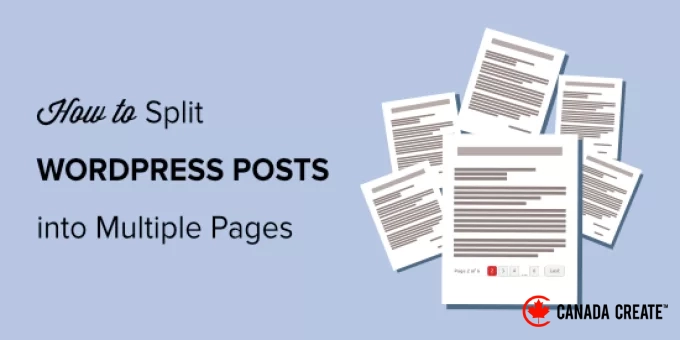
Long WordPress posts can be challenging to read. How can you present detailed information without losing your audience’s attention?
The solution is post pagination, which involves dividing a lengthy post into several shorter pages. We have successfully implemented this technique to segment extensive guides and tutorials in our blogging projects, and each time, we’ve observed increased reader engagement.
In this guide, we will demonstrate how to divide your WordPress posts into multiple pages. We will explore simple methods, both with and without using a plugin.
Reasons to Divide WordPress Posts into Multiple Pages
If your WordPress blog posts or guides are lengthy, implementing pagination can enhance the readability of your content.
This approach allows you to break a long post into distinct sections, distributing them across multiple pages. As a result, visitors can easily consume your content and focus on the sections that interest them.
Another advantage of dividing WordPress posts is the potential to enhance user engagement. As users navigate through paginated content, each page they visit contributes to increased pageviews, positively influencing your website’s overall performance metrics.
Let’s explore how to divide WordPress posts into multiple pages for improved reader engagement. We will discuss both methods: splitting posts without a plugin and using a plugin.
- Method 1: Divide a WordPress Post into Multiple Pages Without a Plugin
- Method 2: Use a Plugin to Split Multiple WordPress Posts into Several Pages
Method 1: Split a Single Post into Multiple Pages Without a Plugin
The simplest way to enable post pagination is by utilizing the ‘Page Break’ block in the WordPress block editor. This method does not require any plugins to separate your articles into multiple pages.
Begin by editing or creating a new post on your WordPress site using the Gutenberg block editor.
Next, click the ‘+’ button at the location where you want to insert the page break and add a Page Break block.
You will now see a page break line in your content, indicating where the pagination will occur.
It will appear similar to this.
If you are using the classic editor, you can use thetag to separate your content.
When composing a blog post, switch to the ‘Text’ editor view to insert the tag at the point where you want to break the lengthy article.
You can also utilize thePress Alt + Shift + Pon your keyboard to insert page breaks. To do this, switch to the ‘Visual’ view and use the keyboard shortcut at the point where you want to add a page break.
Once done, you can preview and publish your blog post. You will now see pagination at the bottom of the post content.
Method 2: Divide Multiple WordPress Posts into Separate Pages Using a Plugin
Another way to split lengthy content into multiple pages is by using a pagination plugin. The advantage of this method is that it automatically paginates posts based on specific criteria.
For this method, we will use the free Automatically Paginate Posts plugin, which is user-friendly and compatible with any WordPress theme.
Note:You may notice that this plugin has not been tested with the latest WordPress versions. However, we have personally tested it, and it performs better than other plugins we have reviewed.
You can learn more about the implications of using untested WordPress plugins in our article. If you discover a plugin that works better than the one we recommend, please share your thoughts in the comments below!
Begin by installing and activating the Automatically Paginate Posts plugin on your WordPress site. For detailed instructions, refer to our tutorial on how to install a WordPress plugin.
After activating the plugin, navigate to Settings » Reading and locate the ‘Automatically Paginate Posts’ section.
You can choose which post types you want to paginate. Then, decide whether to split posts based on the total number of pages or the approximate word count per page.
Next, click the ‘Save Changes’ button to apply your settings.
The plugin will automatically paginate your content according to your preferences. Additionally, you can manually insert page breaks in your content while using the plugin.
Bonus Tip: Use AIOSEO to Enhance Your Post Pagination
Paginating lengthy posts can significantly enhance user engagement. However, it’s crucial to set up pagination correctly to avoid any negative impact on your site’s SEO (search engine optimization).
When a blog post is divided into multiple pages through pagination, Googlebot may index several versions of the same content, which can result in duplicate content problems.
You can enhance your site’s SEO effortlessly with the All in One SEO (AIOSEO) plugin. This user-friendly WordPress SEO tool allows you to optimize your website without needing technical skills.
AIOSEO automatically adds a page number to the SEO title of your paginated content, helping search engines recognize that your post spans multiple pages and is not a duplicate of another.
Additionally, AIOSEO removes page numbers from the URLs of your post pages. This informs search engines about the primary blog post page to rank for relevant keywords, ensuring users see the most important content first.
It achieves this by activating the ‘No Pagination for Canonical URLs’ feature automatically.
For further details on AIOSEO, check out our guide on setting up AIOSEO for WordPress.
Additional Strategies for Managing Extensive Content in WordPress
Dividing posts into pages is just one method for managing lengthy content. Here are some other effective strategies we’ve discovered:
- Tooltips are an excellent way to provide additional information without overwhelming your main content. They appear when readers hover over specific words.
- Keep your audience engaged by presenting related content in the midst of your posts.
- For extensive topics, consider creating a series of posts rather than a single lengthy article. This approach allows readers to follow along more easily.
- While your post title typically consists of one line, you can break it into multiple lines for improved readability if it becomes too lengthy.
We hope this guide has helped you learn how to divide WordPress posts into multiple pages. You might also find our tutorial on adding a ‘load more’ button in WordPress posts helpful, along with our recommendations for the best related posts plugins in WordPress.
If you enjoyed this article, please subscribe to our YouTube Channel for WordPress video tutorials. You can also connect with us on Twitter and Facebook.