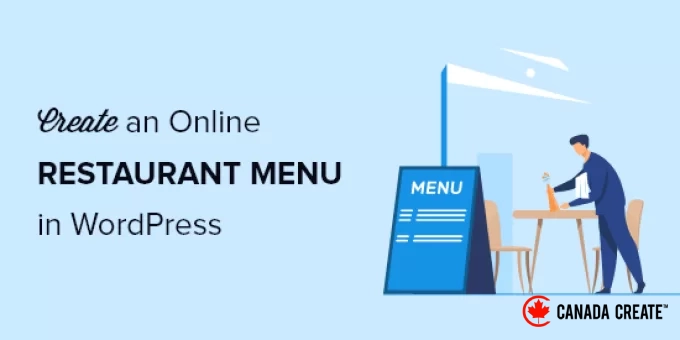
We recall a time when restaurant websites featured nothing but scanned PDF menus that were difficult to read on mobile devices. After assisting numerous restaurants in modernizing their online presence, we’ve discovered that crafting an effective online menu can be simple and affordable.
In today’s digital age, having your menu available online is crucial for your restaurant’s success. Consider this: before choosing where to dine, potential customers will likely research your establishment online. An outdated or hard-to-read menu can easily drive them to your competitors.
That’s why we’ve created this comprehensive guide to share our insights on designing restaurant menus using WordPress. You’ll learn about the specific tools and techniques we recommend for building menus that are visually appealing and easy to update, even if you’re a WordPress beginner.
What Do You Need to Launch a Restaurant Website?
Before you can create an online restaurant menu, you’ll need to establish a website. If you haven’t set one up yet, there’s no need to worry.
You can effortlessly launch a website using WordPress, the leading website builder trusted by millions of small businesses, including restaurants, bars, and cafes. In fact, over 43% of all websites on the internet are powered by WordPress.
The best part is that you can start building your website without a significant initial investment.
First, you will need a domain name and web hosting. We have partnered with Bluehost, a recommended hosting provider for WordPress, to offer our readers an excellent deal.
You will receive a complimentary domain name, a free SSL certificate, and a substantial discount on web hosting.
Alternative:We also suggest Hostinger. Their plans come with a free domain name and SSL, along with a generous discount.
In addition to hosting and a domain name, you will also require a WordPress theme. A theme serves as a template for your website.
There are numerous excellent WordPress restaurant themes available to help you create a professional website that encourages customers to place orders.
If you need assistance, check out our step-by-step guide on how to easily create a restaurant website using WordPress.
Why Should You Create an Online Menu in WordPress?
Looking to make your restaurant website more appealing to visitors? One of the best ways to achieve this is by adding a beautiful and user-friendly online menu directly on your WordPress site.
When visitors arrive at your restaurant’s website, the first thing they usually want to see is the menu.
You might think, ‘I already have a menu, it’s in PDF format!’ While that’s a start, it’s not the most user-friendly option for your hungry customers. Here’s why:
- PDFs have their drawbacks:Downloading PDFs can be challenging, especially for those who aren’t very tech-savvy or have slow internet connections or limited data plans. You want to make it easy for them to view your menu.
- Not optimized for mobile:According to internet usage statistics, mobile traffic accounts for nearly 55% of all web traffic. Unfortunately, PDF menus can be difficult to read on smaller screens, requiring users to zoom in and out constantly. This is not ideal!
The good news is that creating an online menu on your WordPress site eliminates these issues. Here’s how:
- No more downloads:Your visitors can view your mouthwatering dishes instantly, right on the webpage.
- Looks fantastic on any device:You can design your online menu to automatically adapt to any screen size, ensuring it’s easy to read on smartphones, tablets, and computers.
- Simple to update:Need to update a price or introduce a new special? With an online menu, you can make those adjustments swiftly and effortlessly. Say goodbye to the hassle of dealing with PDFs and re-uploading files. You can even incorporate online ordering in the future.
With that in mind, we will introduce two different WordPress plugins that can assist you in adding an online restaurant menu to your WordPress site. Use the quick links below to select the plugin that suits your needs:
- Method 1: Add a Restaurant Menu to WordPress Using SeedProd (Recommended)
- Method 2: Add a Restaurant Menu to WordPress Using Food Menu (Free)
- Bonus Tip: Tools to Promote Your Restaurant Website
Are you ready? Let’s dive in.
Method 1: Add a Restaurant Menu to WordPress Using SeedProd
Let’s explore the simplest way to create an impressive online menu in WordPress: SeedProd. It’s a widely-used drag-and-drop WordPress page builder favored by over 1 million websites, including numerous restaurant sites.
With SeedProd, you can design a tempting restaurant menu without any advanced coding knowledge. Simply drag and drop elements onto the page, and you’ll have a stunning menu. Plus, when it’s time to update your menu (like adding a new dish or changing a price), SeedProd makes it incredibly easy to implement those changes.
We have relied on SeedProd for many years, creating numerous websites for our partners, including popular sites like WPForms, Duplicator, and WP Charitable. Our trust in SeedProd is well-founded.
With extensive experience using this amazing plugin, we have compiled a thorough SeedProd review that delves into all the details and shares our genuine opinions. If you’re interested in discovering more about SeedProd’s capabilities and why we recommend it, be sure to read our complete SeedProd review.
For this tutorial, you can utilize the free version of SeedProd to design your menu. However, there is also a pro version available that offers over 320 templates, various color schemes, email marketing integrations, image carousels, social media blocks, and much more.
The first step is to install and activate the SeedProd plugin. If you need assistance, feel free to follow our detailed guide on how to install a WordPress plugin.
Once activated, let’s go to SeedProd » Pages and click the ‘Add New Landing Page’ button.
This will take you to the template selection screen, where you can choose a page template.
There are numerous templates available for various niches and purposes, including those specifically designed for restaurant websites.
To select a template, hover over your preferred option and click the ‘Checkmark’ icon. Feel free to choose any template you like; for this tutorial, we will be using the ‘Dinner Sales Page’ template.
This will open a popup where you can name your new menu page and customize its URL. For instance, we will simply name our page ‘Menu’.
Next, click the ‘Save and Start Editing the Page’ button.
After that, you will be directed to the page editor interface.
On the right side of the page, you will see a preview that can be fully customized. The left side contains various blocks and sections that you can add to your page.
Let’s begin by customizing the logo. Click on the page logo, and the left panel will display customization options, allowing you to upload your restaurant’s logo.
To upload a new logo, simply follow the same steps as you would for adding an image in WordPress.
You can also modify the navigation menu button to link back to your homepage. This way, when visitors finish viewing the menu, they can easily return to your website.
To change the text and link in the left-hand menu, just click on the navigation menu button.
Finally, you can remove the main content section.
Hover over the page title and click the ‘Delete Block’ icon to remove it.
You can also apply the same process to the image, text, and button elements.
To add a title for your menu, drag the ‘Headline’ block onto your page. The menu on the left will provide customization options, just like the other elements.
Next, edit the existing food items by replacing them with your own text and images.
To upload your own image, click on the current image and use the menu on the left.
Now, click on the existing headline to enter your menu description.
You can modify the text simply by clicking on it.
After updating the headline and text, you can add a price for each item.
Drag the ‘Text’ element onto your page and customize it using the left-hand menu.
Repeat the same steps for the remaining items on your restaurant menu.
To create another menu section with the same style, hover over the element and click ‘Duplicate Row.’
This action will create a copy of the row and place it directly below.
Continue personalizing your restaurant menu to suit your style. You have complete control over every aspect of the page, including colors, sizes, fonts, and more.
If you prefer not to include a photo for each menu item, you can easily create menu items using a list block.
Alternatively, SeedProd offers an AI builder that can generate a restaurant menu in just seconds. For instructions on how to use it, refer to our guide on creating a WordPress website with AI.
After finishing your online restaurant menu, click the dropdown arrow next to the ‘Save’ button and choose ‘Publish’ to make it live.
Your new restaurant menu is now available for your visitors to view.
You can now add your restaurant menu to your site’s navigation menu and other sections.
Method 2: Adding a Restaurant Menu to WordPress Using Food Menu
This method utilizes the Food Menu – Restaurant Menu & Online Ordering plugin, which allows you to quickly create an online menu in WordPress.
It also works seamlessly with WooCommerce, enabling your visitors to place online orders.
Start by installing and activating the Food Menu – Restaurant Menu & Online Ordering plugin. For step-by-step guidance, check out our beginner’s guide on installing a WordPress plugin.
After activating the plugin, navigate to Food Menu » Add Food.
On this page, you can input the name, description, and image for each menu item.
Once you’ve entered the details, click the ‘Update’ or ‘Publish’ button to save the menu item.
To include additional items in your menu, just repeat the steps mentioned above.
After you’ve added all the items to your food menu, it’s time to integrate it into your website.
First, navigate to Food Menu » ShortCode Generator and click the ‘Add New’ button.
Next, assign a title to your shortcode to help you remember the type of menu items you’ve added.
Then, customize the display settings for your menu.
We will use the default options, but feel free to adjust the display settings in the ‘Layout’ section.
Here, you can choose how many items to show per row.
In the ‘Filtering’ tab, you can opt for a simple menu display or enable online ordering.
To activate online ordering, simply select the ‘WooCommerce’ radio button. You can also choose which items to display.
If you want to allow customers to add food items to their carts and proceed to checkout, you need to list your menu items as products in your WooCommerce store.
For detailed instructions on adding products, refer to our comprehensive guide on starting an online store.
Next, you can personalize the information displayed for each item by clicking on the ‘Field selection’ tab.
As you check or uncheck the boxes, you can view a real-time preview of the modifications.
If you wish to alter the appearance of your menu items, switch to the ‘Styling’ tab.
Once you are done, be sure to click the ‘Publish’ button.
This will not make your menu live on your website yet, but it will save the shortcode that we will use later.
Now, you need to create a page to display your menu.
To do this, start by navigating to Pages » All Pages and then click ‘Add New.’
After that, give your page a title. This title will be visible to your visitors, so choose something clear, like ‘Menu.’
Then, click the ‘+’ icon to add a new block.
In the search bar, type ‘Menu’ to quickly locate the ‘Food Menu’ block.
You can then select the ‘Food Menu’ block when it appears.
Next, choose the shortcode you created from the dropdown menu.
This will embed your menu directly into the page.
Then, simply click the ‘Publish’ or ‘Update’ button to make your menu accessible to visitors.
You can also enhance this page with additional elements such as text, a contact form, your Instagram feed, and more.
Now, when your visitors access your menu, they can view items and even place orders if you integrate WooCommerce functionality.
Regardless of the device used to view your menu, it will showcase your menu items beautifully.
Bonus Tip: Tools to Promote Your Restaurant Website
After setting up your restaurant website with a menu page, consider promoting it to expand your business.
Here are some of the top tools to help you promote and grow your restaurant business:
- All in One SEO for WordPress – This is the leading SEO plugin for WordPress, designed to optimize your website for better search traffic. Its ‘Local SEO’ feature makes it easier for people to find your restaurant on Google Maps and in local search results.
- WPForms – This is the top form builder plugin for WordPress, enabling you to create various forms for your website, including contact forms, feedback forms, customer surveys, and more.
- OptinMonster – A powerful tool designed to convert your website visitors into loyal subscribers and customers. Utilize it to expand your email list and social media presence, deliver targeted messages, and much more.
- PushEngage – This service enables you to send push notifications to your website visitors, no matter what device they are using. It allows for targeted messaging to bring customers back to your site and even offers real-time communication through a WhatsApp chatbox on your restaurant website.
- MonsterInsights – The top Google Analytics plugin for WordPress, enabling you to monitor the sources of your website traffic and analyze visitor behavior on your site.
For additional plugin recommendations, explore our expert selections of essential WordPress plugins for business websites.
We hope this article has guided you in creating an online restaurant menu using WordPress. You may also want to check out our guides on starting a food blog and creating recipe cards.
If you enjoyed this article, please subscribe to our YouTube Channel for WordPress video tutorials. You can also connect with us on Twitter and Facebook.