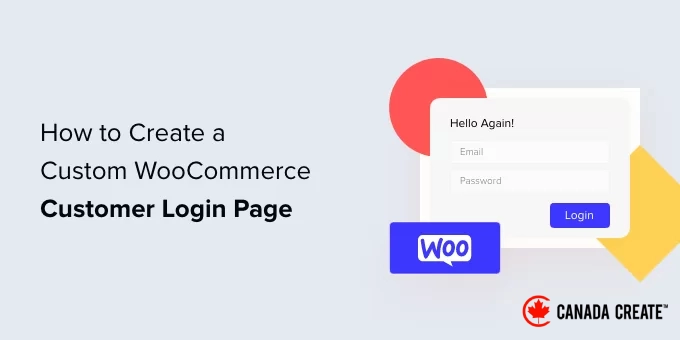
Enhancing the customer experience in your WooCommerce store starts with creating a personalized login page.
The standard WordPress login page is generic and doesn’t reflect your store’s unique branding. By customizing it, you can create a more polished and brand-consistent login experience.
At CanadaCreate, we’ve assisted numerous users in creating custom login pages, and the simplest method is to use a page builder like SeedProd or a form plugin such as WPForms.
In this tutorial, I will guide you through the process of designing a fully customized WooCommerce login page and introduce a powerful tool to help you personalize the checkout login page as well.
Reasons to Create a Custom WooCommerce Customer Login Page
Customizing your WooCommerce login pages allows you to incorporate your logo and adjust the design to align with your website, enhancing professionalism and improving user experience.
It also enables you to add additional form fields and even promote specific products or display special offers to your customers.
Without customization, customers logging into your WooCommerce store will encounter the standard WordPress login page, featuring only the WordPress logo and branding.
While this login page allows you to access your site’s dashboard, its generic design may deter customers and create a sense of distrust since it doesn’t align with your website’s branding.
Now, let’s explore how to design a personalized customer login page in WooCommerce.
You can use the quick links below to navigate to different methods outlined in our tutorial:
- Method 1: Build a Fully Customized WooCommerce Login Page with SeedProd
- Method 2: Personalize the WooCommerce Customer Login Form with WPForms
- Bonus Tip: Enhance the WooCommerce Checkout Login Page
- Common Questions About WooCommerce Login Pages
Which Method is Right for You?
This article presents three distinct approaches to customizing your login page. Here’s a brief overview to assist you in selecting the most suitable option for your store:
- Method 1: SeedProd – Perfect for creating a fully customized, standalone login page that features a design tailored to your brand.
- Method 2: WPForms – Great for integrating a versatile login form into any page, post, or sidebar on your site.
- Bonus: Enhance the Checkout Login – The optimal choice for refining the login form on the WooCommerce checkout page to facilitate returning customers.
Method 1: Design a Fully Customized WooCommerce Login Page with SeedProd
The most effective way to craft a personalized WooCommerce customer login page is by utilizing SeedProd. This tool is the leading WordPress landing page and theme builder, known for its user-friendly interface.
With SeedProd’s intuitive drag-and-drop builder, you can effortlessly tailor the design and layout of your page or WordPress theme without needing to write any code.
For more information, check out our comprehensive review of SeedProd.
To get started, you’ll need to install and activate the SeedProd plugin. If you require assistance, please refer to our guide on installing a WordPress plugin.
📌 Important Note:In this tutorial, we will be using the SeedProd Pro license, which provides access to the Login Page template and additional advanced customization features. There is also a free SeedProd Lite version available.
After activation, you will be greeted by the SeedProd welcome screen.
Enter your license key and click the ‘Verify key’ button. You can locate the license key in your SeedProd account area.
Next, you can create a tailored login page for your WooCommerce store.
Simply navigate to SeedProd » Landing PagesAccess your WordPress dashboard and click the ‘Set up a Login Page’ button.
SeedProd will then present you with a variety of templates. You can easily choose one and modify it to suit your preferences, saving you time while utilizing an existing design for your WooCommerce login page.
The plugin also allows you to build a login page from scratch using a blank template.
After selecting a template, a popup window will appear.
Enter a name for your page and click the ‘Save and Start Editing the Page’ button.
Next, you’ll be directed to the drag-and-drop page builder.
You can now personalize the login page by adding new blocks to the template from the menu on the left.
SeedProd provides standard blocks for headlines, text, images, buttons, and more.
In addition to those, you can incorporate advanced blocks such as giveaways, contact forms, social sharing buttons, and opt-in forms.
There are also WooCommerce blocks available, including recent products, featured products, and best-selling products that you can integrate into your login page template.
By using the WooCommerce blocks, you can effortlessly showcase your top products and promote special discounts to boost conversions.
In addition, SeedProd allows you to customize every section of the login page. Just click on the section to access options for editing the label, color, font, and spacing.
After customizing your WooCommerce login page, remember to click the ‘Save’ button located at the top.
Next, navigate to the ‘Page Settings’ tab and toggle the ‘Page Status’ from Draft to Publish. Then, click the ‘Save’ button and exit the page builder.
Now, you need to make your newly customized WooCommerce login page visible to users. To do this, go toSeedProd » Landing Pagesin your WordPress dashboard.
Simply toggle the switch under ‘Login Page’ to green so it shows ‘Active.’
Once activated, your new login page will be live on your WordPress website!
You can visit your eCommerce store to see it in action.
Method 2: Customize the WooCommerce Customer Login Form Using WPForms
Would you like to create a login form that aligns with your website’s theme and includes additional form fields?
The default WordPress login form only allows users to input their email address or username along with a password.
One of the primary advantages of using a form plugin is its versatility. It enables you to position your login form anywhere on your online store, such as in a sidebar or on a product page, enhancing convenience for your customers.
The ideal choice for this is WPForms. It is the top WordPress form builder that is user-friendly for beginners. With over 6 million websites utilizing WPForms to create intelligent forms, it’s a trusted option.
At CanadaCreate, we’ve utilized WPForms to create contact forms and conduct annual surveys, and we highly recommend it. For more details, check out our comprehensive WPForms review.
You can effortlessly design a custom WooCommerce login form and showcase it anywhere on your online store, including the sidebar or product page.
To get started, you will need to install and activate the WPForms plugin. If you require assistance, please refer to our guide on installing a WordPress plugin.
📌 Important Note:For this tutorial, we will be using the WPForms Pro plan since it includes the User Registration addon. You can also explore the free version of WPForms to begin.
After activation, navigate to WPForms » Settings in your WordPress dashboard and input the license key. You can find the license key in your WPForms account area.
Next, proceed to WPForms » Addonsin the WordPress admin dashboard.
Next, scroll down to the ‘User Registration Addon’ section and click the ‘Install Addon’ button.
You are now set to create a customized login form for WooCommerce. Simply navigate toWPForms » Add Newto open the form builder.
On the following screen, you can name your form at the top. Then, locate the ‘User Login Form’ template and click the ‘Use Template’ button.
You can then personalize your user login form template using the drag-and-drop builder. WPForms allows you to easily add new fields or rearrange existing ones on the template.
For instance, you can include advanced fields such as phone numbers by dragging them from the left menu and dropping them onto the template.
You can also further customize each form field in the template. Simply click on any field to edit its label, add a description, and mark it as a required field.
Next, go to the ‘Settings’ tab in the form builder. Under General settings, you can modify the ‘Submit Button Text’ to say ‘Login.’
Then, navigate to the ‘Confirmations’ tab to set what occurs when a user successfully logs in.
Click on the ‘Confirmation Type’ dropdown menu and select your preferred option. You can choose to display a message, show a specific page, or redirect customers to a designated URL.
For example, you can integrate your WooCommerce login form directly onto a product page, enabling customers to log in swiftly to complete their purchase.
Once you have finished, simply click the ‘Save’ button located at the top.
Next, you will need to add the WooCommerce customer login form to a specific page on your website.
Click the ‘Embed’ button at the top of the builder. You can then decide whether to place the form on an existing page or create a new one.
For now, let’s select the ‘Create New Page’ option.
Next, enter a name for your new page and click the ‘Let’s Go!’ button.
After this, you will see the WPForms login form appear in the WordPress content area.
From this point, you can customize and style your login form by accessing the block panel on the right side of the screen. In the ‘Themes’ section, you can choose from over 40 pre-designed themes to give your login form a distinctive appearance.
You can also modify the style and size of the form fields, labels, buttons, and more.
Once you’re satisfied with the design, you can preview your form, publish the new page, and showcase the customized WooCommerce login for your customers.
You can also integrate your WooCommerce login form into your store’s sidebar. This ensures that your form is visible on every product page, enabling customers to sign in quickly.
Simply navigate to Appearance » Widgets in your WordPress dashboard. Then, click the ‘+’ button to add a WPForms widget block.
Next, select your login form from the dropdown menu and provide a title.
Once you’re finished, click the ‘Update’ button.
You can now check your online store to see the login form displayed in the sidebar.
For additional methods to create a personalized WooCommerce customer login page, consider reviewing our guide on how to create a custom WordPress login page.
Additionally, check out our tutorial on how to add a navigation menu in WordPress, which will allow you to include your WooCommerce login page in your website’s navigation.
Bonus Tip: Personalize the WooCommerce Checkout Login Page
WooCommerce enables returning customers to log in during the checkout process. However, a standard or cumbersome login form on the checkout page can disrupt the purchasing experience and result in lost sales.
Creating a seamless and branded login experience is crucial for reducing cart abandonment and fostering trust with your customers.
The most effective way to achieve this is by utilizing a robust funnel builder plugin like FunnelKit.
FunnelKit offers professionally designed templates that enhance the default checkout page, providing returning customers with a smoother and more enjoyable login experience. This reduces friction and increases the likelihood of completing their purchases.
You can also A/B test various funnels, sales pages, and upsell offers to optimize performance.
FunnelKit provides comprehensive analytics for every stage of your WooCommerce funnel.
Additionally, it includes a powerful marketing automation add-on called FunnelKit Automations.
This feature allows you to customize WooCommerce emails, send drip email notifications for cart abandonment, welcome series, and more.
If you’re committed to expanding your WooCommerce store, this is an essential tool we highly recommend.
Common Questions About WooCommerce Login Pages
Here are some frequently asked questions from our readers regarding the creation of WooCommerce login pages in WordPress:
Can I also use these custom login pages for standard WordPress users?
Yes, definitely. The SeedProd method replaces the standard WordPress login page for all users, including administrators and editors. The WPForms method allows you to embed a login form anywhere on your site, which can be accessed by any user role.
Do I need coding skills to customize my login page?
Not at all. Both SeedProd and WPForms feature user-friendly drag-and-drop builders, enabling you to design a professional login page without writing any code.
Is it free to create a customized WooCommerce login page?
Both plugins provide free versions to help you get started. However, to access the specific login page templates and advanced features highlighted in this tutorial, you will need to upgrade to the Pro versions of either SeedProd or WPForms.
Which method is better for my store, SeedProd or WPForms?
It depends on your unique requirements. SeedProd is perfect if you want to create a completely standalone, fully designed login page that aligns seamlessly with your brand.
Conversely, WPForms is preferable if you need a versatile login form that can be placed in various locations on your site, such as a sidebar or checkout page.
This article provides valuable insights on designing a personalized WooCommerce customer login page. Additionally, explore our expert recommendations for top WooCommerce plugins and our comprehensive guide on restricting login attempts in WordPress.
If you enjoyed this article, consider subscribing to our YouTube Channel for informative WordPress video tutorials. Connect with us on Twitter and Facebook for more updates.