

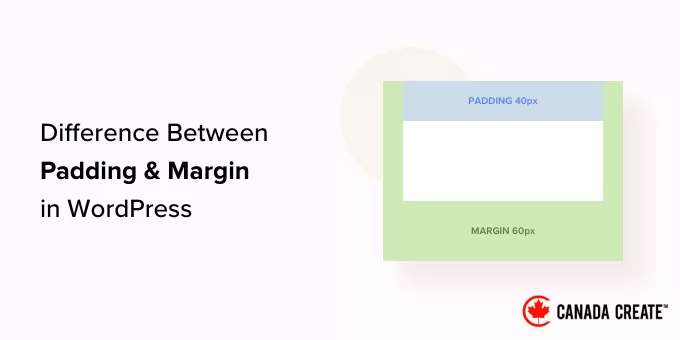
In WordPress, padding refers to the space between the content and the block’s border, whereas margin is the space separating two distinct blocks.
Recognizing the distinction between padding and margin is crucial for anyone aiming to enhance the layout of their WordPress site.
We have assisted numerous users in designing their websites, and one key aspect we emphasize is spacing. Proper use of margins and padding significantly enhances readability and provides your site with a clean, well-balanced appearance.
In this article, we will explain the differences between padding and margin features and demonstrate how to effectively use them in WordPress.
Here’s a brief overview of the topics we will discuss in this guide:
- What Is Padding in WordPress?
- What Is a Margin in WordPress?
- What Is the Difference Between Padding and Margins in WordPress?
- How to Use Padding in WordPress
- How to Use Margins in WordPress
- Additional Tips for Full Site Editing in WordPress
- Frequently Asked Questions
What Is Padding in WordPress?
The padding feature on your WordPress site is utilized to create space within a block.
For instance, you can insert space within a Text block to enhance its visual layout. This also ensures that the text doesn’t sit too close to the edges of the block.
Additionally, padding allows you to manage how content is displayed on your WordPress blog.
For example, applying padding to the top and bottom of a Text block makes it easier for visitors to read the content.
What Is a Margin in WordPress?
A margin refers to the space surrounding a WordPress block and its neighboring elements.
This feature helps create distance between different blocks, resulting in a more organized and spacious website layout.
For example, you can apply a margin to an Image block to create space between it and the Text block below, contributing to a tidier and more structured layout.
What Is the Difference Between Padding and Margins in WordPress?
Here’s a brief overview of the key differences between padding and margin in WordPress:
| Padding | Margin |
|---|---|
| Padding refers to the space between the content and the block’s border. | Margin adds space outside the block’s border. |
| Increasing padding enlarges the block’s overall size. | Adjusting the margin influences the positioning of other blocks on your website. |
| Padding adds space within a block, separating the content from its border. | Margins create space between different blocks. |
How to Implement Padding in WordPress
The WordPress full site editor (FSE) includes a padding feature by default.
However, if you are not using a block-based theme, you will need to use custom CSS to add padding to your WordPress site.
If you are using a block theme, navigate to the Appearance » Editor section in the WordPress admin sidebar to access the full site editor.
In the editor, select the page template where you want to apply padding to your blocks from the ‘Templates’ sidebar, which lists all templates for your website’s pages.
After selecting a template, it will open on your screen.
Click the ‘Edit’ button to begin customizing your page template in the full site editor.
Next, select the block where you wish to add padding, which will create space between the content and the block’s border.
This action will display the block’s settings in the panel on the right side of the screen.
Scroll down to the ‘Dimensions’ section and click on the three-dot menu. This will open a dialog where you can select the ‘Padding’ option.
Next, use the two sliders to adjust the horizontal and vertical padding for your block.
Remember, these sliders will apply padding to all sides of the block.
If you want to add padding to just the top, bottom, left, or right side of the block, click the ‘Padding Options’ icon in the padding section.
This will open a dialog where you can choose which sides of the block you want to add padding to.
If you want to set different padding values for more than one side of the block, make sure to select the ‘Custom’ option.
This allows you to specify custom padding for the top, right, bottom, and left sides of the block.
Once you finish, click the ‘Save’ button to apply your changes.
How to Use Margins in WordPress
Similar to padding, the margin feature is integrated into the WordPress full site editor. However, this feature is only available if you are using a block theme.
The process for adding margins closely resembles the process for adding padding.
You can begin by navigating to Appearance » Editorand access the template you wish to customize, just as we demonstrated in the previous section.
From here, click the ‘Edit’ button to begin customizing your template in the full site editor.
Next, select the block you want to modify and scroll down to the ‘Dimensions’ section in the block panel on the right.
You can use the two sliders to set equal horizontal and vertical margins for all sides of the block, creating space around your selected block.
Alternatively, you can utilize multiple sliders to apply different margins around the block. To do this, click the ‘Margin Options’ icon in the section.
This will bring up a new prompt where you can choose one side of the block to add a margin.
If you wish to set different margins for multiple sides, select the ‘Custom’ option.
The block panel will now show various sliders that you can use to set different margins around the block.
Once you have finished, remember to click the ‘Save’ button at the top to save your changes.
Additional Tips for Full Site Editing in WordPress
In addition to adding padding and margins to your blocks, you can utilize the full site editor to personalize your entire WordPress theme.
For instance, you can design all your page templates, upload your custom logo, select brand colors, modify the layout, adjust font sizes, add background images, and much more.
You can also incorporate patterns and various blocks into your website for further customization. For more information, refer to our beginner’s guide on customizing your WordPress theme.
The full site editor also allows you to add a header, navigation menu, or custom CSS to enhance your website.
Moreover, you can utilize Global Styles to maintain a consistent look throughout your site. For more guidance, check out our guide on customizing colors in your WordPress website.
If you prefer not to use the full site editor and want more control over your website’s design, consider using SeedProd to create pages and even your entire theme.
It features a user-friendly drag-and-drop builder, making it incredibly simple to craft an impressive theme for your website.
For further information, you can explore our tutorial on easily creating a custom WordPress theme.
You may also want to read our comprehensive SeedProd review.
Frequently Asked Questions
Here are some common questions our readers have about using padding and margin in WordPress:
What is the primary distinction between padding and margin?
A simple way to remember the difference is that padding refers to the space within an element, which is the area between the content and its border.
Margin, on the other hand, is the space outside an element, creating separation between it and other elements nearby.
When should I opt for padding instead of margin?
You should choose padding when you want to create extra space around the content inside a block.
For example, you might add padding to a group block so that the text inside doesn’t touch the edges. Use margin when you need to separate two distinct blocks from each other.
Can I modify padding and margins with a classic WordPress theme?
The visual controls for adjusting padding and margin are features of the Full Site Editor and are available only in block themes.
With a classic theme, you would need to implement custom CSS to modify the spacing for various elements on your site.
What is the difference between margin settings and block spacing settings?
Block spacing is a universal setting that ensures a consistent vertical gap between all blocks throughout your site.
A margin is a specific setting applied to an individual block, allowing you to create custom space around it, which can override the global block spacing settings.
We hope this article clarified the differences between padding and margin in WordPress. You might also find our beginner’s guide on adjusting block height and width in WordPress helpful, along with our recommendations for the best Gutenberg block plugins available.
If you enjoyed this article, consider subscribing to our YouTube Channel for WordPress video tutorials. You can also connect with us on Twitter and Facebook.




