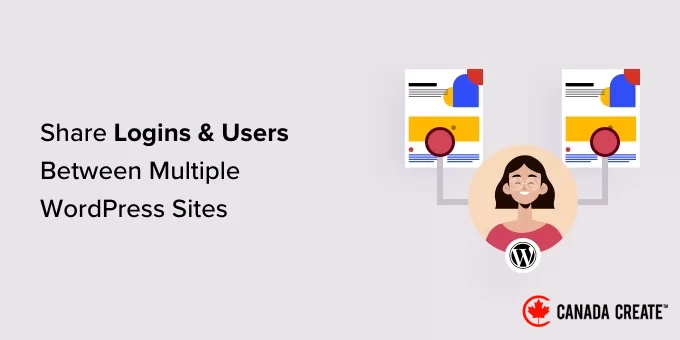
Managing multiple WordPress sites can be challenging, particularly when it comes to user accounts and logins.
Sharing customer, member, or visitor information across various sites enhances the user experience by enabling seamless logins with a single account. This approach also saves significant time when adding employees, students, or other users to multiple sites.
In this article, we will guide you through the process of effortlessly sharing users and logins across multiple WordPress websites.
WhyShould You Share Users and Logins Between Multiple WordPress Sites?
If you manage several websites, you might want to share user accounts and login details among them.
This method saves your visitors time and effort, as they only need to fill out the registration form once. For instance, you may operate a WordPress blog alongside a site dedicated to selling online courses.
When a user purchases a course from your blog, they can be automatically added to the site hosting the learning management system (LMS). This allows them to log into the LMS and begin their course without needing to register again with their email, username, and other details.
If you manage a WordPress development agency or handle multiple client websites, you might find yourself creating separate accounts for each developer, tester, and team member. Instead of this tedious process, you can streamline your workflow by registering each individual once and sharing their login credentials across all client sites.
Now, let’s explore how to effectively share users and login credentials between different WordPress websites.
Guide to Sharing Users and Login Credentials Across Multiple WordPress Sites
The most efficient method for sharing user and login information is by utilizing Uncanny Automator. This top-rated WordPress automation plugin enables you to create automated workflows that can significantly reduce your workload.
When connecting multiple sites, many people think they need to establish a WordPress multisite network. However, using webhooks can often be a simpler solution. Webhooks are snippets of code that facilitate real-time information sharing between various tools and applications.
Once you have installed Uncanny Automator, you can leverage webhooks to exchange information between WordPress websites, including user accounts and login credentials.
To begin, you need to install Uncanny Automator on the website where users will initially create their accounts. We will refer to this as the ‘source’ website.
Next, you need to install Uncanny Automator on each website that will receive data from the main site.
Finally, you will utilize automation recipes and webhooks to transfer user information from the main site to all other websites that require this data.
With that in mind, let’s explore the steps in greater detail.
Install Uncanny Automator on the Main Website
The first step is to install and activate Uncanny Automator on your main website. For detailed instructions, refer to our comprehensive guide on installing a WordPress plugin.
Important Note:There is a free version of the Uncanny Automator plugin that allows you to automate many common tasks and includes 300 automation triggers and actions. However, we will be using Uncanny Automator Pro, as it is necessary for using the ‘A user is created’ trigger.
Upon activation, you will be prompted to install the free version of the Uncanny Automator core. The free plugin has limited features but serves as the foundation for the Pro version.
Once that’s completed, navigate toAutomator » Settingsand input your license key.
You can find this information in your account on the Uncanny Automator website.
After entering the key, click the ‘Activate License’ button.
Create a New Automation Recipe
Once activated, you can begin building automated workflows in WordPress, referred to as ‘recipes’ by Uncanny Automator.
You will create a recipe that sends data to a webhook each time a user registers on your WordPress site.
To begin, navigate to the Automator » Add New page. Uncanny Automator will prompt you to choose between creating a ‘Logged-in’ recipe or an ‘Everyone’ recipe.
‘Logged-in’ recipes can only be triggered by users who are logged in, while ‘Everyone’ recipes can be triggered by any user. Therefore, select ‘Logged-in’ and then click ‘Confirm.’
You can now assign a title to this recipe by entering it in the ‘Title’ field.
This title is for your reference, so feel free to choose any name you prefer.
Add Triggers and Actions to Your Automated Workflow
Each recipe in Uncanny Automator consists of two components: Triggers and Actions.
A trigger is any event that initiates the automated workflow, such as adding new users or authors to your WordPress site. Actions are the tasks the recipe will execute, like sharing information with another website, blog, or online store.
To begin, you will need to set the trigger by selecting an integration.
Uncanny Automator is compatible with many popular WordPress plugins such as WPForms, WooCommerce, and OptinMonster. The available options may differ based on the plugins you have installed.
To begin, choose ‘WordPress’ and then select ‘A user is created.’
Next, you need to specify the action that Uncanny Automator should perform when the recipe is triggered.
To do this, click the ‘Add action’ button.
Uncanny Automator will now display all the various integrations available for your action.
To send data to a webhook, select ‘Webhooks.’
This will add a new dropdown menu.
From here, choose ‘Send data to a webhook.’
You will now see a new section where you can configure the webhook.
For now, scroll down to the ‘Body’ section.
Here, you need to define the data that Uncanny Automator should send to the receiving blogs or websites. For example, we will demonstrate how to share the user’s email address, first name, and username. We will not share the user’s password through Uncanny Automator.
Instead, Uncanny Automator will create a random temporary password. Later in this guide, we will explain how to send an email with a password reset link, allowing users to easily set their own password.
Pro Tip: Using a unique password for each account is a best practice. For more information, please refer to our comprehensive WordPress security guide.
To share the user’s email address, click on the field labeled ‘Key’ and enter ‘Email.’ This key will be used in your webhook, so make sure to note it down.
Select ‘Text’ under ‘Data Type’ if it is not already chosen.
Next, click on the asterisk next to ‘Value.’
This will display a dropdown menu with various data options you can share, such as the user’s username, first name, and last name.
To share the user’s email address, click on ‘Common’ and then choose ‘User email.’
It’s usually beneficial to share additional details, such as the user’s first name and last name.
To include more information, click the ‘Add Pair’ button.
Then, enter a key, select the data type, and choose a value from the dropdown menu, following the same steps outlined earlier.
For instance, in the following image, we are sharing the email address, first name, and username.
This setup is nearly complete, but you still need to enter the webhook’s URL. To obtain this link, you will need to configure Uncanny Automator on the site that will receive the data.
Keep the source website open in a background tab while you open a new tab.
Obtain User Login Information through a Webhook
In the new tab, log into the website, blog, or WooCommerce store that will receive the user information and login details. You can now install and activate the Uncanny Automator plugin by following the same steps outlined earlier.
Now, it’s time to create a recipe that will fetch data from the webhook and add it to a new user account.
To begin, navigate to Automator » Add New. In the popup that appears, click on ‘Everyone’ and then select ‘Confirm.’
You can now enter a title for the automated workflow.
This title is for your reference, so feel free to choose anything you like.
Under ‘Integrations,’ choose ‘Webhooks.’
In the dropdown menu, select ‘Receive data from a webhook.’
This will add a new section with the ‘Webhook URL’ already populated. Later, you will add this URL to the source website.
For now, scroll down to the ‘Fields’ section. Here, you will need to set up all the information you will retrieve from the webhook. These correspond to the key/value pairs you created in the initial automation recipe.
In the ‘Key’ field, enter the exact key you used for the first piece of information. If you capitalized ‘Email’ previously, make sure to capitalize it here as well.
Next, open the ‘Value Type’ dropdown menu and select ‘Text.’
To set up the next key/value pair, click on ‘Add Pair.’ You can repeat these steps to add all the necessary key/value pairs.
Once you have completed that, click on ‘Save.’
Configure User Data in Uncanny Automator
If you have been following the steps, Uncanny Automator will now share the user’s email address, username, and first name with the new website.
As mentioned earlier, the recipe will generate a random password, so it’s important to provide visitors with a simple way to reset their password.
The easiest method is to send an email that includes a link to your password reset page. You can also add helpful information, such as the user’s username, a link to your website, and your contact details.
To begin, click on the ‘Add action’ button.
Uncanny Automator will display all the different integrations available for use.
Click on ‘Emails’ to proceed.
In the dropdown that appears, choose ‘Send an email.’
This section introduces several pre-filled settings. By default, Uncanny Automator sends all notifications from your WordPress admin email and uses your site’s name as the ‘From name.’
To modify any of these settings, simply remove the default value.
Then, either enter the desired value or click the asterisk to select a token from the dropdown menu. These tokens will be replaced with actual information when the recipe executes, making them an excellent way to deliver personalized content to various users.
Your next step is to retrieve the user’s email address from the webhook.
To accomplish this, locate the ‘To’ field and click on its asterisk.
Next, expand the ‘Common’ section.
Once it appears, click on ‘User email.’
Uncanny Automator will display a popup indicating that you need to specify the source of the user information.
In the popup, click on ‘Set user data.’
Now, if you scroll up, you’ll notice a new section titled ‘Actions will be run on…’.
To ensure a new user account is created each time the recipe runs, select ‘New User.’
Next, you need to map each field to the information obtained from the webhook. Some fields are required, like the username and email address, while others, such as the display name, are optional.
To begin, locate the first field where you want to map data and click on its asterisk button.
In the dropdown menu, expand the ‘Receive data from a webhook’ section.
You can now select the information you wish to display in this field. In our examples, we are pulling the user’s email address from the webhook.
Repeat these steps for each field where you want to utilize the visitor’s information. Be sure to leave the ‘Password’ field blank so that Uncanny Automator can generate a random password.
By default, Uncanny Automator assigns each new user the role of subscriber. If you wish to assign a different role, open the ‘Role’ dropdown and select an option from the list.
For additional information on this subject, refer to our beginner’s guide to WordPress user roles and permissions.
Finally, you can instruct Uncanny Automator on how to handle cases where an account already exists for the provided username or email address. To avoid creating duplicate accounts, select the ‘Do nothing’ radio button.
Once you have completed these steps, click on ‘Save.’
Create a Password Reset Email
You are now prepared to design the email that Uncanny Automator will send to your users.
To begin, navigate to the ‘Send an email’ section and locate the ‘To’ field. Click on the asterisk button and select ‘User email’ from the dropdown menu.
Once that is complete, move on to the ‘Subject’ field.
Here, you can enter any text you wish to appear in the subject line. Additionally, you can personalize the email subject using tokens that Uncanny Automator will replace with actual user information.
To add a token, click the asterisk button and then expand the ‘Receive data from a webhook’ section.
You can now select the token you wish to use, such as the user’s username, first name, or last name. This allows you to create a personalized subject, potentially increasing your email open rates.
When you are satisfied with the subject line, it’s time to craft the body of the email.
Similar to the subject line, you can either type plain text directly into the editor or utilize tokens to create a personalized message. For instance, if you have retrieved the user’s first name from the webhook, you can address them directly by name.
Make sure to include a password reset link, allowing users to create their own passwords and secure their accounts.
To add this link, click on the asterisk and start typing ‘User reset password URL.’
Once the correct option appears, click to insert it into the message.
When you are satisfied with the email setup, click the ‘Save’ button.
With that completed, you are ready to activate this automated recipe.
Simply scroll up and toggle the ‘Draft’ switch to ‘Live.’
Connect Multiple WordPress Sites Using a Webhook
In the ‘Trigger’ section, locate the ‘Webhook URL.’ You may need to expand this section to see the URL.
The final step is to add this URL to the initial recipe you created on your source site. Copy the URL and return to the recipe on your original website.
In this tab, scroll to the ‘Actions’ section and find the empty ‘Webhook URL’ field. You can then paste the URL into this field.
Once that is complete, the source website is ready to share user login data and information.
To make everything live, simply toggle the ‘Draft’ switch to ‘Live.’
You now have two active Uncanny Automator recipes running on separate websites.
Whenever a user registers on the source website, Uncanny Automator will automatically share their information with the second website. The user will also receive an email containing a password reset link.
Are you interested in sharing user accounts and login details with additional websites?
Simply follow the same steps to configure Uncanny Automator on more websites. This allows you to effortlessly share user data across an unlimited number of WordPress blogs, websites, and online marketplaces.
Tip: Ensure Your WordPress Emails Are Sent Successfully
Occasionally, users may not receive your emails as intended. This issue often arises because many WordPress hosting providers do not have the mail function set up correctly.
Some hosting providers disable the mail function to prevent server misuse. This can be problematic, as users may not receive important information about creating their passwords and accessing their accounts.
Fortunately, you can easily resolve this issue by using WP Mail SMTP, the leading SMTP plugin for WordPress.
This plugin allows you to send your WordPress emails through a dependable SMTP service, specifically configured for email delivery, such as SendLayer, Gmail, and Outlook.
For more information, please refer to our guide on resolving issues with WordPress email delivery.
We trust this article has helped you understand how to automatically share users and logins across multiple WordPress sites. You might also find our beginner’s guide on changing your WordPress password useful, as well as our tutorial on emailing all registered users in WordPress.
If you enjoyed this article, please subscribe to our YouTube Channel for WordPress video tutorials. You can also connect with us on Twitter and Facebook.