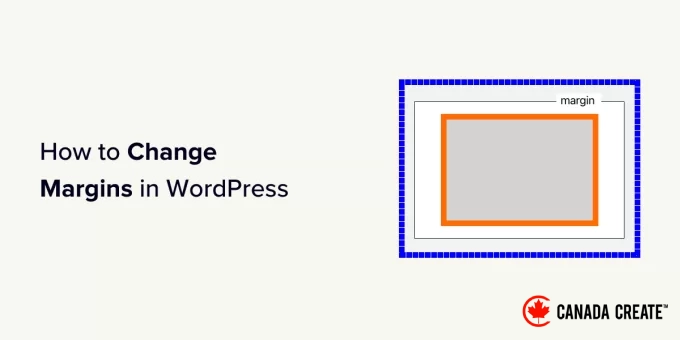
Adjusting margins in WordPress is an effective way to enhance your website’s design. Margins create space between elements, improving the readability and visual appeal of your content.
As a best practice, we consistently incorporate margins and spacing in our WordPress designs. We’ve observed that this approach positively influences user engagement with our web pages and content.
In this beginner’s guide, we will demonstrate how to add and adjust margins in WordPress. You’ll learn various methods for modifying margins in different sections of your WordPress website.
Understanding Margins in WordPress and Web Design
Margins refer to the space surrounding a web page or other elements within it.
Imagine a standard web page as a blank sheet of paper. Margins are the empty spaces along the edges of that paper.
The main purpose of using margins is to prevent elements on a web page from appearing cramped together.
Margins can also be applied around various elements within the page layout.
For example, you can adjust margins around images to ensure they aren’t too close to the text, or add a margin to create space between your content area and the sidebar.
This article contains a wealth of information. Click the links below to navigate directly to any section you wish to explore.
- Understanding the Difference Between Margin and Padding
- Reasons to Add or Modify Margins in WordPress
- Step-by-Step Guide to Adding Margins in WordPress
- How to Adjust Margins in WordPress Using the Full Site Editor
- Adjusting Margins in the Block Editor
- How to Add Margins in WordPress with SeedProd
- Modifying Margins Using Thrive Architect
- How to Change Margins in WordPress with CSS Code
- Customizing Margins with Custom CSS in Your WordPress Theme
- Applying Custom CSS to Adjust Margins in the Site Editor
- Adding Margins with CSS in the Theme Customizer
- Adjusting Margins with Custom CSS Code Using WPCode
- Common Questions About Margins in WordPress
Understanding the Difference Between Margin and Padding
Both margin and padding are essential for creating white space in web design, but they serve different purposes.
Margins create space outside an element, while padding creates space within it.
Margins are used to create space around an element, ensuring adequate separation between elements on a webpage.
Let’s explore some scenarios where using margins is beneficial.
1. Adding margins to create space between an image and text in an article.
2. Modify margins to create space between sections, such as the header and the content area.
Padding is utilized to create cushioning space between the content and the edges of a box or element.
Here are several scenarios where you might want to incorporate additional padding.
1. Adjusting padding to enhance the cushion space in your call-to-action buttons.
2. Increasing padding within a text column.
Both padding and margins play significant roles in web design.
Incorporating empty spaces provides breathing room in any design, making it more user-friendly and aesthetically pleasing.
For further information, check out our tutorial on the differences between padding and margins in WordPress.
Why You Might Need to Add or Modify Margins in WordPress?
Margins are essential in web design, as they enhance the visual appeal and usability of your website.
Our experience with A/B testing shows that the thoughtful application of white space often positively influences conversion rates.
When you design a cleaner and more organized layout, users are more inclined to spend more time on the site and complete desired actions.
WordPress themes manage the design of your website, typically implementing effective CSS rules that create ample white space through margins in the layout.
However, you might occasionally need to adjust margins to achieve your desired look.
For example, you may want to modify the margin around your navigation menus or increase the space around your call-to-action buttons.
Additionally, you might find that certain elements are either too close together or too spaced apart.
In such cases, you will need to manually adjust the margins in WordPress.
How to Adjust Margins in WordPress?
There are various methods to adjust margins in WordPress.
Depending on where you want to add margins and the options your WordPress theme provides, you’ll need to select a suitable approach.
Let’s begin with the default built-in options in WordPress, as they are the most user-friendly for beginners.
Adjusting Margins in WordPress Using the Full Site Editor
If you are using a block-based theme that supports the full site editor, you can utilize the built-in site editor to modify margins throughout your WordPress website.
A simple way to check this is by accessing your WordPress dashboard. If you seeAppearance » Editor, then you are using a block-based theme. If you see Appearance » Customize, you can skip to another method below.
First, navigate to Appearance » Editor to open the site editor.
Inside the site editor, select a template from the left column or click anywhere in the preview window.
Next, click on the area or element where you want to adjust the margins. In the right column, you will find the margin adjustment options under the ‘Style’ tab.
As you modify the margins, the editor will highlight the margin area.
You can also add margins to the top, bottom, right, or left sides.
👆 Note: Similar to the site editor, this margin option may not be available for every block. If you don’t see it, don’t worry! One of the other methods in this guide will help you achieve the desired result.
Adjusting Margins in the Block Editor
If you are editing a blog post or a page, you will be using the block editor.
The block editor in WordPress enables you to add and modify margins for different blocks.
To adjust margins, simply click on the block you wish to modify. In the block settings, navigate to the ‘Style’ tab and scroll down to find the ‘Dimensions’ or ‘Margins’ option.
👆 Important Note:The margin option may not be available for every block in the content editor. If you don’t see the margin option for a specific element, consider using the alternative method provided below.
How to Add Margins in WordPress with SeedProd
SeedProd is the leading WordPress page builder plugin available. It enables you to effortlessly create custom pages for your website.
You can even utilize it to design a custom WordPress theme from the ground up.
Many of our partner brands have built their entire websites using SeedProd and have shared their positive experiences. For more information, check out our comprehensive SeedProd review.
With SeedProd’s user-friendly drag-and-drop page builder, you can easily adjust margins for any element within the editor.
First, install and activate the SeedProd plugin. For detailed instructions, refer to our tutorial on how to install a WordPress plugin.
Next, navigate toSeedProd » Landing Pagesand click on the ‘Add New Landing Page’ button.
You will then be prompted to select a template for your page.
SeedProd offers a variety of pre-designed templates that serve as excellent starting points, or you can opt for a blank template to create your own design.
Select your desired template and give your landing page a unique name.
This action will open SeedProd’s intuitive page builder.
On the right side, you’ll see a live preview of your page, while the left column displays various elements you can add.
Simply point and click on any item on the page to make edits.
When you click on an element, it will be selected, and its options will appear in the left column. From there, navigate to the ‘Advanced’ tab and select the ‘Spacing’ option.
You can adjust the margins and padding for the selected element from this section.
After completing your edits, remember to click the ‘Save’ and ‘Publish’ buttons located in the top right corner.
Once published, you can visit your website to view the changes live.
Adjusting Margins with Thrive Architect
Thrive Architect is an easy-to-use WordPress page builder that allows you to design pages using a drag-and-drop interface.
In our testing, we discovered that it offers over 300 templates to kickstart your design. Additionally, you can use it to modify your WordPress posts and pages while maintaining the layout and style of your existing theme.
For more information, check out our comprehensive review of Thrive Architect.
Begin by logging into your account on the Thrive Themes website to install Thrive Architect.
Next, download and install the Thrive Product Manager plugin. For detailed instructions, refer to our guide on installing a WordPress plugin.
After activation, navigate to the Thrive Product Manager page.
Click the ‘Log into my account’ button to link your WordPress site with your Thrive Themes account.
Once connected, you’ll see a list of Thrive Themes products available under your account.
Select the ‘Install Product’ checkbox next to Thrive Architect, then click the ‘Install selected products’ button at the bottom of the page.
The Thrive Product Manager will now proceed to install the Thrive Architect plugin for you.
After installation, you can either edit an existing WordPress post or page or create a new one, then click on the ‘Edit with Thrive Architect’ or ‘Launch Thrive Architect’ button.
If you’re creating a new page, Thrive Architect will prompt you to select a template.
You can opt for your theme’s template to create a ‘Normal Page’ or select a ‘Pre-built Landing Page’ template.
Choosing the ‘Pre-built Landing Page’ option will display a variety of templates for you to select from.
Simply click to choose the option that best matches your desired layout.
Whether you’re working on a standard page using your theme’s styles or a dedicated landing page, Thrive Architect’s page builder offers the same robust features.
You will see a live preview of your page with a toolbar on the right side and a settings panel on the left side.
You can hover over an element and click to select it, or use the add [+] button in the toolbar to introduce a new element.
After selecting and editing an element, its settings will be displayed in the left column.
From this menu, click on the ‘Layout & Position’ tab to adjust the margins and padding.
You will see a visual guide illustrating the margin and padding areas.
Hover your mouse over any side of the margin and drag the handle to adjust the margin size.
You can repeat this process to modify the margins on any of the four sides.
When you finish, remember to click the Save Work button, then select the Save and Exit to Post Editor option.
You can now click the ‘Publish’ or ‘Save’ button to finalize your WordPress post or page.
Adjusting Margins in WordPress with CSS Code
To adjust margins in WordPress, you will need to add CSS code to your theme. A basic understanding of HTML and CSS is also necessary.
This approach offers greater flexibility, allowing you to manually select the specific areas where you wish to modify the margins.
How to Add and Modify Margins Using Custom CSS in Your WordPress Theme
WordPress enables you to save custom CSS within your theme options. Depending on your theme, there are various methods to accomplish this.
Before modifying margins with CSS, it’s important to identify the specific element you want to target with your code.
For example, if you wish to adjust the margins around the entire body of the page, you can use the following code:
body { margin:50px;
}
In this code, ‘px’ represents pixels, a standard unit of measurement for screen dimensions. By using the margin property with a single value, you can set the margin for all four sides (top, right, bottom, and left) simultaneously.
The simplest way to determine which element to target is by utilizing the Inspect tool available in your web browser.
Open your website in a new browser tab and hover your mouse over the element where you want to adjust the margins. Then, right-click and select ‘Inspect’ from the browser menu.
This action will split your browser screen, allowing you to view the HTML code and CSS that power the page.
As you move your mouse over the code, your browser will highlight the corresponding area on the page.
In the code, you will find the HTML element or CSS class that you need to target with your custom CSS. Consider this as the ‘address’ for the specific section of the page you wish to style.
You can experiment with margin adjustments here to see a live preview of how it will appear.
Keep in mind that these changes are temporary and will not be saved in your theme; they will disappear once you reload or close the browser tab.
Now, let’s explore various methods to save your custom CSS in WordPress.
Using Custom CSS to Adjust Margins in the Site Editor
If you are using a block theme that supports the full site editor, here’s how to add custom CSS to your theme.
First, navigate to theAppearance » Editorpage to open the site editor, then switch to the ‘Styles’ panel.
At the bottom of the ‘Styles’ panel, click on the ‘Additional CSS’ tab.
This will open a text editor where you can input your custom CSS code. The changes will apply immediately, allowing you to see them reflected on your screen.
Once you are satisfied with your adjustments, remember to click the ‘Save’ button to keep your changes.
Adjusting Margins with CSS in the Theme Customizer
If you are using a classic theme that does not support the site editor, you can save your Custom CSS in the theme customizer.
Navigate to the Appearance » Customize section to access the theme customizer.
The customizer will display various options based on your WordPress theme.
Click on the Additional CSS tab to expand it.
This tab will slide open to reveal a simple box where you can enter your custom CSS.
As soon as you input a valid CSS rule, you will see it applied in the live preview of your website.
Once you are pleased with the changes, click the ‘Publish’ button to save your updates.
Modify Margins with Custom CSS Code Using WPCode
The simplest way to add Custom CSS code in WordPress is by utilizing the WPCode plugin.
WPCode is the top-rated WordPress code snippets plugin that enables you to seamlessly add any CSS, HTML, PHP, or JavaScript code to your WordPress site without causing any issues.
Our assessment revealed that WPCode is extremely user-friendly. For a comprehensive overview of our experience, check out our in-depth WPCode review.
One of the key benefits of using WPCode is that your CSS modifications will remain intact even when you change your WordPress theme.
👆 Important Note:There is a free version of WPCode available for you to use.
To get started, the first step is to install and activate the WPCode plugin. For detailed instructions, refer to our tutorial on installing a WordPress plugin.
Once activated, navigate to the Code Snippets » + Add New page.
Hover over the ‘Add Your Custom Code (New Snippet)’ option in the code snippets library and click the ‘Use snippet’ button.
Next, at the top of the page, enter a title for your custom CSS snippet. Choose a name that will help you easily identify the code.
Then, write or paste your custom CSS into the ‘Code Preview’ box and select the ‘Code Type’ by choosing the ‘CSS Snippet’ option from the dropdown menu.
For example, if you want to add or modify the margins around the entire body of your web page, you can use the following CSS code:
body { margin:50px;
}
Next, scroll to the ‘Insertion’ section and choose the ‘Auto-Insert’ method to apply the code site-wide on your WordPress site.
If you prefer to run the code on specific pages or posts, opt for the ‘Shortcode’ method.
👉 Related Post: Essential Tips for Effectively Using Shortcodes in WordPress
Now, return to the top of the page and switch the toggle to ‘Active’.
Finally, click the ‘Save Snippet’ button to save your changes.
You can now visit your website to see your custom CSS in action.
Frequently Asked Questions About Margins in WordPress
Here are some common questions readers have about adding margins in WordPress:
What is the difference between margin and padding?
Margin refers to the space outside an element’s border, creating distance from other elements. Padding is the space within an element’s border, providing a cushion between the content and the border itself.
Think of margin as the spacing between picture frames on a wall, while padding is the matting inside a single picture frame.
For additional insights, check out our comprehensive guide on the differences between padding and margin in WordPress.
How can I adjust margins specifically for mobile devices?
To modify margins for mobile, utilize CSS media queries, which allow you to apply distinct styles based on varying screen sizes.
Page builder plugins such as SeedProd provide device-specific controls, making it simple to adjust margins for desktop, tablet, and mobile views.
Why is the margin option not visible for a particular block in the WordPress editor?
Not every WordPress block includes built-in margin controls; this may vary depending on your theme.
If the margin option is absent, you can enclose the block within a Group block, which does offer margin and padding settings. Alternatively, you can apply custom CSS methods to target the block directly.
Is it preferable to use a plugin or custom CSS for margin adjustments?
For beginners, a page builder plugin like SeedProd is usually more user-friendly as it offers a visual interface.
For more experienced users or for site-wide changes, custom CSS provides greater control and precision.
Using a plugin like WPCode to incorporate your CSS is an excellent option because it safeguards your code during theme updates or changes.
We trust this guide has equipped you with the skills to adjust margins in WordPress. Additionally, you might be interested in learning how to display images side by side or how to add underline and justify text options in WordPress.
If you enjoyed this article, consider subscribing to our YouTube Channel for more WordPress video tutorials. You can also connect with us on Twitter and Facebook.