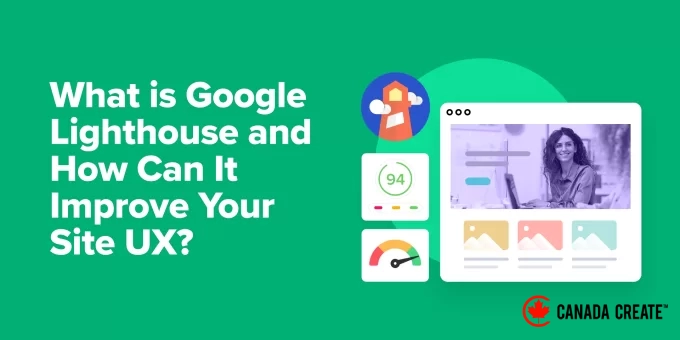
Your website may be losing visitors before they even engage with your content, often due to unseen performance issues. We strongly recommend utilizing Google Lighthouse to identify these problems.
Google Lighthouse is a complimentary tool aimed at enhancing the user experience (UX) of your website. It helps you uncover potential issues, allowing you to create a more effective site overall.
We have successfully utilized Google Lighthouse to enhance the performance of the Canada Create™ website. Additionally, we leverage it to produce site speed and performance reports for clients enrolled in our Site Speed Optimization Service.
Whether you’re new to website management or have years of experience, Google Lighthouse can uncover hidden problems that may be affecting your visitor retention and conversion rates. In this article, we’ll introduce you to Google Lighthouse and guide you on how to use it to enhance your site’s UX.
What Is Google Lighthouse?
Website visitors anticipate fast WordPress performance, engaging content, and seamless browsing experiences without frustration. This includes quick-loading web pages, but other elements can also enhance the overall user experience on your site.
This is where Google Lighthouse can make a significant difference.
Google Lighthouse is a free, open-source tool that enhances user experience and the overall quality of your web pages. By addressing the issues it highlights, you can engage your visitors more effectively, increase page views, and enhance your WordPress SEO.
Utilize Lighthouse to conduct a thorough user experience audit for your website, enabling you to enhance your site’s usability.
- It begins by evaluating your website’s performance, accessibility, SEO, and adherence to best practices.
- Following the analysis, it produces detailed reports with actionable insights to guide your improvement efforts.
- It can also simulate your website’s performance across various devices and network conditions, allowing you to optimize for both mobile and desktop users.
- Lighthouse offers links to documentation that can assist you in resolving identified issues.
Enhancing Your Site’s User Experience with Google Lighthouse
By leveraging Google Lighthouse and implementing its suggestions, you can greatly enhance your website.
Let’s explore some specific ways Lighthouse can assist you in creating a superior user experience.
Accelerated Loading Times to Maintain Visitor Engagement
Google Lighthouse detects performance issues like slow-loading images, inefficient code, and inadequate caching. By optimizing these factors, you can significantly enhance your page loading speed.
This improvement leads to a superior user experience, which is crucial since users are far more likely to abandon a website that takes too long to load.
In addition to user satisfaction, website speed is vital for SEO. Search engines penalize slow sites by reducing their rankings, so optimizing your WordPress site can improve its visibility in search results.
Improved Accessibility for a More Inclusive Website
Google Lighthouse assists in identifying accessibility challenges, ensuring your website is usable for individuals with disabilities.
Enhancing your website’s accessibility expands your audience and enriches the user experience for everyone. If you operate an online store, this can also lead to increased sales opportunities.
Moreover, accessibility plays a significant role in SEO. Search engines favor user-friendly websites when determining rankings, and accessibility is a crucial aspect of user-friendliness.
Optimized Mobile Experience to Engage More Users
Google Lighthouse evaluates your website’s mobile-friendliness and helps pinpoint issues that could negatively impact the mobile user experience.
With people spending a significant amount of time on their smartphones daily, it’s essential to ensure your content is fully optimized for mobile devices.
Since search engines now prioritize mobile-first indexing, the mobile experience of your site is crucial for proper indexing by search engines.
Enhanced SEO for Increased Visibility
Lighthouse evaluates common SEO best practices and assists in improving how easily search engines can locate and comprehend your website.
The combination of performance enhancements and user experience improvements makes Lighthouse an invaluable tool for boosting your website’s search engine optimization.
Enhanced User Engagement
Ultimately, all these enhancements contribute to a superior user experience.
By achieving faster loading times, improved accessibility, and a better mobile experience, you can enhance user engagement, reduce bounce rates, and increase conversions on your website.
How to Utilize Google Lighthouse
Google Lighthouse can be accessed through various methods, allowing you to select the one that suits you best.
1. Chrome DevTools (Built-In)
If you are using Google Chrome, the fastest way to access Lighthouse is through the built-in Chrome DevTools.
Open an incognito window and navigate to the webpage you wish to analyze.
Next, access Chrome DevTools by selecting View » Developer » Inspect Elements from the menu. Alternatively, you can right-click on the page and choose ‘Inspect’ or simply press the F12 key on your keyboard.
The developer tools will appear in a panel on the right or bottom of the page. Click on the ‘Lighthouse’ tab located at the top.
Then, choose your desired options, such as testing the mobile or desktop version of the page and selecting the audit categories you want to include.
Finally, initiate the test by clicking the ‘Analyze page load’ button.
2. Chrome Extension (Optional)
For more convenient access to Lighthouse, consider installing the official Lighthouse extension for Chrome. Make sure to adjust the extension’s settings to enable it in incognito mode.
You can then launch Google Lighthouse by clicking on the extension’s icon. Select your preferred options and view the results in a Lighthouse viewer or export them to Google PageSpeed Insights.
3. PageSpeed Insights (Web-Based)
Google’s PageSpeed Insights tool provides an easy way to evaluate your website’s performance with Google Lighthouse. It’s also an effective method to assess your Google Core Web Vitals score.
At Canada Create™, we utilize this tool to enhance our page load speed.
Visit the PageSpeed Insights website and input the URL of the page you want to analyze. After clicking the ‘Analyze’ button, you’ll receive results that include insights from Google Lighthouse.
4. WebPageTest (Advanced Option)
For more advanced testing features, such as assessing performance from various geographic locations, consider using WebPageTest. This tool is ideal for intermediate WordPress users and developers.
Select ‘Lighthouse’ from the dropdown menu and enter the URL of the website you want to test. You can also choose the geographic location for the test.
When you’re ready, simply click the ‘Start Test’ button.
How to Evaluate Your Website’s User Experience Using Google Lighthouse
To conduct a thorough user experience (UX) audit of your website with Google Lighthouse, start by accessing the tool through one of the methods mentioned earlier.
After opening Lighthouse, configure the settings before initiating the audit.
Pro Tip:We suggest creating a staging version of your website to address any issues identified in the Google Lighthouse report. This approach ensures that your live website’s performance remains unaffected.
Begin by selecting the types of audits you wish to conduct.
You can evaluate your site’s performance, accessibility, and SEO, as well as review other best practices. You can choose a single category or a combination, but for a thorough user experience audit, it’s advisable to check all options.
Next, decide whether you want to test the mobile or desktop version of your website. Regularly testing both versions is recommended to ensure a positive experience for all users.
Depending on the tool you’re using, you might have additional options, such as selecting a specific geographic location for testing.
When you’re ready, click the ‘Analyze page load’ button (or a similar option) to start the audit.
Lighthouse will provide you with a score out of 100 for each audit. These scores are color-coded for easy interpretation:
- Green (90-100):Your website excels in this area.
- Orange (50-89):Your website requires improvements in this area. Review the recommendations to enhance your score.
- Red (0-49):Your website’s performance in this area is lacking and needs significant enhancements. Focus on resolving these issues.
Once the scores are displayed, you can review the detailed reports for each category.
Performance Audit
The Performance section of the Lighthouse report provides a score and links to resources for optimizing your website’s performance.
You will also see essential performance metrics, including your Speed Index and Core Web Vitals.
These metrics are color-coded to help you easily identify what requires attention.
By clicking the ‘Expand View’ link, you can access more details about these metrics and identify areas for improvement.
Lighthouse pinpoints performance bottlenecks that hinder your website’s speed and offers recommendations for optimization. Pay special attention to the recommendations marked in red, as they will have the greatest impact.
You can click the arrow next to each recommendation for more detailed information.
Here are some useful articles that guide you on how to tackle common performance recommendations from Google Lighthouse:
- Ultimate Guide to Optimizing Core Web Vitals for WordPress
- How to Optimize Images for Web Performance Without Sacrificing Quality
- How to Resolve Render-Blocking JavaScript and CSS Issues in WordPress
- How to Properly Remove Unused CSS in WordPress
- How to Minify CSS and JavaScript Files in WordPress
- Top WordPress Caching Plugins to Enhance Your Website’s Speed
- How to Easily Address Leverage Browser Caching Warnings in WordPress
- How to Prevent Large Network Payloads in WordPress: 8 Expert Tips
- How to Implement Lazy Loading for Images in WordPress
- The Comprehensive Guide to Enhance WordPress Speed and Performance
Accessibility Audit Overview
The Accessibility section of the report identifies issues that could hinder users with disabilities from accessing your content.
Lighthouse evaluates whether your website adheres to accessibility best practices, such as utilizing ARIA attributes for better assistive technology support, employing high-contrast colors for improved readability, and enabling keyboard navigation for users who do not use a mouse.
You can click on each recommendation to gain further insights and identify which specific page elements are impacted.
For guidance on enhancing your website’s accessibility, refer to this step-by-step guide:
- How to Enhance Accessibility on Your WordPress Site
Recommended Best Practices
The Best Practices section evaluates whether your website is designed securely and adheres to modern web development standards. It assesses if you are implementing the latest techniques that enhance user experience and security.
You can leverage this information to enhance your site’s security and user-friendliness.
Here are some useful articles that guide you on resolving common best practices issues:
- A Beginner’s Guide to Properly Migrating WordPress from HTTP to HTTPS
- How to Scan Your WordPress Site for Potential Malicious Code
- Expert Tips for Creating a Mobile-Friendly WordPress Site
- The Comprehensive WordPress Security Guide – Step by Step
- How to Conduct a Complete WordPress Security Audit (Checklist Included)
SEO Audit
The SEO section of the Lighthouse report outlines strategies to enhance your website’s visibility on Google and other search engines.
It identifies issues that may hinder users from discovering your website, such as missing image alt text, non-descriptive link text, or pages that search engines cannot index.
Addressing these issues is crucial as it enables search engines to better understand your content, thereby assisting users in finding it.
Explore these informative articles that guide you on how to implement essential SEO best practices.
- A Comprehensive Guide to Adding Keywords and Meta Descriptions in WordPress
- The Complete Guide to Internal Linking for SEO Best Practices
- Step-by-Step Instructions for Adding Schema Markup in WordPress and WooCommerce
- The Ultimate SEO Guide for WordPress Beginners: A Step-by-Step Approach
- Essential WordPress SEO Checklist for New Users
- Beginner’s Guide to Image SEO: How to Optimize Your Images for Better Search Engine Rankings
Expert Tip:If the Lighthouse report highlights numerous complex issues, consider seeking professional assistance. Our Site Speed Optimization Service offers expert solutions to resolve any issues identified by Lighthouse, enhancing your site’s speed and overall performance. Pricing starts at $699. Reach out to our team for a complimentary consultation today!
Common Questions About Google Lighthouse
Here are concise answers to the most frequently asked questions regarding Google Lighthouse:
1. What is Google Lighthouse?
Google Lighthouse is a free, open-source tool that automatically evaluates your website’s performance, accessibility, SEO, and more. It produces in-depth reports with actionable recommendations to help enhance your website.
Consider it a complimentary website quality assessment tool that you can start using immediately.
2. How does Google Lighthouse enhance my website’s user experience (UX)?
Google Lighthouse helps enhance your site’s UX by pinpointing problems that may hinder your website’s speed, accessibility, and overall usability. By addressing the issues highlighted by Lighthouse, you can significantly improve the experience for your visitors.
This may involve optimizing loading times, enhancing site accessibility, boosting mobile performance, and improving SEO.
3. Is it necessary to be a developer to utilize Google Lighthouse?
No, you do not need to be a developer to use Google Lighthouse. You can conduct a Lighthouse audit using the built-in feature in the Chrome browser or by visiting the Google PageSpeed Insights website.
Both tools are user-friendly for individuals of all skill levels. However, having a basic understanding of web development may help you better interpret the results.
4. Where can I find Google Lighthouse?
You can access Google Lighthouse in several ways, including the ‘Lighthouse’ tab in the Developer Tools of Google Chrome, the official Lighthouse Chrome extension, Google PageSpeed Insights, or the WebPageTest website.
5. What types of audits does Google Lighthouse conduct?
Google Lighthouse conducts various audits, including performance audits that assess your site’s speed and loading times, accessibility audits that ensure your site is user-friendly for individuals with disabilities, and SEO audits that verify your site adheres to effective search engine optimization standards.
6. How can I resolve the issues identified by Google Lighthouse?
Google Lighthouse offers recommendations and links to helpful documentation to assist you in resolving any identified issues. These suggestions may include optimizing images, minifying code, and utilizing a content delivery network (CDN).
We have compiled a list of Canada Create™ tutorials that address these issues, and you may require assistance from a developer for more complex problems.
7. How frequently should I conduct a Google Lighthouse audit?
We suggest running a Lighthouse audit regularly, such as once a month. Additionally, you should perform an audit after implementing significant changes to your website.
Regular audits will help ensure that your site remains fast, accessible, and user-friendly.
8. Does enhancing my Lighthouse score guarantee improved search engine rankings?
Improving your Lighthouse score is a crucial aspect of SEO best practices, even though it doesn’t guarantee higher search engine rankings.
A website that is fast, accessible, and user-friendly enhances the user experience, which can lead to improved rankings over time. It also meets essential ranking factors such as site speed.
9. Is Google Lighthouse available for free?
Yes, Google Lighthouse is entirely free to use.
We hope this tutorial has helped you understand Google Lighthouse and its benefits for enhancing your website’s user experience. You might also find our guide on the importance of a CDN for your WordPress blog helpful, as well as our expert recommendations for the best heatmap and session recording tools and plugins for WordPress.
If you enjoyed this article, please subscribe to our YouTube Channel for WordPress video tutorials. You can also connect with us on Twitter and Facebook.