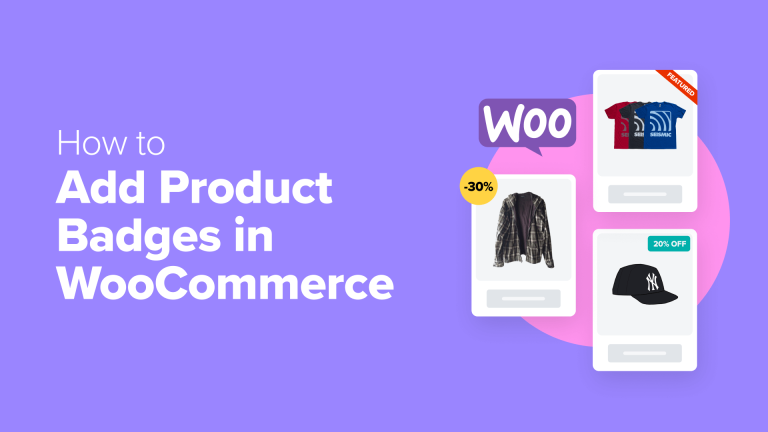
A common trait of successful online stores is how easily they guide shoppers to top products.
A key problem is that when products appear similar, it’s hard for customers to identify sale items, new products, or recommended items. Product badges solve this.
These small visual cues quickly communicate each product’s unique aspects. A ‘New’ badge can pique interest, and a ‘50% Off’ badge can create a sense of urgency.
From our experience optimizing WooCommerce stores, product badges are small tweaks with significant impact.
We’ve tested multiple methods and identified two approaches suitable for both beginners and experienced users. Let’s explore the simplest ways to begin.
☝ Important Note: This tutorial requires a functioning WooCommerce store. If you haven’t set one up, see our complete WooCommerce guide for beginners.
What Are WooCommerce Product Badges?
Have you ever noticed ‘Sale’ or ‘New’ labels on products while browsing online stores?
Those are product badges, and they are very helpful for highlighting specific items in your online store.
Consider them virtual stickers. They draw customers’ eyes to important product information, such as sales, new arrivals, or limited-time promotions.
We’ve observed store owners creatively using product badges to feature special deals, spotlight bestsellers, or indicate items with limited availability.
Now, if you’re already using WooCommerce, you might have noticed it comes with a basic sale badge feature that automatically appears when you reduce a product’s price.
While the WooCommerce sale badge works fine for simple needs, let’s be honest – it’s pretty limited in terms of what you can do with it.
You can’t easily change how the badge looks, add new badge types, or control exactly where they appear on your product images.
Meanwhile, custom product badges allow you to show your brand’s personality more. Most importantly, though, original badges can more effectively draw attention to special products.
That way, you can drive more sales in your online store. 💰
In this guide, we’ll walk you through 2 proven methods to add and customize product badges in WooCommerce. Both approaches will give you complete control over how they look and work.
You can use the quick links below to skip to your preferred method:
- Method 1: Use YITH WooCommerce Badge Management (More Customizable)
- Method 2: Use Custom Code (Free and Simple)
- Discover More WooCommerce Tips and Tricks
- Frequently Asked Questions: Product Badges in WooCommerce
Method 1: Use YITH WooCommerce Badge Management (More Customizable)
Let’s start with our favorite tool for adding custom product badges to your WooCommerce store.
We recommend using YITH WooCommerce Badge Management because it makes it super easy to add and customize product badges in your online store.
Plus, we’ve tested many YITH plugins over the years, like the ones for adding subscriptions and product videos, and they always work great for our users.
Do you want to feature a distinctive badge during seasonal sales? Or perhaps showcase the savings customers will receive? This plugin enables these options. You even have the ability to schedule badges to appear at specific times and subsequently hide them.
You have the option to begin with either the complimentary or enhanced edition of the plugin. The no-cost version is suitable if your goal is to incorporate straightforward text or image badges onto your product displays.
This guide will demonstrate the utilization of the premium version; however, the majority of the steps are applicable to both versions. Remember that some advanced features, such as badges that automatically display discount percentages, are exclusive to the premium version.
✌ NoteNotice: The premium version, offering comprehensive functionalities, is priced at $79.99 annually. Although this may seem substantial, we believe its value lies in the extensive customization options it provides for your product badges, allowing you to achieve your desired aesthetic.
Are you prepared to begin? First, acquire the plugin from the YITH website.
Afterward, access your YITH account, navigate to the ‘Licenses & Downloads’ area, and select ‘Download Plugin’ to retrieve the file.
A helpful suggestion: keep this page open after downloading, as you will require the license key displayed there.
Then, access your WordPress admin panel and proceed to install the plugin. Refer to our detailed instructions on installing a WordPress plugin for supplementary guidance.
Upon activation, a configuration panel will prompt you for your YITH email and license key. Simply transfer these details from the YITH website and select ‘Activate license.’
Upon confirmation that your license is active, you are ready to proceed!
Now, click ‘Go to plugin dashboard,’ and you can start creating your first custom badge.
Step 1: Hide the Default WooCommerce Sale Badge
Initially, the default WooCommerce sale badge should be hidden, preventing conflicts with custom product badges.
The process is straightforward. In your WordPress dashboard, selectYITH » Badge Management. Then, navigate to the ‘General Settings’ tab.
There, you will see the option, ‘Hide WooCommerce “On sale” badge.’ Enable it.
Then, under ‘Hide “On sale” on:’, select ‘All products’ to make sure the default badge doesn’t show up anywhere in your store.
While in the settings, note the other useful options available. You have the option to hide custom badges in particular locations, such as the sidebar or individual product pages.
This is beneficial for maintaining a clean, organized storefront. If your mobile site appears cluttered, consider hiding badges there as well.
After making your selections, remember to click the ‘Save Options’ button located at the bottom of the page.
Step 2: Create Your Custom Badge
Now comes the fun part: creating your first custom product badge in WooCommerce!
Head over to the ‘Badges’ tab and click the ‘Create Badge’ button to get started.
The plugin provides four badge options: text, image, CSS, or advanced for sales products.
Each type enables the creation of distinctive product highlights. For instance, the initial three options are well-suited for marking products as “New Arrival” or “Vegan Friendly.”
A useful suggestion: For discount badges, utilize the advanced option; it dynamically updates with product price changes.
After selecting a badge type, assign a descriptive name for easy identification.
If you’ve selected an image, CSS, or advanced badge, the plugin presents numerous pre-designed options.
Choose a pre-designed badge to save time, and customize it to align with your WooCommerce store’s branding.
The customization options in this plugin are extensive. Tailor various settings based on your selected badge type to achieve the perfect appearance on product images.
Changing the color is straightforward.
Adjusting the transparency is also simple.
You have the flexibility to rotate the badge or reposition it on the product image for optimal placement.
For our example, we made the badge really pop by changing its color to red and placing it in the top right corner of the product image.
These subtle adjustments can significantly improve a badge’s effectiveness in capturing attention.
Once satisfied with the appearance, click ‘Save badge’ to finalize the setup.
Step 3: Create a Rule to Display Your Badge
With the custom badge created, specify when and where it should appear within WooCommerce.
Head over to the ‘Badge Rules’ tab and click ‘Set Rule.’
Badge rules dictate the conditions for displaying badges on product images.
The plugin gives you 4 main ways to control where your badges show up: products badge, category badge, tag badge, and shipping class badge.
You can choose the ‘Products badge’ rule to add badges to certain items or the ‘Category badge’ rule to cover entire product categories.
Meanwhile, the tag badge rule shows badges on products sharing the same WooCommerce tag, and the shipping class badge rule displays badges based on shipping options.
Each rule targets different product aspects, but they all work in a similar way. So, you just need to pick what works best for your needs.
Let’s use the products badge rule for this example since it’s the most common choice.
Next, give your rule a straightforward name so you can find it easily later.
Then, look for the ‘Show badge in:’ setting. This is where you decide which products get your badge. You can choose to show it on all products, recent additions, items on sale, featured popular products, or even just products that are in stock.
Let’s say you’re creating a rule for sale items. If you select ‘On sale products,’ then your badge will automatically appear whenever you mark a product as being on sale. It’s that simple!
But some options come with more settings for you to configure. For example, if you pick ‘Only recent Products,’ you can set badges to appear on items added within the last few days (like 7, 14, or 30 days).
This makes it super easy to automatically highlight new arrivals in your store without manually adding badges to each product.
Sometimes, you might want to keep certain products badge-free. That’s where the ‘Exclude products’ setting comes in handy.
Activate this setting and enter the names of products that should not display the badge. These products will not show the badge, regardless of other active rules.
Then, from the ‘Badge to assign’ dropdown, choose the badge design you wish to use.
Here’s where things become adaptable; you can schedule when badges appear and determine the audience.
The ‘Schedule rule’ option is ideal for time-sensitive promotions.
Upon enabling this, you’ll be prompted to specify the start and end dates for the badge’s visibility.
Furthermore, you can present unique badges to specific customers, such as a “VIP Discount” badge exclusively for your most valued customers.
Achieve this by selecting ‘Only specific users or user roles’ within the ‘Show badge to’ setting, and then input the relevant user roles or usernames in the field provided.
Once satisfied with your settings, click ‘Save Rule’ to finalize the process.
Visit your store’s frontend to observe your newly implemented product badges.
If you’ve applied the advanced badge type to sale items, it will showcase both the discount percentage and the absolute savings, enabling shoppers to easily identify the best offers.
💡 Related Post: Looking for more cool tools and strategies to improve your WooCommerce store? Check out our list of the best WooCommerce plugins.
Method 2: Use Custom Code (Free and Simple)
If you don’t need the advanced options from the first method, or if you’re looking for a completely free option, then we have a simple code method that won’t cost you anything.
If coding is not your strength, the WPCode plugin simplifies the process, enabling safe addition of custom code to WordPress without specialized knowledge or risking site errors.
This tutorial utilizes the free WPCode version, which meets our requirements. A premium version exists, offering features like AI-assisted code creation and a testing environment.
For more information, just check out our in-depth WPCode review.
Begin by installing the WordPress plugin directly from your admin dashboard.
Then, go to Code Snippets » + Add Snippet. Hover over the ‘Add Your Custom Code (New Snippet)’ section and then click on the ‘+ Add Custom Snippet’ button.
Next, select ‘PHP Snippet’ when prompted for the code classification.
This selection informs WordPress about the code’s function.
Next, assign a descriptive name to your snippet for easy identification.
Considering this code removes the standard WooCommerce sale badge while implementing new product and dynamic discount badges, a name like “Custom WooCommerce Badges” is suitable.
With the snippet named, paste the provided code into the ‘Code Preview’ area below.
This code performs automatic discount percentage calculations and displays them on the sales badge. It also applies a “New” badge to products added within the past week.
// Remove default WooCommerce sale flash badge
remove_action( 'woocommerce_before_shop_loop_item_title', 'woocommerce_show_product_loop_sale_flash', 10 );
remove_action( 'woocommerce_after_shop_loop_item_title', 'woocommerce_show_product_loop_sale_flash', 10 );
remove_action( 'woocommerce_before_single_product_summary', 'woocommerce_show_product_sale_flash', 10 );
// Add custom badges to products
add_action( 'woocommerce_before_shop_loop_item_title', 'add_custom_product_badges', 10 );
function add_custom_product_badges() { global $product; // Initialize a variable to track whether a badge has been displayed $badge_displayed = false; // For products with any amount of discount percentage (1% or more) if ( $product->is_on_sale() ) { // Get regular and sale prices $regular_price = floatval( $product->get_regular_price() ); $sale_price = floatval( $product->get_sale_price() ); // Handle variable products if ( $product->is_type('variable') ) { // Get variation prices $regular_price = floatval( $product->get_variation_regular_price( 'max', true ) ); $sale_price = floatval( $product->get_variation_sale_price( 'min', true ) ); } // Calculate discount percentage if regular price is valid if ( $regular_price > 0 ) { $discount_percentage = ( ( $regular_price - $sale_price ) / $regular_price ) * 100; // Display badge if discount is 1% or more if ( $discount_percentage >= 1 ) { echo '' . round( $discount_percentage ) . '% off!'; $badge_displayed = true; // Badge has been displayed } } } // Only show the "New" badge if no other badge has been displayed if ( ! $badge_displayed ) { // For "New" products added in the last 7 days $post_date = get_the_time( 'Y-m-d', $product->get_id() ); $post_stamp = strtotime( $post_date ); $newness = 7; // Number of days the product is considered new // Check if the product is new if ( ( time() - ( 60 * 60 * 24 * $newness ) ) < $post_stamp ) { echo 'New'; $badge_displayed = true; } }
}
If you want to modify the duration a product is labeled as ‘new,’ find the line that reads:$newness = 7You can replace the number ‘7’ with your preferred duration in days. For instance, use ’14’ for two weeks or ’30’ for a month.
To finalize the process, toggle the ‘Inactive’ button to ‘Active,’ and then click ‘Save Snippet.’
Now, let’s style the badges to enhance their appearance on your products. We will add some CSS to customize how they look.
To include a new snippet, repeat the earlier steps, but this time, select ‘CSS Snippet’ when prompted.
Assign a descriptive name to your snippet, such as “Product Badge Styles.” This naming convention simplifies future identification and modification.
Here’s the CSS code that will make your badges look professional. Just paste this into the ‘Code Preview’ box:
/* Common styles for all product badges */
.product-badge { position: absolute; top: -10px; /* Position at the top edge */ right: -10px; /* Position at the right edge */ padding: 12px 16px; border-radius: 50%; color: #ffffff; font-size: 16px; font-weight: bold; z-index: 99; box-shadow: 0 2px 5px rgba(0, 0, 0, 0.3);
}
/* Styles for the "New" badge */
.new-product { background-color: #4CAF50; /* Green background */
}
/* Styles for the "Sale" badge */
.sale-product { background-color: #FF0000; /* Red background */
}
Let’s examine the customizable elements within this code.
To reposition your badges, modify the top and right properties. As an example, altering top: -10px to top: 10px shifts the badge downward.
To customize the colors, simply locate the background-color lines and replace the color codes.
For example, to change a red badge to blue, replace #FF0000 with #0000FF. You can also adjust the badge size by modifying the font-size property.
For a deeper dive into CSS styling, consult our introductory guide to CSS in WordPress.
After customization, toggle the ‘Inactive’ button to ‘Active,’ and then click ‘Save Snippet.’
All done!
Your product images should now display the badges. This is how ours appear using the provided CSS code:
Discover More WooCommerce Tips and Tricks
Now that you know how to display product badges in WooCommerce, you might want to explore other ways to improve your online store. Here are some helpful guides we recommend:
- Boost sales with smart upselling – Learn how to strategically promote related products and increase your average order value through effective upsell tactics.
- Reward customer reviews with coupons – Discover how to automatically send discount coupons to customers who leave product reviews, encouraging more feedback and repeat purchases.
- To significantly increase WooCommerce sales, explore methods for displaying intelligent product recommendations.
- Discover techniques to showcase ‘frequently bought together’ items in WooCommerce, a strategy for increasing overall sales.
- Equip your store with sophisticated product filtering. Provide customizable filters that streamline the shopping experience, allowing customers to pinpoint their desired items with greater ease.
- Discover the benefits of a customer wishlist feature; learn how it can enhance customer interaction, encourage return visits, and offer crucial data regarding customer inclinations.
- Explore the method to conceal prices in WooCommerce, applicable for wholesale clients, digital catalogs, or high-end items, and prompt buyers to get in touch or sign in for pricing details.
Frequently Asked Questions: Product Badges in WooCommerce
Below are typical inquiries from readers concerning the implementation of product badges within WooCommerce.
Is it possible to design unique badges such as ‘Hot,’ ‘New,’ or ‘Limited Stock’?
Indeed, a majority of product badge plugins enable personalized badge creation, affording control over text, color schemes, and visual elements, going beyond typical options like ‘Sale’ or ‘New’.
Consider these badge examples:
- Trending Now!
- Only 2 Left!
- Staff Pick
- 100% Organic
Certain platforms provide the functionality to upload custom badge visuals or implement dynamic labels derived from inventory levels or pricing specifics.
Are product badges responsive on mobile platforms?
Yes, most badge plugins are responsive, which means your badges will appear correctly on all screen sizes, including smartphones and tablets.
However, the placement and design of the badge may depend on your theme.
It’s a good idea to test your store on mobile after adding badges to make sure they’re not overlapping important content or making product images hard to see.
Can I display multiple badges on the same product?
It depends on the plugin or method you’re using. For instance, the YITH WooCommerce Badge Management plugin supports multiple badges per product, while others may allow only one at a time.
If you want to show multiple labels like ‘Sale’ and ‘Best Seller’ together, look for a plugin that offers badge layering or stacking. Always check the plugin settings or documentation to confirm this feature is supported.
Will product badges slow down my WooCommerce store?
Not usually—especially if you use a well-coded plugin. However, avoid using large image files for badges, and don’t overload your product pages with multiple badges or animations.
To keep your store fast:
- Choose lightweight, optimized plugins
- Use text-based badges when possible
- Limit badge use to featured products or categories
We hope this article has helped you learn how to add product badges in WooCommerce. You may also want to check out our expert picks of the best WooCommerce product grid plugins and our guide on how to speed up WooCommerce performance.
If you liked this article, then please subscribe to our YouTube Channel for WordPress video tutorials. You can also find us on Twitter and Facebook.